


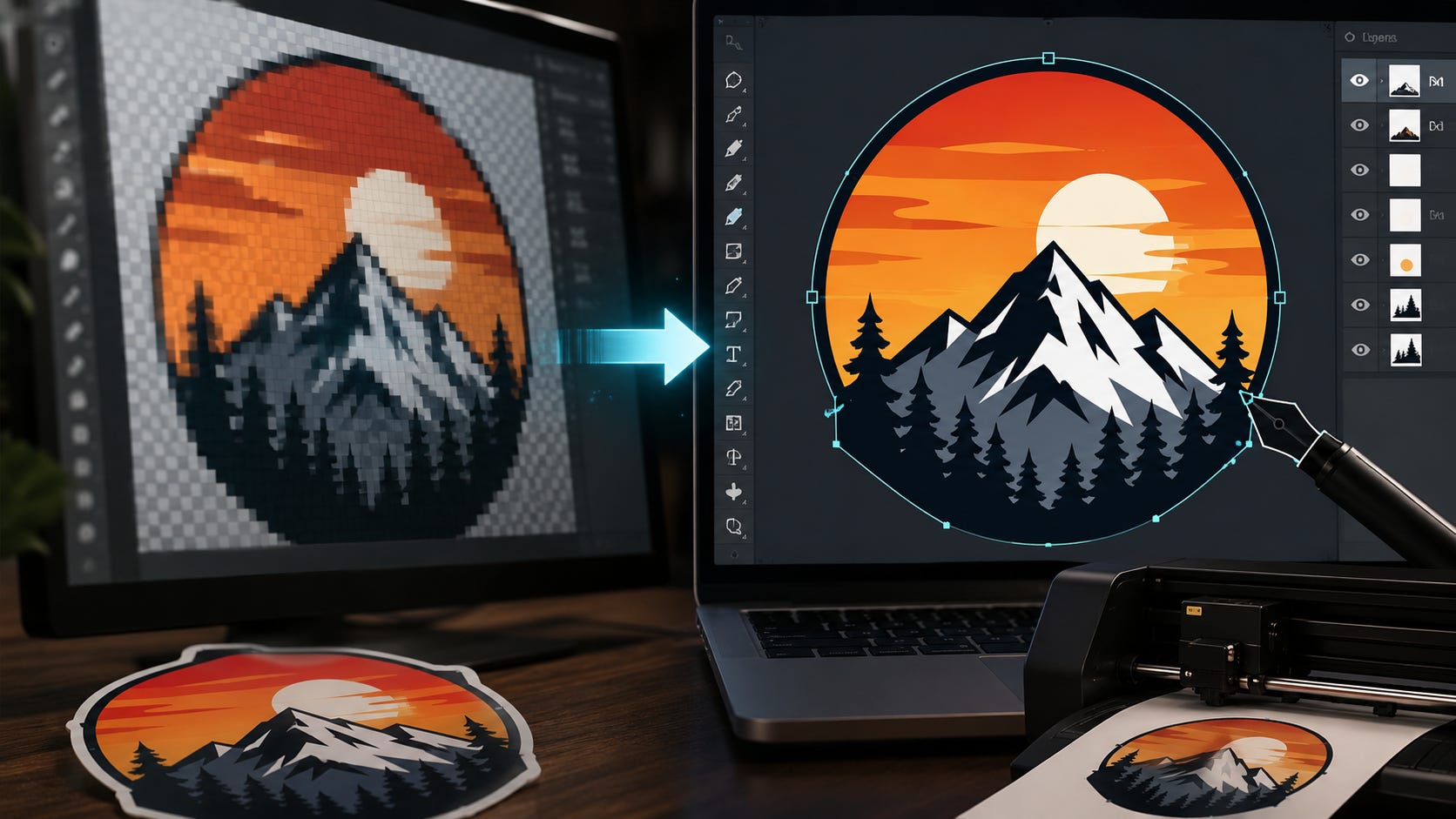
If you are searching for the best AI image to vector converter online in 2026, you are probably trying to fix a real production problem, not chase another shiny AI tool. You have a PNG logo, a JPG illustration, a scan, a rough sketch, a low-resolution sticker design, or an AI-generated image that needs to become a real vector file. The goal is simple: clean paths, crisp edges, scalable artwork, and a file that works in Illustrator, Affinity Designer, Inkscape, Cricut Design Space, laser cutting software, print shops, embroidery workflows, and client brand folders.
That need shows up constantly in design communities. A recent Reddit discussion about converting a PNG to SVG captures the same problem many readers hit: an image looks fine on screen, then falls apart when it needs to scale, print, cut, engrave, or become part of a larger design system.
Vectors matter because they are made from paths and shapes rather than a fixed grid of pixels. A good SVG, PDF, EPS, DXF, or AI file can scale from a website icon to a banner without becoming blurry. That is why vector files are still the backbone of logos, decals, screen printing, embroidery, signage, laser cutting, packaging, web graphics, and merch production. Adobe’s SVG converter page describes SVG as a scalable vector format that can be resized without losing quality, while Vectorizer.AI pitches its output for print, cutting, embroidery, web graphics, and design work.
The catch is that “convert image to vector” can mean wildly different things. A strong tool rebuilds artwork as usable shapes. A weak tool may create messy paths, jagged curves, huge file sizes, or an SVG that simply embeds the original raster image inside a vector wrapper. That last one can fool you until a print vendor, cutter, or designer opens the file and finds pixels instead of editable geometry.
Even good tools have limits. The Inkscape tracing guide warns that color tracing can create one object for each color, which quickly becomes hard to edit. Designers know the practical truth: detailed raster art often needs cleanup, simplification, or a manual redraw after the automatic trace.
More on AI image generation:

The short answer
The best pure online AI image to vector converter for most people is Vectorizer.AI. It is focused, format-rich, and built around the exact job of turning existing raster images into usable vectors.
The best broader creator workflow is Kittl Pro. It combines vectorization with editing, templates, mockups, commercial licensing, and a workspace that makes sense for merch sellers, Etsy creators, print-on-demand shops, and solo designers.
The strongest hybrid AI design platform is Recraft. It is a better pick when you want vectorization, AI generation, vector generation, image editing, mockups, and format conversion inside one tool, although its data and ownership defaults deserve close attention.
Adobe Express is the easiest free starting point for quick JPG and PNG to SVG conversions. insMind is useful for one-off PNG to AI conversions, especially when convenience matters more than deep control.
There is also a real local route now. VTracer, Inkscape with Potrace, and early AI SVG models such as OmniSVG can get you similar results without uploading files to a cloud service, though you trade polish and speed for privacy and control.
Check privacy before you upload client work
Before choosing a tool, ask the question many rankings skip: what happens to the file you upload?
This matters if you are vectorizing a client logo, unreleased product art, internal brand material, a private sketch, or anything tied to a commercial campaign. AI design tools are no longer simple utilities. Many of them also operate model-training systems, public galleries, shared asset libraries, or broad licensing frameworks.
Adobe currently has one of the clearer public privacy positions among the tools here. The Adobe Help Center content analysis FAQ says Adobe does not analyze user content to train generative AI models unless the user chooses to submit that content to Adobe Stock. It also says content stored locally on a user’s device is not analyzed for product improvement.
Recraft is more complicated. Its data use and model training documentation says images, prompts, and chat content may be used to improve its models, while API inputs and outputs are excluded. Paid users can opt out for future inputs, but that default matters. Recraft’s documentation also distinguishes between free and paid plans, with paid-plan assets remaining private and available for commercial use.
Kittl’s position is creator-friendly for paid users, but it still requires care. The Kittl licensing page says designs created with your own uploads or AI-generated images can be trademarked, while Kittl Content such as templates, illustrations, fonts, and stock-style elements cannot be registered as trademarks or standalone designs. That is a meaningful distinction if you are building a brand identity for a client rather than a T-shirt graphic.
For sensitive work, privacy is part of the product. A converter with slightly better tracing may be the wrong choice if the upload terms are too loose for your project.
How these tools were ranked
This ranking favors practical output over marketing language. The best AI vectorizer should create real vector artwork, support useful output formats, make the result easy to inspect, and avoid locking basic production needs behind confusing terms.
Conversion quality matters most. Logos, icons, line art, stickers, badges, simple illustrations, and flattened AI images should come back with clean edges, manageable shapes, and enough structure to edit in a proper vector app. A tool that produces huge, fragile, over-traced files may look impressive in the browser but still waste time in production.
Workflow matters next. The best tools let you preview results, adjust colors or settings when needed, export in common formats, and move into the next step without friction. SVG is essential, but PDF, EPS, DXF, and AI support can matter depending on whether you are working with print, CNC, laser cutting, embroidery, CAD-adjacent workflows, or older vendor requirements.
Pricing and licensing matter because many readers are using these tools commercially. A free converter is great for a one-off logo, but a paid plan can be the better deal if it includes commercial rights, unlimited downloads, private assets, or better export formats.
Privacy matters because vectorization usually starts with an upload. In 2026, the default assumption should be that every cloud AI tool deserves a terms check before you send it client or unreleased work.
5. insMind PNG to AI converter

insMind earns a place on this list because it is fast, browser-based, and useful for simple one-off conversions. The insMind PNG to AI converter says it converts PNG images into Adobe Illustrator files online, supports icons, illustrations, and graphics, and accepts uploads up to 2000×2000 pixels and 20MB. For someone who just needs a basic logo, icon, or flat graphic moved into an Illustrator-style workflow without installing software, that convenience has value.
Its biggest strength is accessibility. You upload a PNG, choose AI as the output format, and download the result. That is useful for marketers, students, shop owners, and casual creators who do not want to learn a full vector editor just to make a file more usable.
insMind ranks fifth because it feels more like a convenient conversion utility than a serious vector production environment. The controls are light, the tool is broad rather than vector-specialist, and the workflow does not inspire the same confidence as the more focused options above it. The marketing language promises clean, editable AI files, but professional users will still want to inspect the output closely in Illustrator, Affinity Designer, or Inkscape before sending it to print or production.
Use insMind when speed matters and the artwork is simple. Do not make it your first stop for repeated production work, detailed multi-color art, sensitive client files, or jobs where the path structure needs to stay clean after export.
4. Adobe Express SVG converter

Adobe Express is the easiest no-fuss free option for turning clean JPG and PNG files into SVGs. The Adobe Express SVG converter says it accepts JPG, JPEG, and PNG files up to 40MB, converts images to SVG, is free to use, and does not require a credit card. If you have a flat logo, badge, sticker graphic, icon, or simple illustration and need a quick SVG, it is hard to beat for convenience.
The best part is the low barrier to entry. Adobe Express works in the browser, asks very little of the user, and fits the kind of quick job where installing Illustrator or opening a full design suite feels excessive. It is also useful for beginners because it gives them a recognizable brand name and a simple flow: upload, convert, download, edit elsewhere if needed.
Adobe also has a stronger privacy story than most cloud design tools. Its content analysis FAQ says Adobe does not analyze user content to train generative AI models unless the user submits content to Adobe Stock. For readers who are tired of every upload feeling like training data, that point matters.
The downside is depth. Adobe Express is a quick converter rather than a deep vector workstation. It is best for straightforward files with clear shapes and clean edges. Messy screenshots, low-resolution art, scanned sketches, texture-heavy images, and complex gradients may still need a dedicated vectorizer or manual cleanup.
Use Adobe Express when the input is simple and you want a free SVG quickly. Choose something stronger when you need more export formats, more control, batch volume, or better handling of tricky artwork.
3. Recraft

Recraft is the most interesting hybrid tool in this ranking. It is a broader AI design platform rather than a pure image-to-vector converter. The Recraft platform includes AI Image Vectorizer, AI Vector Generator, raster and vector generation, image editing, mockups, upscaling, background removal, and other creative tools. That makes it appealing if your workflow starts with an existing image but quickly moves into generating variations, editing assets, and building a broader design system.
This is where Recraft differs from a simple converter. A pure converter answers one question: how do I turn this PNG into an SVG? Recraft answers a wider question: how do I create, revise, vectorize, polish, and export visual assets in one AI-first workspace?
Pricing is also competitive. Recraft’s paid plans documentation lists the Basic plan at $12 per month for 1,000 credits on monthly billing, or $10 per month when billed annually. That can be attractive for creators who want more than a handful of conversions and also want access to generation and editing tools. Recraft also offers API access, which makes it interesting for teams building automated or batch workflows.
The catch is control. Recraft’s model training documentation says user images, prompts, and chat content may be used to improve its models, although API inputs and outputs are excluded. Recraft’s ownership documentation says free-plan generated images are public and owned by Recraft, while paid-plan assets remain private and come with ownership and commercial rights. That split is clear, but it is easy for casual users to miss.
Recraft is strongest when you want vectorization as part of a larger AI design workflow. It is a strong choice for generating new assets, converting image concepts into vectors, exploring styles, and building a set of brand or campaign graphics. It is less ideal if your only goal is to upload a logo, get the cleanest possible SVG, and leave.
Use Recraft when you want generation, editing, vector creation, and iteration in one place. Use a more focused converter when you already have finished artwork and only care about conversion quality.
2. Kittl AI Vectorizer

Kittl is the best fit for merch sellers, Etsy creators, print-on-demand operators, social media designers, and solo creators who want a real design workflow around vectorization. The Kittl AI Vectorizer converts JPEG or PNG files into scalable SVG or PDF vector formats and lets users keep editing the result in the browser. That extra editing layer is the reason it ranks above simpler converters.
Kittl makes sense when vectorization is one step in a larger job. A merch seller may need to turn a PNG into a vector, adjust colors, place it on a T-shirt mockup, check how it looks with typography, then export a production-ready file. A logo designer may need to clean up a sketch, test it on business cards, and package it for a client. Kittl is built for that kind of creative loop.
Pricing is straightforward. The Kittl homepage lists a free plan, while Pro is shown at $15 per month on monthly billing or $12 per month when billed annually. Pro includes more serious creator features, including vector exports and commercial usage. For people selling designs, those details matter more than another free trial.
The licensing story is also practical. Kittl’s licensing page says designs created with your own uploads or AI-generated images can be trademarked or registered, while Kittl Content cannot be registered as trademarks or standalone designs. That is a useful guardrail. If you are making T-shirts or stickers, Kittl’s library can be a productivity boost. If you are making a client logo that might be trademarked, build it from your own uploads or elements you have the right to own.
Kittl ranks second because it offers the best overall value for creators who need vectorization plus editing, export, mockups, templates, and commercial clarity. It does not take first place because its vectorizer is part of a larger design suite, while Vectorizer.AI is more focused on the conversion job itself.
Use Kittl Pro if your business lives around finished designs rather than one-off file conversion. It is a better creative workspace than a bare converter and a better buy for many solo creators.
1. Vectorizer.AI
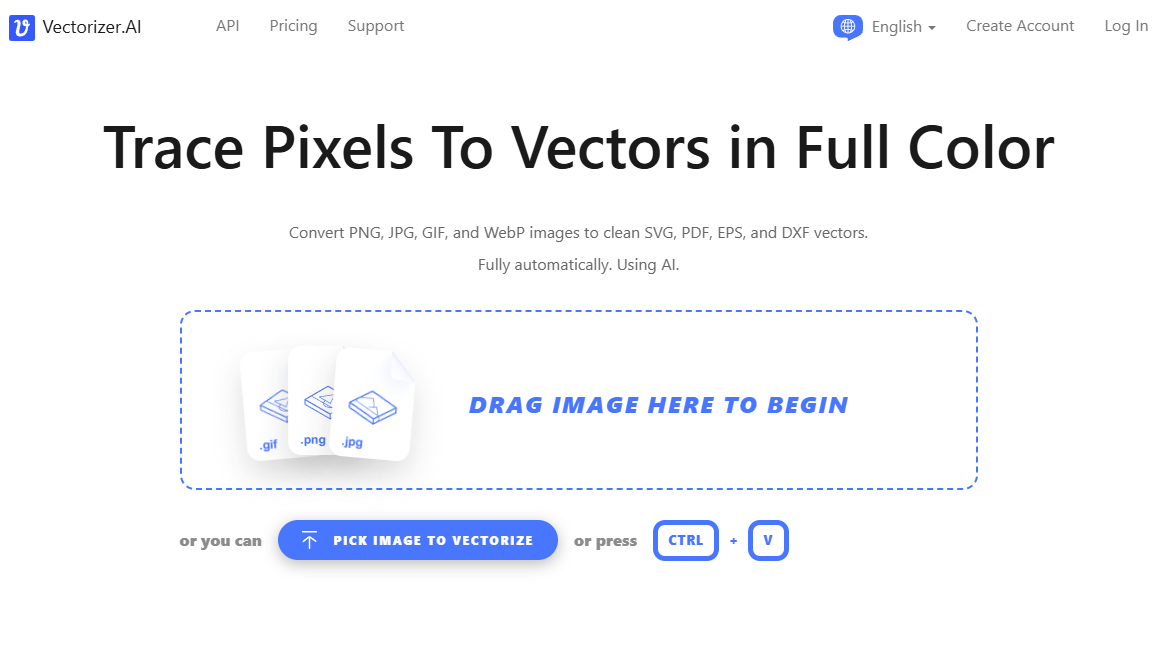
Vectorizer.AI is the best online AI image to vector converter right now if the job is pure raster-to-vector conversion. This is the tool to try first when you already have artwork and need a clean SVG, PDF, EPS, DXF, or PNG output. The Vectorizer.AI product page says it supports JPEG, PNG, WebP, BMP, and GIF inputs, then produces SVG, PDF, EPS, DXF, and PNG outputs. It also gives users an interactive preview before download, which is exactly what a serious vectorization tool should provide.
The focus matters. Vectorizer.AI is not a small export option inside a general design suite. The whole product is built around converting pixels into vectors. Its page describes a system that combines deep learning and classical algorithms, fits geometric shapes beyond simple Bézier curves, models symmetry, cleans corners, and supports use cases such as print, cutting, embroidery, and web graphics.
That specialization shows up in the workflow. You upload the image, inspect the preview, then download a real vector file if the result is good enough. For logos, icons, line art, stickers, woodcut-style graphics, flat illustrations, simple badge designs, and flattened AI artwork, that is the exact flow most users want.
The pricing is also compelling for repeat use. The Vectorizer.AI pricing page currently lists the unlimited web app plan at PLN 42.49 per month, billed monthly, with API tiers available separately. For anyone converting more than the occasional file, unlimited web downloads are a strong value proposition. The site also says users can upload and preview as many images as they like before subscribing, which helps reduce the risk of paying before seeing whether a specific image traces well.
Vectorizer.AI still cannot rescue every file. A muddy screenshot, noisy photo, tiny logo pulled from a website, or image with heavy texture and complex gradients may still need cleanup or a manual redraw. It also should not replace design judgment. A vector file can be technically valid and still contain too many shapes, awkward curves, or details that should be simplified for production.
Even with those limits, Vectorizer.AI is the editor’s pick. For the search intent behind “best AI image to vector converter online,” it solves the core problem better than the rest: upload an image, preview the vector, export in useful formats, and move on.
What to choose for your use case
Choose Vectorizer.AI if you already have the image and want the cleanest online conversion workflow. It is the best pick for existing logos, icons, flattened illustrations, sticker art, line drawings, and production files that need real vector outputs.
Choose Kittl Pro if you sell designs or build commercial assets and want more than a converter. It is the better fit when you also need editing tools, mockups, templates, commercial licensing, and a creator-friendly workspace.
Choose Recraft if you want vectorization inside a broader AI design platform. It is strongest when you want to generate, edit, revise, vectorize, and export assets from one place. Pay attention to the data-use and ownership settings before uploading sensitive work.
Choose Adobe Express if you want the easiest free JPG or PNG to SVG converter for simple files. It is the best low-friction option and the privacy story is reassuring, but it is not the deepest tool for complex tracing.
Choose insMind if you specifically want a quick PNG to AI conversion and the artwork is simple enough to inspect after export. It is useful in a pinch, but it is not the first choice for professional, repeatable vector production.
Local alternatives are getting good enough to matter
Cloud tools still win on speed, convenience, and polished user experience. Local tools win on privacy, control, and freedom from platform terms. That tradeoff matters more as AI design workflows move into larger cloud suites.
The best local starting point for many users is VTracer. Its GitHub repo describes it as open-source software that converts JPG and PNG raster images into SVG vector graphics. It can handle graphics and photographs, trace curves, and output compact vector files. The upside is obvious: no cloud upload, no monthly SaaS bill, and far more control for technical users. The downside is polish. You trade convenience, customer support, and a friendly web interface for privacy and flexibility.
The old reliable stack is still Inkscape with Potrace. Potrace describes itself as a tool for tracing bitmaps into smooth, scalable images, with outputs including SVG, PDF, EPS, DXF, and other vector formats. It remains useful for logos, scanned material, handwritten notes, stamps, silhouettes, and black-and-white artwork. Inkscape adds a more approachable interface and a full vector editing environment. The tradeoff is that multi-color tracing can get messy fast, especially for beginners.
The AI side is getting more interesting through OmniSVG, an end-to-end multimodal SVG generator that supports text-to-SVG and image-to-SVG workflows. There are already community integrations around ComfyUI, which makes it appealing for users who like local AI pipelines. This is still a tinkerer’s route compared with a polished web app, but it points toward where local image-to-vector workflows may be heading.
For sensitive client work, local tools deserve serious consideration. They may take more setup, and the results may need more manual finishing, but they remove the most uncomfortable part of cloud vectorization: uploading proprietary artwork to a third-party platform.
Final verdict
The best AI image to vector converter online in 2026 is Vectorizer.AI for pure conversion quality, workflow focus, and useful export formats. It is the first tool most readers should try when the goal is turning an existing image into a real vector file.
Kittl Pro is the smarter overall buy for many creators because it wraps vectorization inside a broader commercial design workflow. If you sell merch, make client graphics, or need templates and mockups alongside vector export, Kittl may be the better practical choice.
Recraft is the most capable hybrid platform, especially for users who want AI generation and vectorization together. Its power comes with privacy and ownership details that deserve a careful read before you upload anything sensitive.
Adobe Express is the easiest free option for simple SVG conversions, and insMind is useful for quick PNG to AI jobs. Local tools such as VTracer, Inkscape with Potrace, and OmniSVG are now strong enough to consider when privacy and control matter more than convenience.
The important thing is to match the tool to the job. A clean logo needs a different workflow than a noisy sketch. A Cricut design has different needs than a trademarked brand mark. A one-off SVG does not deserve the same subscription logic as a daily merch pipeline. Pick the converter that gives you clean paths, sane rights, and a workflow you can trust.
Explore more from Popular AI:
Start here | Local AI | Fixes & guides | Builds & gear | Popular AI podcast
Clean paths, editable output, export formats, and privacy matter a lot more once the file leaves the browser. Which AI vectorizer has given you the cleanest real-world results so far?