


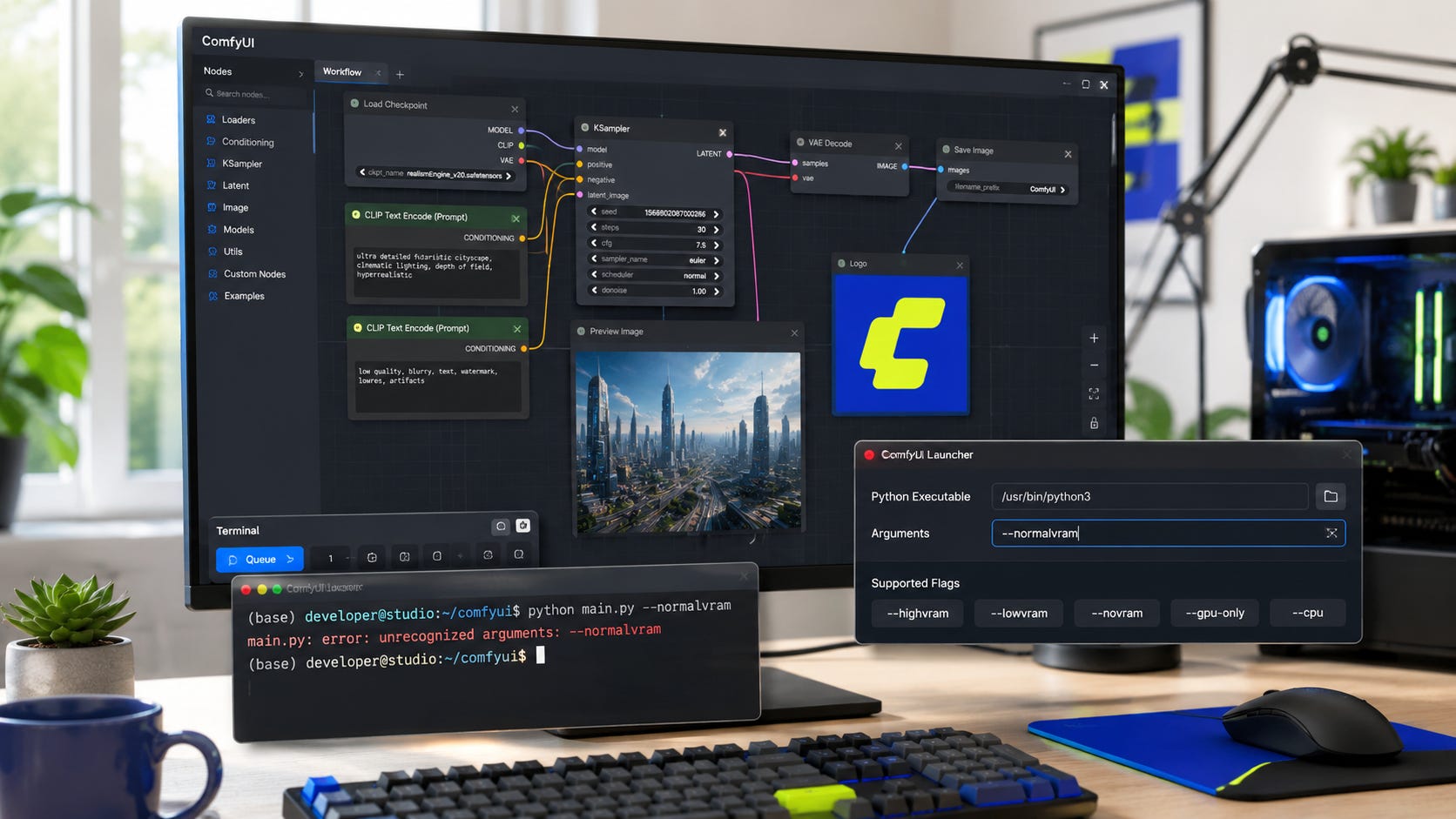
If ComfyUI Desktop crashes on startup with this error:
unrecognized arguments: --normalvramthe problem is almost certainly a bad launch argument being passed into ComfyUI. The desktop wrapper, a saved config file, a shortcut, a script, or an old launcher profile is trying to start ComfyUI with --normalvram, but the current ComfyUI backend does not recognize that flag.
The fastest fix is to remove --normalvram from the startup arguments, update ComfyUI Desktop, then relaunch. ComfyUI’s current command-line argument list includes VRAM flags such as --gpu-only, --highvram, --lowvram, --novram, and --cpu, but not --normalvram.
More on ComfyUI troubleshooting:

Quick fix
Close ComfyUI Desktop completely.
Then check these places for --normalvram and remove it:
--normalvramReplace it with nothing. In most cases, ComfyUI’s default dynamic VRAM behavior is what you want.
If you need a manual VRAM mode, use one of the supported flags:
--highvram
--lowvram
--novram
--gpu-only
--cpu
Do not guess here. --cpu will run everything on CPU and will be slow. ComfyUI’s own README says CPU mode works, but labels it slow.
Why this crash happens
ComfyUI Desktop is a packaged app that starts a bundled ComfyUI server in the background. The desktop repository says the app includes ComfyUI source code, ComfyUI-Manager, Electron, Chromium binaries, and node modules, then starts the ComfyUI server for you.
That wrapper is convenient, but it also means there are two layers that can break:
The desktop launcher.
The ComfyUI Python backend.
The unrecognized arguments message comes from Python’s argument parser. It means ComfyUI started, read the command-line flags it was given, and rejected one of them.
In this case, the rejected flag is:
--normalvramThat points to a stale configuration, launcher shortcut, extension, or desktop wrapper setting.
Why --normalvram is suspicious
Current ComfyUI has supported VRAM-related flags, but --normalvram is not one of them. The current argument parser defines --gpu-only, --highvram, --lowvram, --novram, and --cpu as mutually exclusive VRAM modes. It also includes newer memory options such as --reserve-vram, --enable-dynamic-vram, --disable-dynamic-vram, and async offload controls.
So when ComfyUI Desktop passes --normalvram, the backend has no valid setting to map it to.
That is why the fix is not to reinstall models or delete workflows. The model files are probably fine. The crash is happening before your workflow gets a chance to run.
Step 1: Update ComfyUI Desktop
ComfyUI Desktop v0.9.2 was released on May 20, 2026 and bundled ComfyUI 0.22.0. Newer desktop releases followed quickly, with v0.9.3 on May 23 and v0.9.4 on May 28. The v0.9.4 release bumped bundled ComfyUI to v0.22.3.
That matters because this type of bug often comes from a mismatch between the desktop launcher and the bundled backend.
Update to the latest ComfyUI Desktop release first. Then start it again.
If it still crashes, continue with the manual cleanup below.
Step 2: Find the ComfyUI Desktop logs
ComfyUI Desktop documents its log locations in the desktop repository. It says Electron main process logs are stored as main.log, and ComfyUI server logs are stored as comfyui_<date>.log.
Windows
Open Run with Win + R, then enter:
%AppData%\ComfyUI\logsLook for:
main.log
comfyui_<date>.log
macOS
Open Terminal:
open ~/Library/Logs/ComfyUILinux
Open Terminal:
xdg-open ~/.config/ComfyUI/logsIf your desktop package uses a slightly different app name, check:
ls ~/.config/*/logsSearch the logs for:
normalvramIf you see it, you have confirmed the crash source.
Step 3: Check the Desktop config file
ComfyUI Desktop stores user configuration in a platform-specific config file. The desktop repository lists these locations:
Windows
%APPDATA%\ComfyUI\config.jsonmacOS
~/Library/Application Support/ComfyUI/config.jsonLinux
~/.config/ComfyUI/config.jsonOpen the file in a text editor and search for:
normalvramIf you find it, remove only that argument. Save the file and restart ComfyUI Desktop.
Do not delete the whole config unless you are willing to reselect paths and rebuild preferences.
Step 4: Check your shortcuts and launch scripts
On Windows, right-click the ComfyUI Desktop shortcut and check the Target field.
Look for something like:
ComfyUI.exe --normalvramChange it back to:
ComfyUI.exeIf you use a .bat file, check for:
--normalvramRemove it.
On Linux, check any .desktop launcher:
grep -R "normalvram" ~/.local/share/applications ~/.config 2>/dev/nullOn macOS, check any custom shell launcher or Automator script that starts ComfyUI.
Step 5: Run ComfyUI directly to bypass the desktop wrapper
This is the best diagnostic test. If direct ComfyUI works, but ComfyUI Desktop fails, the desktop wrapper or its config is the problem.
Find your ComfyUI backend folder, then run:
python main.pyOr, if the Desktop app uses its bundled Python environment, run from that environment.
A basic direct launch should not include --normalvram.
Use:
python main.pyFor a browser auto-launch:
python main.py --auto-launchFor low VRAM systems:
python main.py --lowvramFor very low VRAM systems:
python main.py --novramFor CPU-only fallback:
python main.py --cpuAgain, CPU mode is mainly a fallback. It will be much slower than GPU generation.
Step 6: Use supported VRAM flags only
Here is the practical meaning of the current supported modes.
Default mode
Use no VRAM flag:
python main.pyThis is best for most users because ComfyUI’s current memory management is designed to handle normal GPU loading and offloading automatically.
High VRAM
Use this if you have enough VRAM and want ComfyUI to keep models in GPU memory:
python main.py --highvramComfyUI’s current argument help says --highvram keeps models in GPU memory instead of unloading them to CPU memory after use.
Low VRAM
Use this when models fit poorly or you hit memory errors:
python main.py --lowvramThe current help text says --lowvram affects behavior when dynamic VRAM is not being used.
No VRAM
Use this for extreme memory pressure:
python main.py --novramThis may keep ComfyUI running, but expect slower generation.
GPU only
Use this only if you want everything stored and run on the GPU:
python main.py --gpu-onlyThis can be fast when you have enough VRAM. It can also fail hard when you do not.
CPU
Use this only when GPU support is broken or unavailable:
python main.py --cpuComfyUI says it can work without a GPU using --cpu, but it is slow.
Step 7: Remove stale environment or wrapper settings
Some users run ComfyUI through custom tools, launchers, or environment managers. Search your ComfyUI folders for the bad flag.
Windows PowerShell
Select-String -Path "$env:APPDATA\ComfyUI\*" -Pattern "normalvram" -RecurseAlso check:
Select-String -Path "$env:LOCALAPPDATA\Programs\ComfyUI\*" -Pattern "normalvram" -RecurseLinux and macOS
grep -R "normalvram" ~/.config/ComfyUI 2>/dev/null
grep -R "normalvram" ~/Library/Application\ Support/ComfyUI 2>/dev/null
For Linux app launchers:
grep -R "normalvram" ~/.local/share/applications /usr/share/applications 2>/dev/nullIf the search finds --normalvram, remove it from the config or script that contains it.
Step 8: Check whether a custom node or manager profile is involved
ComfyUI Desktop bundles ComfyUI-Manager behavior depending on the bundled ComfyUI version, and the desktop README says the app can install ComfyUI-Manager via pip when --enable-manager is set.
A custom node usually should not inject a startup flag before ComfyUI launches. Still, if you have a manager profile, a custom update script, or a third-party launcher that writes startup arguments, it can be involved.
To isolate this, start ComfyUI with custom nodes disabled:
python main.py --disable-all-custom-nodesIf that works, your core backend is fine. Then remove stale launcher settings before turning custom nodes back on.
Step 9: Roll back only if updating fails
Since v0.9.2 was followed by v0.9.3 and v0.9.4 within days, updating is the cleaner fix. The release page shows v0.9.3 bumped ComfyUI to 0.22.2 and v0.9.4 bumped it to 0.22.3.
Rollback should be a last resort.
Use rollback only when:
The newest Desktop release still crashes.
You cannot remove the injected argument.
You need a working generation environment immediately.
Direct
python main.pyworks but the Desktop wrapper does not.
In that case, run the backend directly until the desktop wrapper is repaired.
Step 10: Confirm the fix
After removing --normalvram, start ComfyUI Desktop again.
A healthy launch should reach the normal server startup stage and open the UI. By default, ComfyUI listens on port 8188 unless configured otherwise. The current argument parser includes --port with default 8188.
You can test the local server in a browser:
http://127.0.0.1:8188If the page opens, the startup argument crash is fixed.
What not to do
Do not delete your models folder. This error is not caused by checkpoints, LoRAs, VAEs, or ControlNet models.
Do not reinstall CUDA first. CUDA problems usually produce CUDA, Torch, driver, or device errors. This error is much earlier and cleaner: the Python argument parser rejected a startup flag.
Do not switch to CPU mode unless you need a temporary fallback.
Do not add random VRAM flags from old tutorials. ComfyUI changes over time. Use the flags supported by your installed backend.
Why this matters
Desktop wrappers are useful until they hide the thing that broke. A local AI workflow should be under your control. When a launcher silently passes a stale flag, it can make an open-source backend look broken even when the backend is fine.
The fix is to get back to first principles:
python main.pyThen add only the arguments you actually need.
That approach keeps your setup recoverable. It also keeps your image generation stack independent of whatever the desktop wrapper, updater, or third-party launcher decided to do.
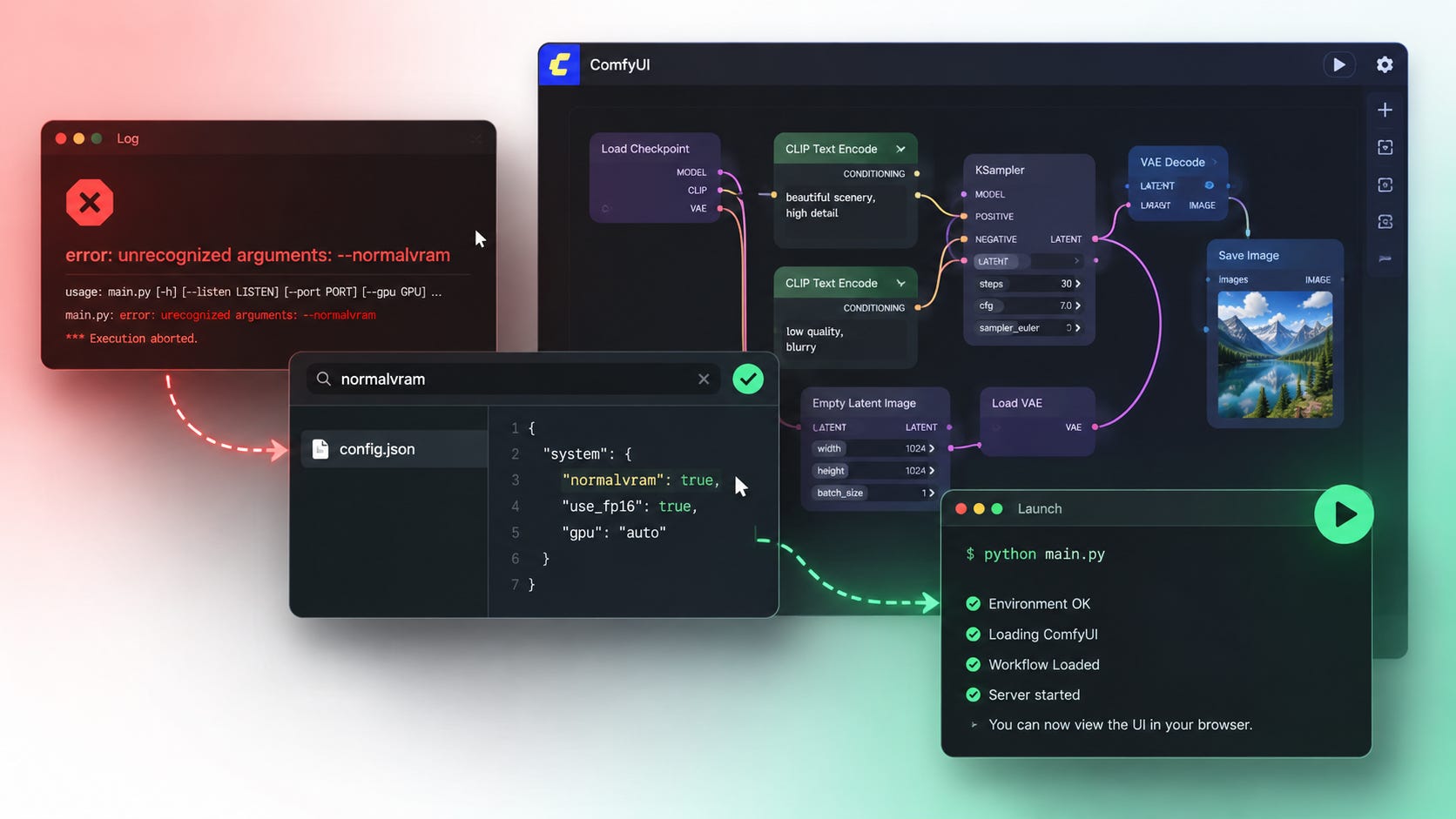
--normalvram flag. Here’s how to remove it safely. © Popular AIFAQ
What does “unrecognized arguments: --normalvram” mean?
It means ComfyUI was started with a command-line flag it does not understand. The invalid flag is
--normalvram.
Is --normalvram a valid ComfyUI flag?
Not in the current ComfyUI argument list I checked. Current VRAM flags include
--gpu-only,--highvram,--lowvram,--novram, and--cpu.
Should I use --lowvram instead?
Only if you actually need low VRAM behavior. For most users, the best replacement is no VRAM flag at all.
Will deleting models fix this?
No. This is a startup argument problem, not a model problem.
Is ComfyUI Desktop v0.9.2 the latest version?
No. The release page shows v0.9.2 on May 20, 2026, followed by v0.9.3 on May 23 and v0.9.4 on May 28.
Where are ComfyUI Desktop logs stored?
The desktop README lists logs under
%AppData%\{app name}\logson Windows,~/Library/Logs/{app name}on macOS, and~/.config/{app name}/logson Linux.
Final recommendation
Remove --normalvram, update ComfyUI Desktop, and test a direct backend launch with:
python main.pyIf direct launch works, the backend is healthy and the desktop wrapper or its saved config is the issue. Keep the fix simple: no unsupported flags, no model deletion, no full reinstall unless the config is too damaged to repair.
Explore more from Popular AI:
Start here | Local AI | Fixes & guides | Builds & gear | Popular AI podcast
Have you run into the --normalvram crash in ComfyUI Desktop, or was your startup issue caused by a different flag, custom node, or launcher config? Curious what fixed it for you.