


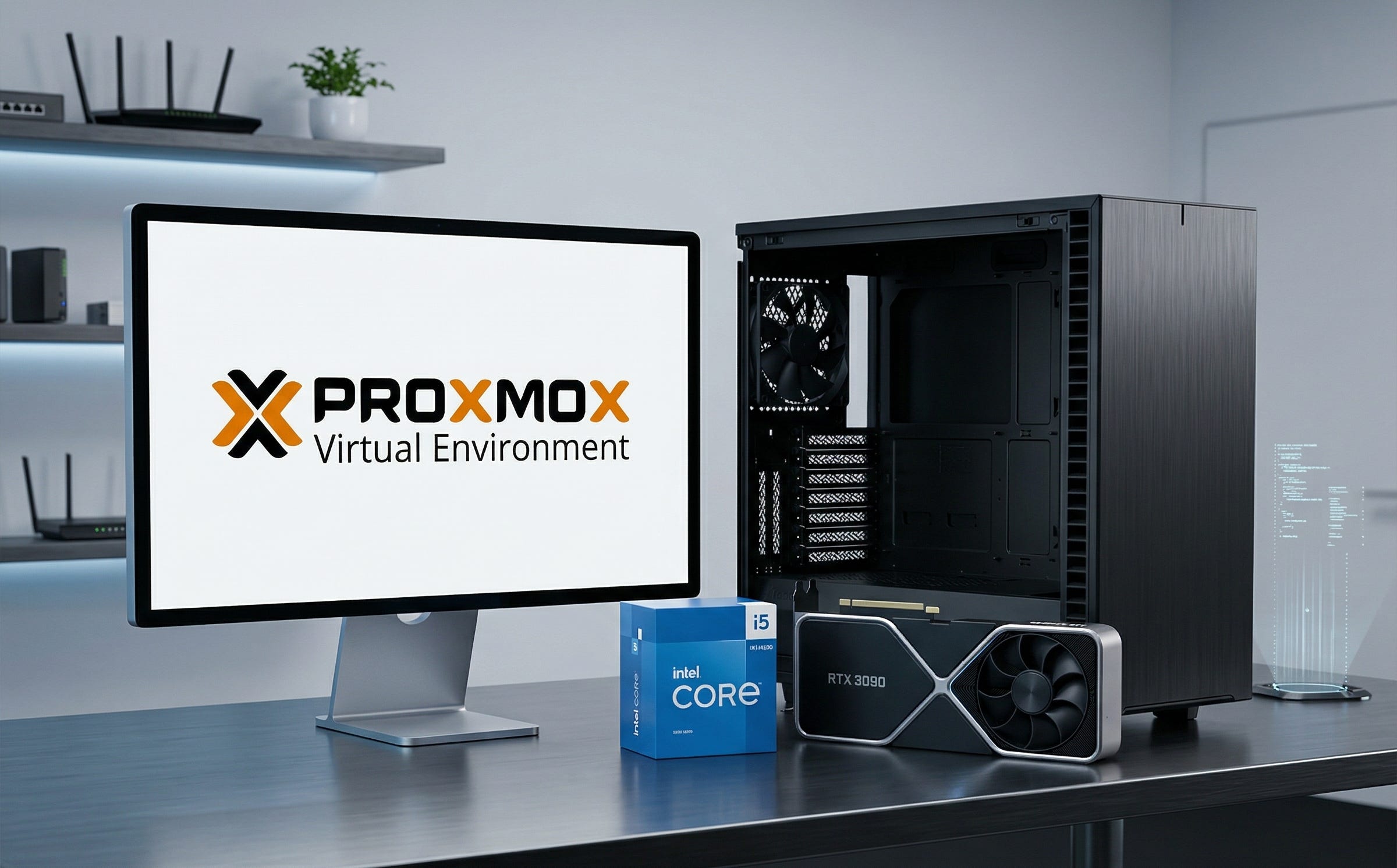
Readers keep asking the same question in slightly different ways: can Proxmox be the sane way to run local AI, or does GPU passthrough turn your server into a weekend-long science project? The short answer is that the cleanest one-GPU design is still the one that keeps the Proxmox host on integrated graphics and gives the discrete card to one Linux guest full time. That framing matches the current community conversation, from a recent r/Proxmox discussion about running local AI on Proxmox to Proxmox’s own documentation on PCI passthrough and Linux containers.
As of March 23, 2026, the latest official Proxmox VE ISO on the Proxmox downloads page is version 9.1-1, last updated on November 19, 2025, so the platform is current for exactly this kind of build. The shopping logic is still simple. Spend for VRAM, system RAM, quiet power delivery, and a case you can live next to. Keep the host boring. Put the expensive part, the GPU, inside the guest where Ollama actually runs.
For most readers, that points to an Intel host with integrated graphics and a passed-through RTX 3090 24GB. The Intel Core i5-14500 checks the right boxes for this job. It has 14 cores, 20 threads, a 65W base power rating, support for up to 192GB of memory, Intel UHD Graphics 770 for the host, and Intel Quick Sync Video if you want the box to handle media tasks too.
More on AI server builds:

Why this layout makes sense
A Proxmox AI server works best when the host and the guest have separate jobs. The host should handle storage, networking, backups, orchestration, and snapshots without becoming your AI sandbox. The guest should own the accelerator, the drivers, and the model runtime. That is exactly how Proxmox describes PCI passthrough, as a way to hand a physical PCI device such as a graphics card directly to a VM, and Proxmox is equally clear that full PCI passthrough is a KVM VM feature rather than an LXC feature.
That separation matters more with AI hardware than it does with ordinary homelab toys. A discrete GPU is the hottest, loudest, most driver-sensitive part in the whole machine. Keeping it inside a Linux guest gives you a clean rollback path, easier rebuilds, simpler firewalling, and a much lower chance of breaking the box that stores your VMs and backups. Community testing also supports this approach. In a public LocalLLaMA passthrough benchmark thread, one user reported that a passed-through GPU was only 1 to 2 percent slower than bare metal in their tests, which is close enough for most homelab buyers to stop worrying and start building.
Containers still have a place, but they are not the safest default for a one-GPU NVIDIA setup. Proxmox’s container docs describe device passthrough for LXC, which keeps the host kernel and driver stack in the loop. Ollama’s own troubleshooting docs also note that GPU access in containers can fail without the right device permissions and group IDs. For the reader who wants one clean AI VM and fewer moving parts, a VM remains the better first choice.
More on local AI builds

The complete Proxmox AI server parts list for a one-GPU Ollama build
As an Amazon Associate, we may earn from qualifying purchases. It helps support more hands-on guides like this, and it does not change what we recommend.
CPU: Intel Core i5-14500
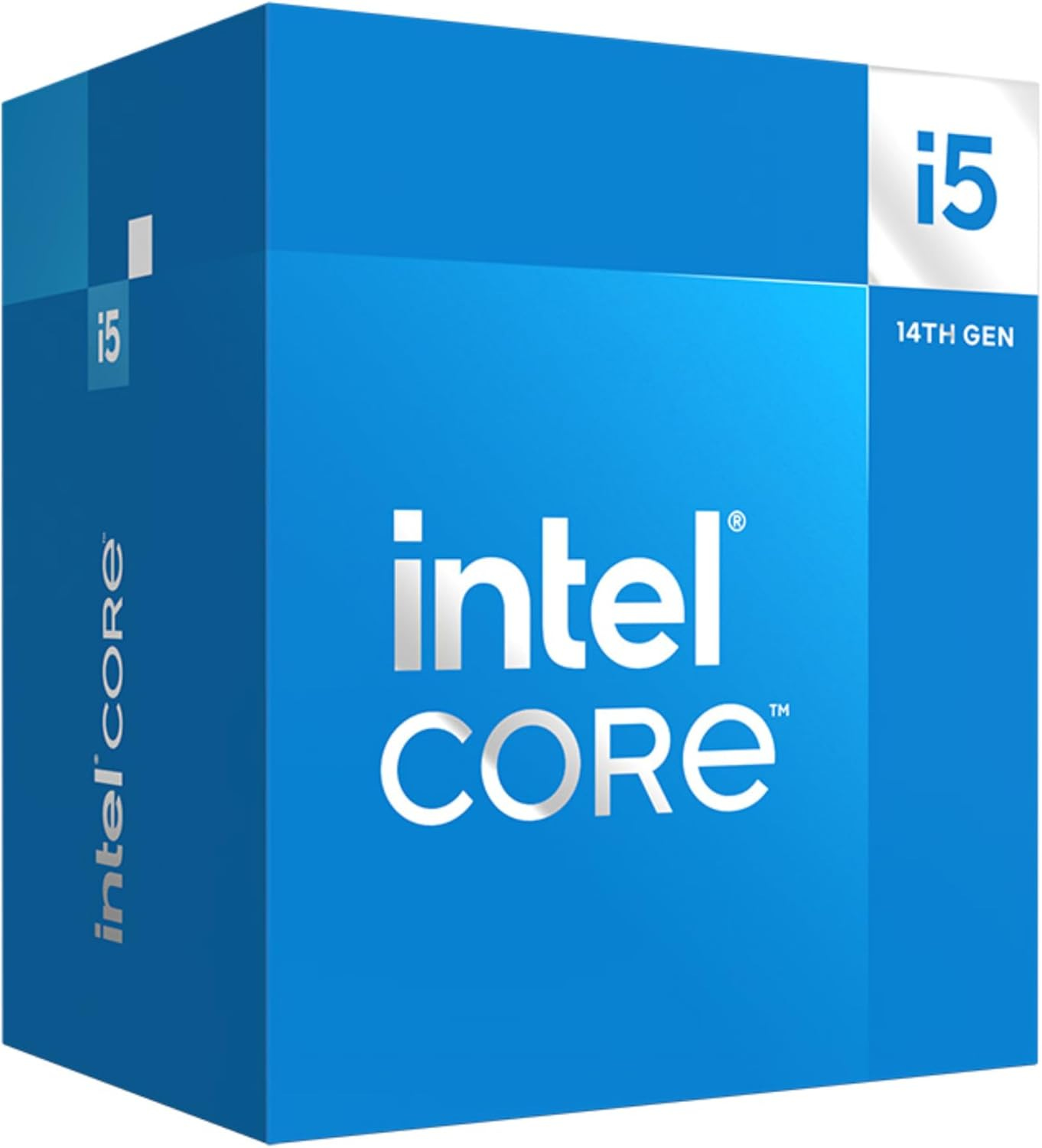
This is the right kind of practical. You get integrated graphics for the Proxmox host, enough cores for virtualization overhead, and VT-d-friendly platform features that fit a passthrough build nicely. The point here is not to buy a flashy CPU. The point is to buy one that lets the host stay alive on the iGPU while the discrete card belongs to your AI guest. You can check current Amazon listings for the Intel Core i5-14500, then compare them against the official Intel i5-14500 specifications.
CPU cooler: Noctua NH-U12S redux
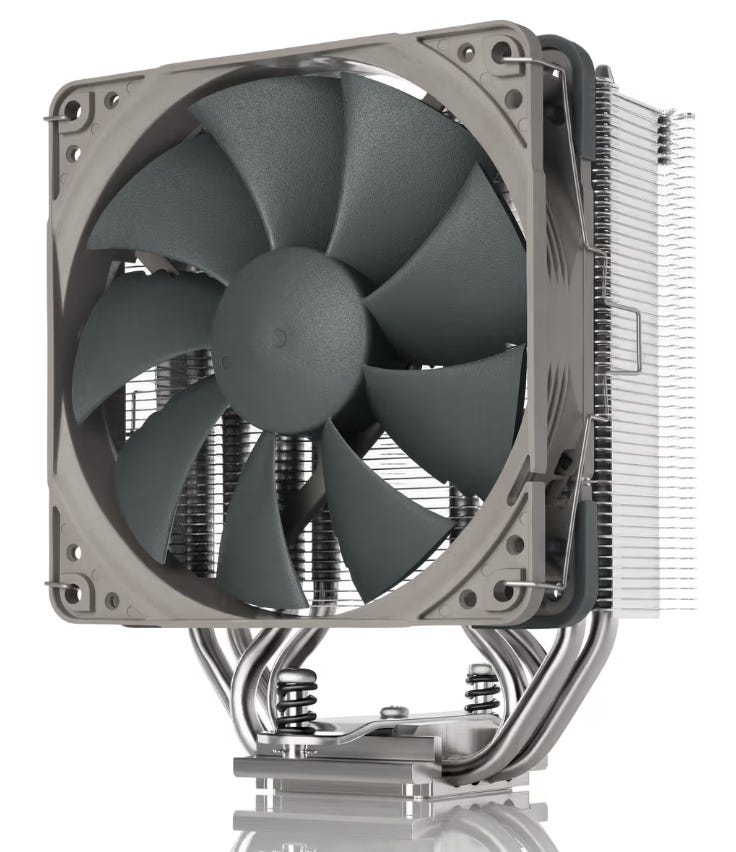
This is a homelab cooler, which is exactly why it fits here. Noctua says the NH-U12S redux is designed for strong PCIe compatibility and stays clear of the top PCIe slot on most standard ATX and micro-ATX boards. That matters when your GPU is thick, hot, and expensive, and when you do not want a cooler turning a straightforward build into a clearance problem. For a buy-now option, Amazon search results for the NH-U12S redux are a fine place to start.
Motherboard: ASUS TUF GAMING B760-PLUS WIFI D4
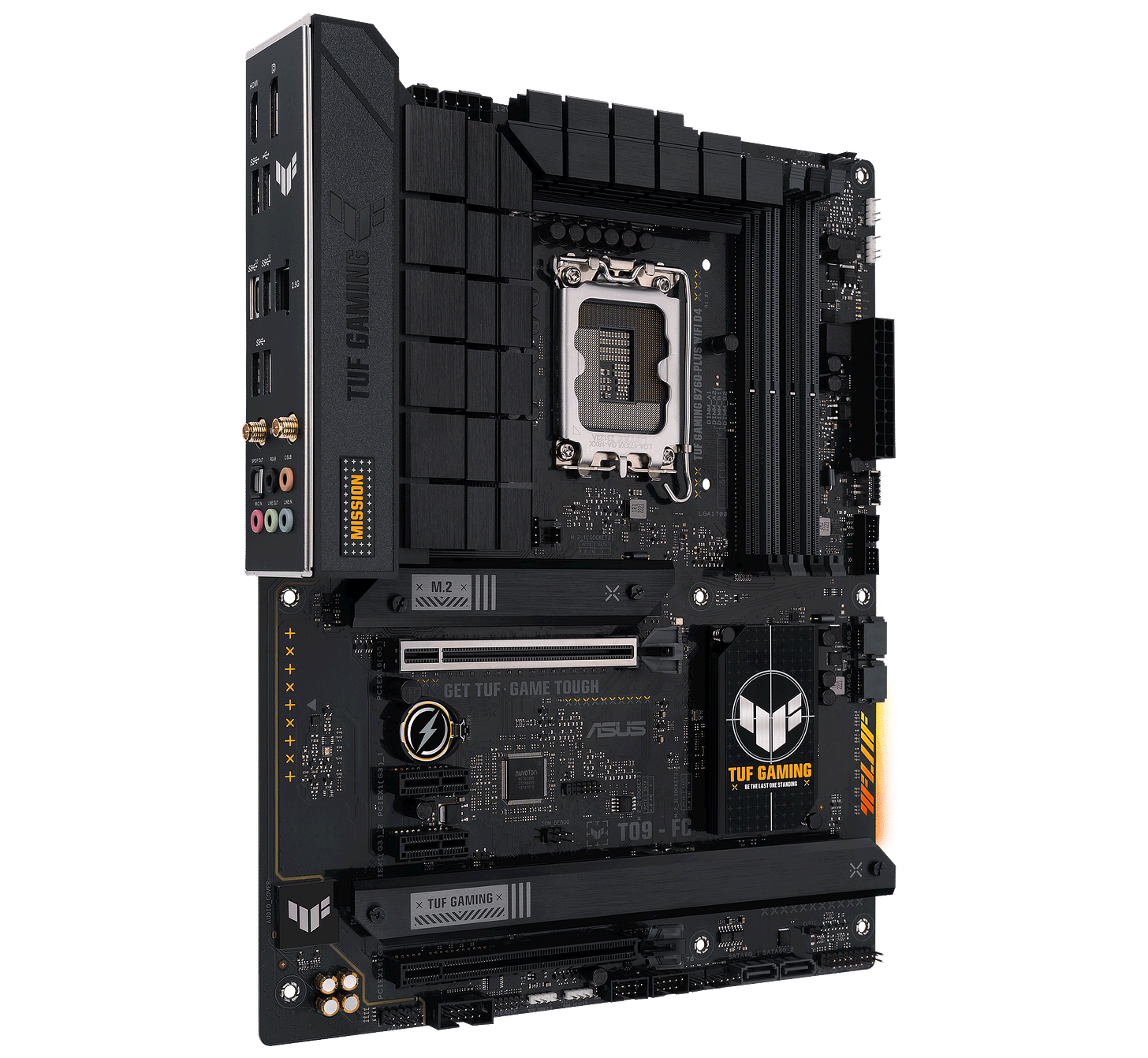
This board is appealing for the same reason the CPU is appealing. It gives you the features you need without forcing you to pay for a board built around overclocking vanity. ASUS lists support for up to 192GB of DDR4, one PCIe 5.0 x16 slot for the GPU, three M.2 slots, and 2.5Gb Ethernet on the official TUF GAMING B760-PLUS WIFI D4 tech specs page. That is the right mix for a Proxmox host with one big GPU, fast storage, and room to grow. You can browse Amazon listings for the ASUS board here.
RAM: Corsair Vengeance LPX 128GB (4 x 32GB) DDR4-3200, CMK128GX4M4E3200C16
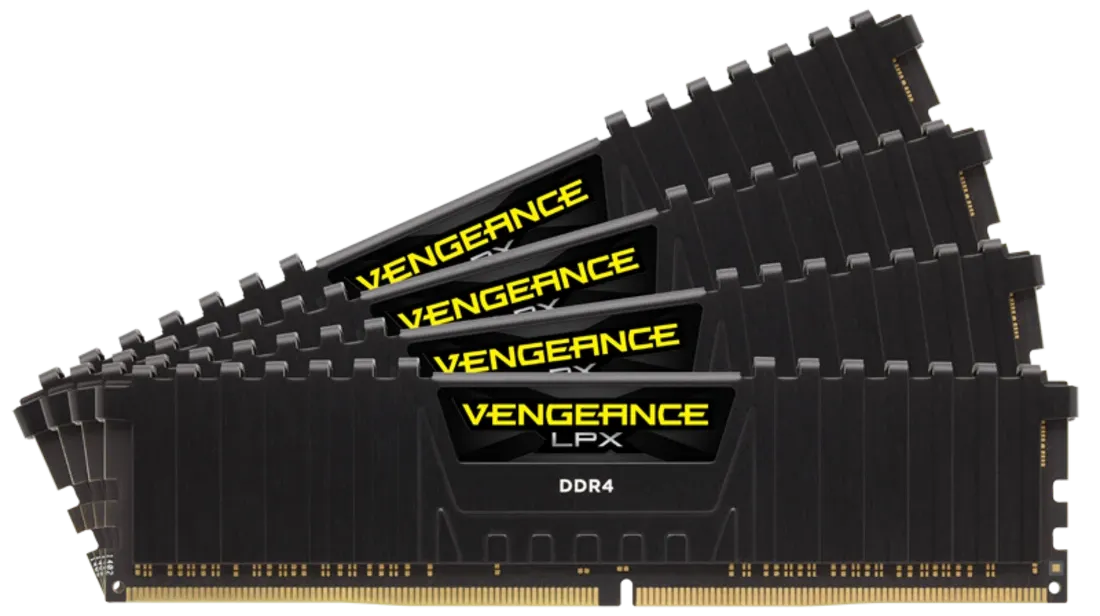
For a Proxmox AI server, capacity is what buys flexibility. A 128GB kit gives you room for the Proxmox host, a Linux AI VM, side services, caches, and the inevitable experiments that start as “just one more container.” Corsair’s official Vengeance LPX 128GB kit page lists the kit at 128GB total, 3200 MT/s, CL16, with XMP 2.0 support. Those are exactly the boring, dependable specs this build wants. For current street pricing, use this Amazon search for the Corsair 128GB kit.
GPU: Used RTX 3090 24GB
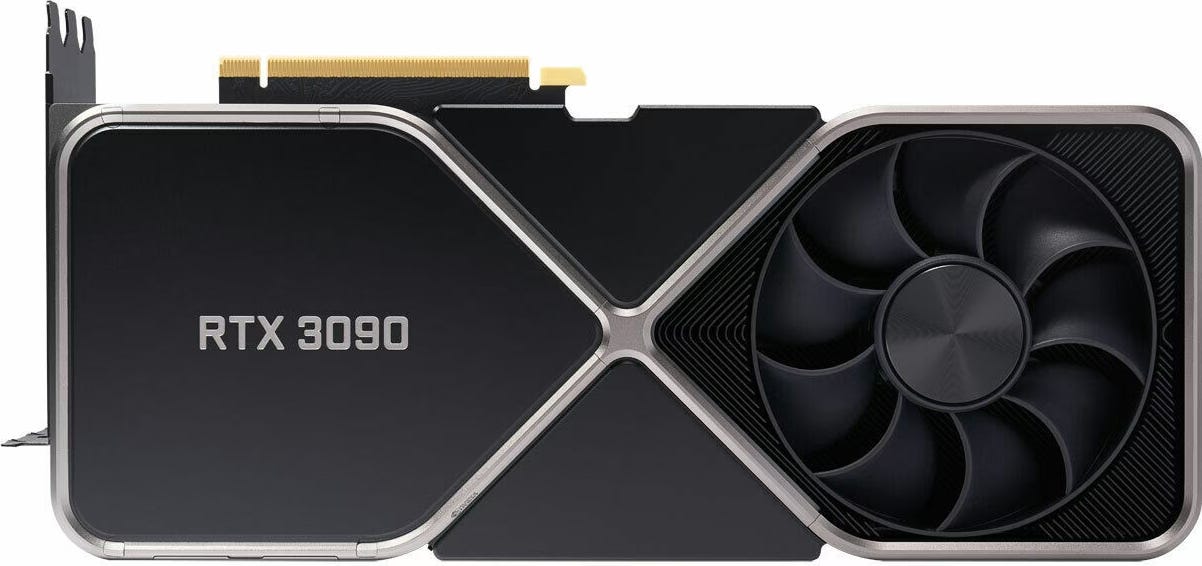
This is the anchor of the whole build. NVIDIA still lists the GeForce RTX 3090 with 24GB of GDDR6X memory, 350W graphics card power, and a 750W required system power baseline for the Founders Edition reference design. Those numbers explain why the 3090 keeps showing up in local LLM builds years after launch. The card gives you the VRAM that matters most, and buying used is still the rational move as long as you insist on a return window and avoid fantasy pricing. To see what is available right now, check used RTX 3090 listings on Amazon.
SSD: Samsung 990 PRO 2TB
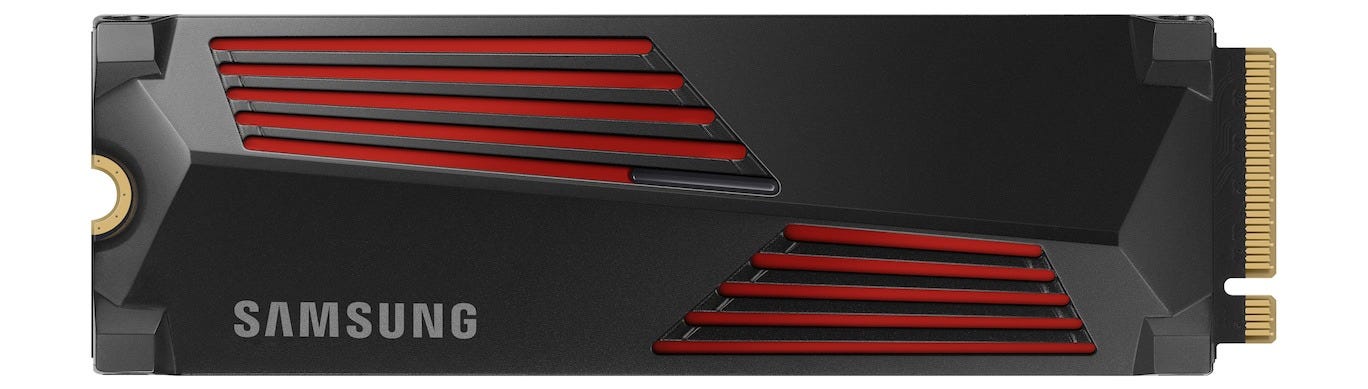
Your model store and your VM storage should not sit on a bargain-bin drive. Samsung’s official 990 PRO 2TB specs page lists sequential reads up to 7,450 MB/s and writes up to 6,900 MB/s. A fast 2TB NVMe drive keeps Proxmox responsive, shortens large model pulls, and leaves enough breathing room for snapshots and experiments before you need a second drive. For availability and price tracking, use this Amazon search for the Samsung 990 PRO 2TB.
PSU: Corsair RM1000e
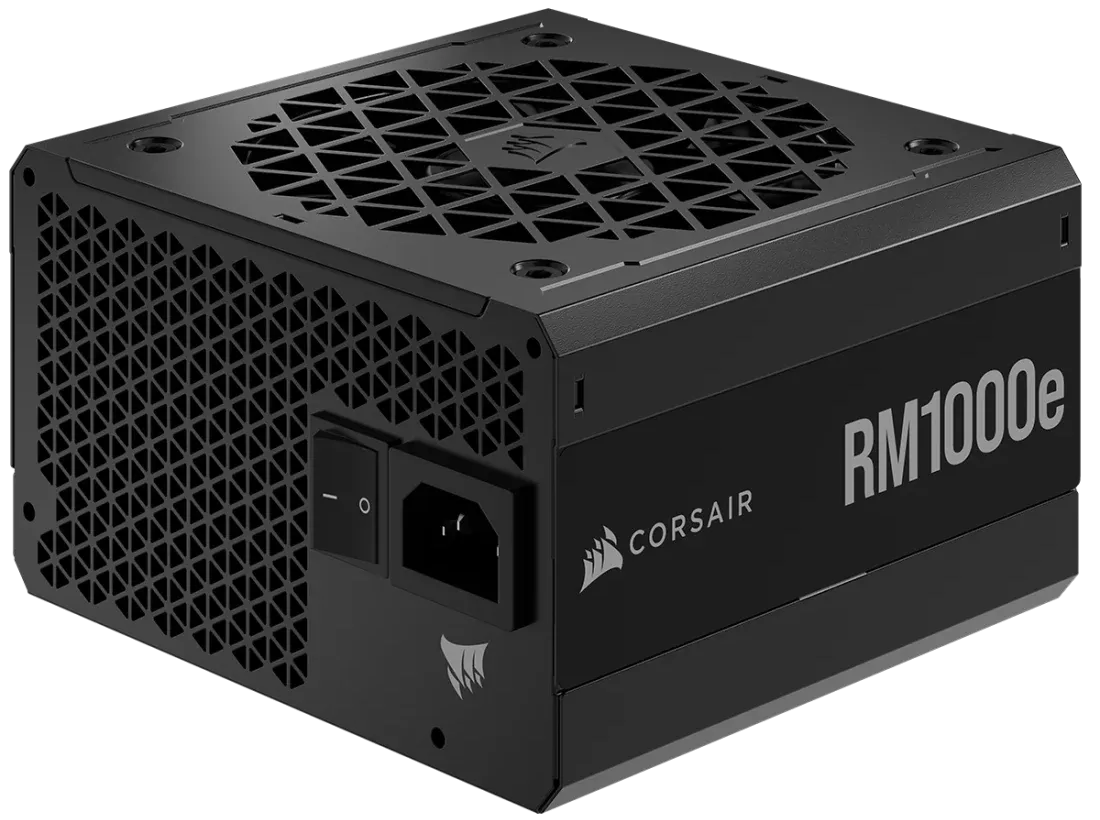
You could try to shave wattage here. It is not the place to get clever. The official Corsair RM1000e page lists 1000W continuous power, full modular cabling, Zero RPM mode, and 80 PLUS Gold efficiency. That gives this build the headroom and quiet idle behavior it needs, especially with a used 3090 that may not behave like a reference card. You can shop current Amazon listings for the Corsair RM1000e.
Case: Fractal Design Define 7
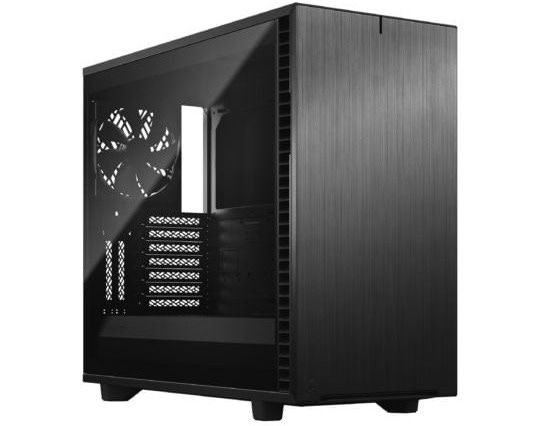
This case still fits the brief better than louder, flashier options. Fractal says the Define 7 ships with three Dynamic X2 GP-14 fans preinstalled, supports up to nine fan positions, and uses industrial sound-damped panels. That is exactly what a 24/7 desk-side or closet-side AI server wants. Good airflow matters, and so does living with the thing after the excitement of the build is gone. For current pricing, start with Amazon listings for the Fractal Design Define 7.


Why these parts work together
This build works because every part serves the same goal. The CPU keeps the host capable without wasting budget that belongs in the GPU. The board gives you one clean x16 slot for the card, enough memory headroom to go large on RAM, and enough M.2 storage options to expand later. The cooler avoids turning the top PCIe slot into a clearance puzzle. The PSU gives the system breathing room. The case keeps the whole thing civil enough to live with. The build is not trying to win a benchmark screenshot contest. It is trying to be the box you still like six months later.
The GPU and RAM choices do the real heavy lifting. In local LLM work, VRAM is the first constraint readers run into, and system RAM is the second. That is why a used 24GB RTX 3090 still makes more sense for many homelab buyers than a newer, shinier card with less memory. It is also why 128GB of RAM is easier to justify in a Proxmox AI server than it is in a gaming PC. You are paying for fewer compromises when the host, the AI VM, and a few side services are all sharing the same machine.
VM vs LXC for Ollama on Proxmox
For a one-GPU discrete NVIDIA build, use a VM first.
That does not mean LXC is useless. It means Proxmox is very clear about where full PCI passthrough belongs. The PCI passthrough wiki describes handing a physical PCI device directly to a VM, while the Linux Container documentation describes the LXC model that shares the host kernel and uses device passthrough rather than full VM-style assignment. That distinction matters more when the device in question is the most expensive part in the machine.
There is also the practical side. A VM gives you cleaner driver isolation, cleaner snapshots, and a cleaner failure boundary. If you break CUDA, ROCm, Python dependencies, or your Ollama environment inside the guest, you rebuild the guest. You do not rebuild the host that is also responsible for storage and everything else you care about. That is why the public GPU passthrough benchmark discussion on LocalLLaMA is so reassuring. The reported performance penalty was small enough that the operational benefits of a VM usually outweigh the loss.
Use LXC later, once you already have a working VM path and you know exactly what you want to gain. Ollama’s troubleshooting documentation explicitly notes that GPU access inside containers can fail without the right group mappings and device access. That is a manageable problem for advanced users. It is not the problem most readers should volunteer to solve on day one.
How to set up GPU passthrough without wrecking the host
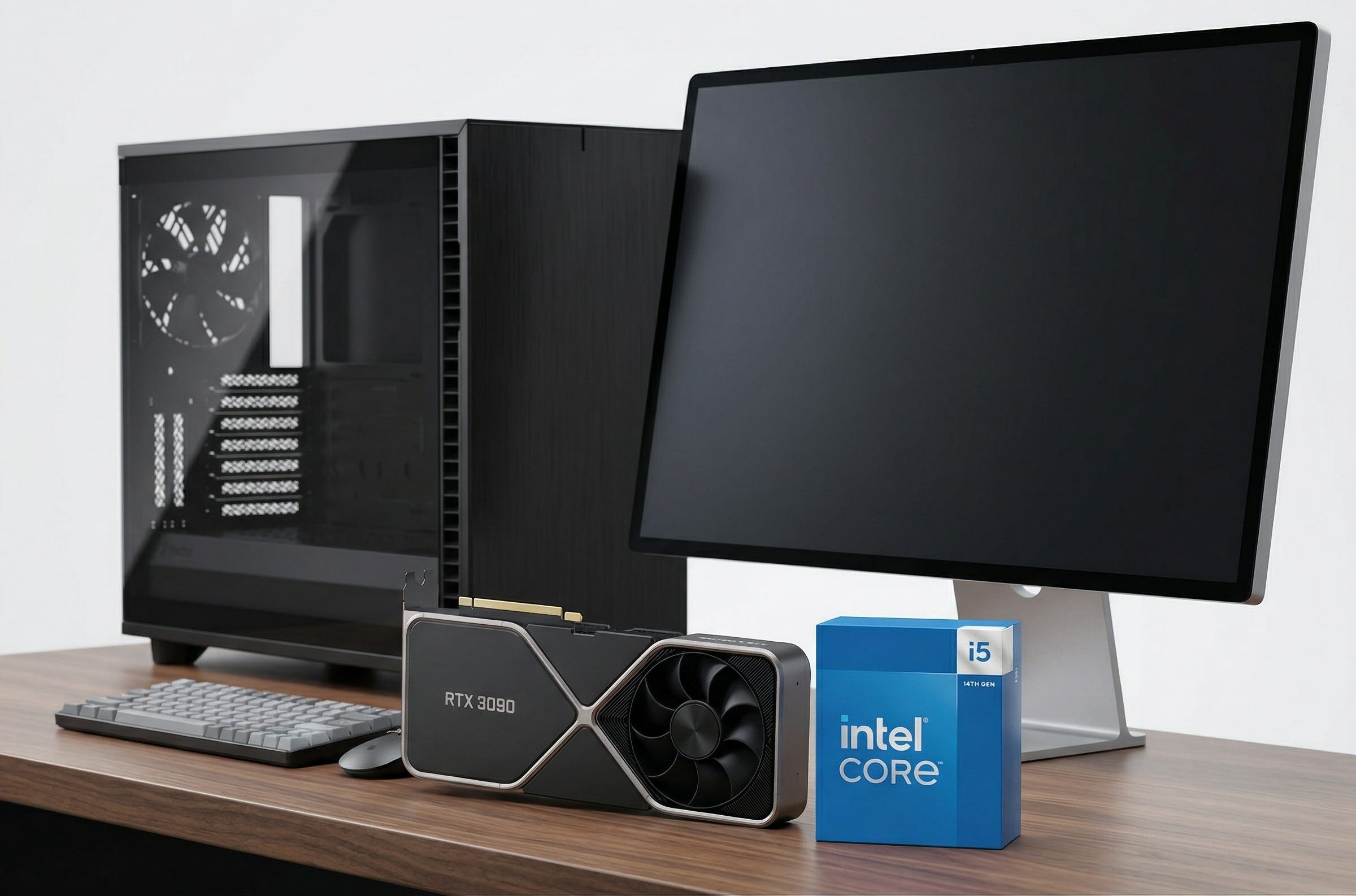
Start with the basics. Install the current Proxmox VE release from the official downloads page, enable the right IOMMU settings in firmware and on the host, and follow the Proxmox PCI passthrough documentation for the actual handoff. The clean design is still the same: let the host live on the Intel iGPU, and reserve the RTX 3090 for one Linux guest.
Inside the guest, keep the process boring. Install Linux, install the NVIDIA drivers, install Ollama, and then verify the service before you start exposing anything on the network. Ollama’s current Linux installation guide documents the service-based install flow, the systemd unit setup, and the use of systemctl edit ollama when you want to customize environment variables or the service configuration. That is the right place to make changes, inside the guest, where experiments are easy to undo.
One more caution is worth keeping in the article because it is the kind of detail that saves real frustration. In Proxmox’s official Upgrade from 8 to 9 notes, the project notes that some users reported passthrough VMs failing to start under kernel 6.14 and provides a workaround reference. That does not mean passthrough is broken. It does mean you should check upgrade notes before casually touching a working AI node.
What to do after the hardware arrives
The right first goal is not to build the perfect AI appliance on day one. The right first goal is to get one Ubuntu VM running with the 3090 passed through, confirm that the guest can see the card, install Ollama cleanly, and pull a smaller model before you start chasing bigger ones. That workflow keeps the boring plumbing in focus, which is where most failed builds actually fail. Ollama’s Linux docs make that startup flow straightforward, and the official troubleshooting page gives you a better first stop than random forum guesses when a container or GPU permission issue appears.
Once the base is stable, then you add the quality-of-life improvements. A second SSD for models. A reverse proxy if you truly need remote access. A VLAN if the box is going to serve the household. Better backup habits for configs and VM definitions instead of burning time backing up huge disposable model files. That is how you keep the system feeling like a tool you own rather than another fragile cloud-shaped dependency living in your closet.
Conclusion
For most homelab readers in 2026, the best Proxmox AI server build for Ollama is still a practical one: Intel i5-14500, 128GB of DDR4, a used RTX 3090 24GB, a fast 2TB NVMe drive, a quiet 1000W power supply, and a quiet case, with the Proxmox host on integrated graphics and the discrete GPU passed through to a Linux VM. That layout lines up with Proxmox’s own virtualization model, keeps driver chaos out of the host, and gives you the local AI box most people actually want, one that is fast, expandable, and sane to run every day.
Explore more from Popular AI:
Start here | Local AI | Fixes & guides | Builds & gear | Popular AI podcast
A Proxmox AI server for Ollama feels like a smart middle ground for people who want local control, GPU passthrough, and a clean upgrade path without living in the cloud. Are you running Ollama on bare metal, Proxmox, or something else, and what has been the biggest pain point so far: passthrough, noise, heat, or power draw?