


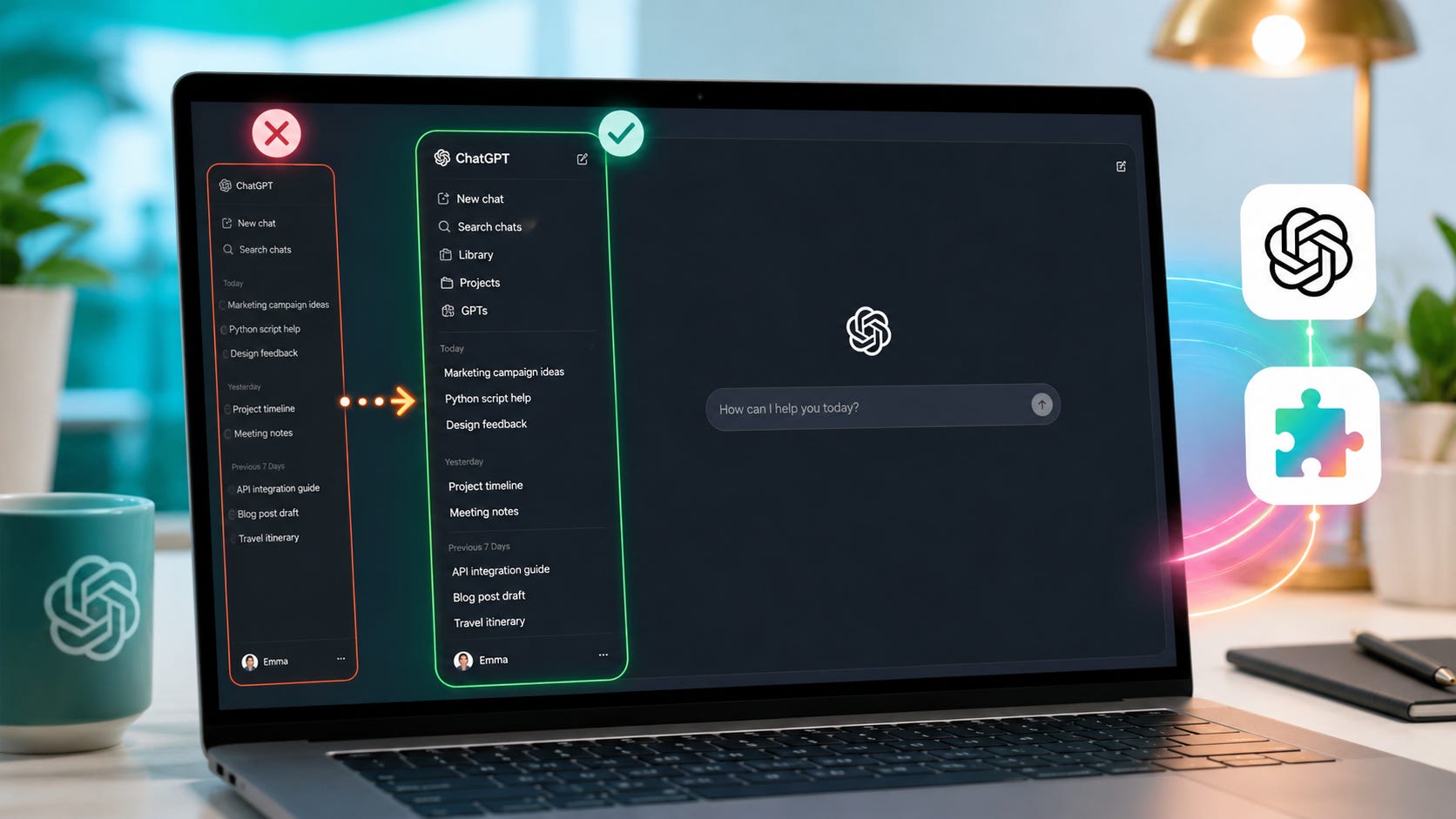
I opened my ChatGPT workspace this morning and almost got a heart attack.
My pinned chats were gone. These are not casual chats. These are the important ones, the threads I keep around because they hold useful work, repeated workflows, planning, research trails, and whatever else I do not want to lose in the usual swamp of recent chats.
My custom GPTs were missing too.
Then, I tried to open a project, and for some reason clicking the project in the sidebar no longer opened the project dashboard.
At first glance, it looked like ChatGPT had eaten my workspace overnight.
It had not. All my stuff was still there. But there must have been a ChatGPT desktop sidebar update I had not been told about, and the new layout hid several of the features I use every day.
If your ChatGPT pinned chats, custom GPTs, or Projects look missing today, do not panic yet. Here is what fixed it for me.
Quick fix
If your pinned chats are missing, look for a new Pinned section in the ChatGPT desktop sidebar. It may be collapsed. Expand it and your pinned chats should be there.
If your custom GPTs are missing, click ... More in the sidebar, choose GPTs, go to My GPTs, open the GPT you want, click the GPT name at the top of the chat, then choose Pin. It should now appear in the new Pinned section.
If a Project disappeared from your normal Projects list, check the new Pinned section too. Some Projects may now be there.
If clicking a Project no longer opens the Project dashboard, hover over the Project in the sidebar and click the small write or pen icon.
Nothing is permanently lost, and there is a workaround for all these changes. However, this does stress a bigger issue: tools like ChatGPT, Claude or Gemini, for some of us, are now workspaces for serious use cases, and companies like OpenAI, Anthropic or Google can change that workspace overnight.
What changed in the ChatGPT sidebar?
Based on what I saw on ChatGPT desktop web today, the sidebar appears to have changed in several ways.
Pinned chats, pinned GPTs, and pinned Projects now appear to live inside a shared Pinned section.
That might sound harmless if the section is expanded. But if it is collapsed, the effect is brutal: your most important chats look like they disappeared.
Custom GPTs also seem less directly accessible from the main sidebar. OpenAI’s own GPT documentation says users can access GPTs through the GPTs area in ChatGPT, and OpenAI’s GPT creation documentation says users can manage their own GPTs by opening Explore GPTs and selecting My GPTs. That path still works, but it is more buried than a sidebar shortcut.
Projects are affected too. OpenAI describes Projects in ChatGPT as workspaces that can contain chats, files, and instructions. For users who rely on Projects as real working folders, the dashboard is not decorative. It is the place where project structure, files, and settings live.
As of this writing, I could not find an official OpenAI release note clearly explaining this exact desktop sidebar change. OpenAI’s current ChatGPT release notes list recent changes such as Active Sessions on June 2, job search and resume formatting on June 1, and earlier updates to model selection, files, memory, and mobile sidebar behavior. An older ChatGPT web sidebar redesign note in the ChatGPT Enterprise and Edu release notes shows that such redesigns happend before, however. Back then, OpenAI limited recent conversations in the sidebar and moved recent GPTs and pinned GPTs below conversations.
In other words: there’s nothing new under the sun. This looks like another round of the same problem.
More on ChatGPT troubleshooting:

Fix 1: Missing pinned chats
If your pinned chats are missing, do not assume they were deleted.
Look in the desktop sidebar for a section called Pinned.
If you do not see your chats under it, the section may be collapsed. Expand it.
That fixed the missing pinned-chat problem for me. The chats were still there. They had been hidden inside a new sidebar section I had no reason to expect.
This is bad UX because pinned chats are, by definition, the chats users have marked as important. Hiding them behind a collapsed section without a clear warning creates the exact problem pinning is supposed to prevent. At least open/expand the “look here for your most valued, precious stuff” section by default, guys.
OpenAI has described pinned chats as a way to keep important conversations quickly accessible. If the interface suddenly makes those pinned chats look gone, the feature has failed at its primary job.
Fix 2: Missing custom GPTs
This one is more annoying.
If your custom GPTs vanished from the sidebar, they are probably still there. Reaching them is now a pain in the ass.
Here is the path that worked for me on desktop:
Click ... More in the ChatGPT sidebar.
Click GPTs in the dropdown.
This opens the Explore GPTs screen.
Click My GPTs.
Click the GPT you want to use.
That gets you to the GPT, but it is too much friction for something many users treat like a daily tool.
To restore a custom GPT to the sidebar:
Use the steps above to find and open your custom GPT.
Inside the GPT, click the GPT name at the top of the chat.
This is the same top area where you normally find model or chat controls.
In the dropdown, click Pin.
The GPT should now appear in the sidebar under the new Pinned section.
OpenAI’s documentation explains that GPTs are customized versions of ChatGPT, which is exactly why hiding them hurts power users. A custom GPT is often a reusable tool, not a one-off conversation.
An important catch: pinned GPTs now appear alongside pinned chats and Projects. That may be tidy from a product-design perspective, but it mixes different object types into one list. A chat, a custom GPT, and a Project are not the same thing. Users rely on them differently.
A custom GPT is a reusable assistant. A pinned chat is an ongoing thread. A Project is a workspace. Collapsing all of them into one section may save sidebar space, but it also makes the user do more mental sorting. In other words: a newly created problem that will likely prompt another silent UI overhaul at some point.
Fix 3: Missing Projects
If a Project is missing from the normal Projects list, check the new Pinned section.
Some of my Projects disappeared from the Projects list and could only be found in Pinned, even though I do not remember ever pinning them.
That is the kind of change that makes users doubt themselves. Did I pin this? Did ChatGPT pin it for me? Did the Projects list stop showing all Projects? Is this a bug? Is it an A/B test?
I do not know. What I do know is that if a Project appears missing, the first place to check is now Pinned.
This matters because Projects are one of ChatGPT’s most useful power-user features. OpenAI says Projects can include chats, uploaded files, and custom instructions. They are closer to workspaces than labels.
If those workspaces move around without warning, users waste time doing archaeology inside their own account.
Fix 4: Cannot open a Project dashboard anymore
This was the most annoying part.
Previously, clicking a Project in the sidebar opened the Project dashboard or start screen. That made sense. The Project name functioned like a folder.
Now, at least in the interface I saw, clicking a Project does not open the Project dashboard anymore.
The workaround: hover over the Project and click the small write or pen icon.
This is strange because the icon does not obviously communicate “open Project dashboard.” A pen icon usually means edit, compose, or start writing. If the only way into the Project start screen is now hidden behind a hover-only icon, that is a bad affordance for a core workspace feature.
It also makes Projects feel less like stable folders and more like items in a constantly shifting app shell.
Why would OpenAI make custom GPTs and Projects harder to reach?
The charitable explanation here is sidebar pressure: how do you sort and manage so many items in one vertical space?
AI chatbots are no longer a simple chat products. OpenAI keeps adding more surfaces: Projects, GPTs, Library, Apps, Codex, Images, Pulse, jobs, finance tools, spreadsheets, memory sources, and more. OpenAI’s release notes show how much has been added to ChatGPT in 2026 alone.
At some point, the sidebar becomes a product battlefield. Every new feature demands space. Every team wants visibility. Every new workflow wants to feel first-class.
That may explain why OpenAI would combine pinned chats, GPTs, and Projects into one Pinned bucket. It may also explain why GPTs are pushed behind More and Projects behave more like quick-start items than folders.
But no amount of marketing or executive explanations makes unrequested UI changes automatically good. Certainly not for everyone.
For power users, custom GPTs and Projects are not obscure extras. They are the structure that makes ChatGPT usable for repeated work. Hiding them may make the interface look cleaner for casual users, but it makes the tool worse for businesses or people who built elaborate workflows around it.
There is also a product incentive angle worth watching. OpenAI seems to be making ChatGPT into a broader consumer and work platform, not just a chatbot. Apps, connectors, job search, finance, file libraries, spreadsheets, Codex, and project sharing all compete for the same navigation space.
A recent Popular AI article signals another sad truth about cloud-based AI companies, especially when their services are broadly accessible: power users do not make up the majority of users, and they tend to become less and less of a concern to tech companies as their user base grows.
It is not unthinkable that individual tech-savvy users might find themselves nudged towards business and professional plans, leaving consumer-tier plans only for those who want to have an AI buddy, therapist, travel planner or stylist.
More on the power user versus casual user divide:

Either way, when a company controls the full hosted interface, it can decide which features get prime placement and which ones get buried. Whether you like that or not.
This fits a longer pattern of unrequested ChatGPT changes
This would not the first time ChatGPT users have had to relearn the interface.
OpenAI’s older web release notes describe a previous sidebar redesign that limited recent conversations in the sidebar, moved recent and pinned GPTs below conversations, and changed the sidebar’s behavior. More recently, OpenAI moved model selection into the composer and moved thinking-effort controls into the model picker, according to the ChatGPT release notes. On mobile, OpenAI also said it simplified the sidebar so experiences like Images, Codex, Pulse, and Apps moved into a horizontal bar above chats and projects.
Some of these changes may be useful. Some may be necessary as the product grows.
The problem is that ChatGPT, and products like it, are now important enough that sudden interface changes have real consequences for professionals and businesses.
If a writing app moves a button, that is annoying. If the AI workspace you use for research, publishing, coding, project planning, file analysis, custom instructions, and recurring workflows hides your pinned chats and custom GPTs overnight, that is a reliability problem.
It is also a dependency problem.
What this says about cloud AI tools
Cloud-based commercial AI services can upset your entire workflow overnight. They can move buttons. They can hide sections. They can retire models. They can change plan limits. They can add new products to the interface. They can demote features you use every day. They can change how your workspace behaves before you even start your morning coffee.
OpenAI’s terms of use say its services may be modified from time to time. That is normal SaaS language. It is also the bargain users accept when their workflow lives inside a hosted product.
ChatGPT is still extremely useful. I continue to use it, alongside other alternatives, and will likely continue to do so. The point is not “never use hosted AI.” That would be silly.
The point is that rented capability does not come with true ownership or control.
If your workflow depends on ChatGPT’s sidebar, model picker, Projects, custom GPTs, memory behavior, or file interface staying exactly where it was yesterday, you do not fully control that workflow, and you will have to accept that your user experience may not always be stable or reliable.
Local AI does not have this exact problem
Local and self-hosted AI tools have plenty of shortcomings.
They can be slower. They can be harder to install. They can break after updates. They can require real hardware. They often trail the best hosted frontier models. A local workflow can also become its own maintenance project if you are careless.
Popular AI has covered this with practical local workflow pieces, including PewDiePie’s Odysseus AI workspace, local coding agents with GGUF Loader, and a local Perplexity-style research workflow with Vane, Ollama, and SearXNG. We have also covered the other side of the bargain: local tools can break after updates too.
But there is one huge difference: with local, self-hosted AI, you control the update schedule.
A local setup does not usually wake up one morning and hide your most important work because a vendor changed the hosted sidebar overnight. You can pin versions. You can back up folders. You can delay updates. You can clone a working setup before experimenting. You can keep your own file structure outside someone else’s product decisions.
That kind of control does not come for free, even if the software and the models do: it costs setup time, hardware, maintenance, and patience. Blood, sweat and tears, in many cases.
But cloud-based AI companies messing with our user interfaces should serve as a timely reminder of why local AI matters.
Hosted ChatGPT is powerful. It is also a managed workspace that OpenAI can rearrange whenever it wants.
Use it. Benefit from it. But do not forget what it is.
Your pinned chats are not gone this time. Your GPTs are not deleted. Your Projects probably still exist.
Even so: if an AI tool is central to your work, even the smallest unannounced UI update can easily burn an otherwise productive morning.
FAQ
Why are my ChatGPT pinned chats missing?
They may not be missing. Look for the new Pinned section in the ChatGPT desktop sidebar. If it is collapsed, expand it. Your pinned chats should appear there.
Where did my custom GPTs go?
On desktop, click ... More in the sidebar, choose GPTs, then click My GPTs. Open the GPT you want. To restore it to the sidebar, open the GPT, click the GPT name at the top, and choose Pin.
Why are my Projects missing from the Projects list?
Some Projects may now appear under the new Pinned section. Check there before assuming the Project is deleted.
How do I open a ChatGPT Project dashboard now?
Hover over the Project in the sidebar and click the small write or pen icon. In the interface I saw, simply clicking the Project name no longer opened the Project dashboard.
Did OpenAI announce this sidebar change?
I could not find a clear official release note for this exact desktop sidebar behavior as of June 3, 2026. OpenAI has documented previous sidebar changes and recent ChatGPT updates, but this specific desktop behavior appears undocumented so far.
Are my pinned chats, GPTs, or Projects deleted?
Probably not. In my case, they were still there. They had been moved or hidden in the updated sidebar. Check the Pinned section, My GPTs, and the Project hover controls before assuming anything was deleted.
Is this a reason to stop using ChatGPT?
No. ChatGPT is still useful. But it is a reason to avoid building your entire workflow around a hosted interface you do not control. Keep important notes, prompts, files, and project structure in places you can back up and export.
Final recommendation
Fix the immediate problems first: expand Pinned, re-pin your custom GPTs, check pinned Projects, and use the pen icon to open Project dashboards.
Then do the more important thing: audit how much of your work depends on ChatGPT’s interface staying stable.
If ChatGPT is your main AI workspace, keep backups of your important prompts, project instructions, files, and workflow notes outside ChatGPT. Bookmark critical chats. Export what matters. Consider a local or self-hosted fallback for work you cannot afford to lose access to.
A cloud AI tool can be worth paying for, but it should never be the only place your working system exists.
Explore more from Popular AI:
Start here | Local AI | Fixes & guides | Builds & gear | Popular AI podcast
Are your ChatGPT pinned chats, GPTs, or Projects still easy to find after the sidebar change, or did this update break part of your AI workflow too?
FYI - I keep pinning, and (inevitably) each day one or another is somehow "magically" unpinned.
While we are this update, have you tried creating a new project yet?
One of their worst rollouts thus far...