


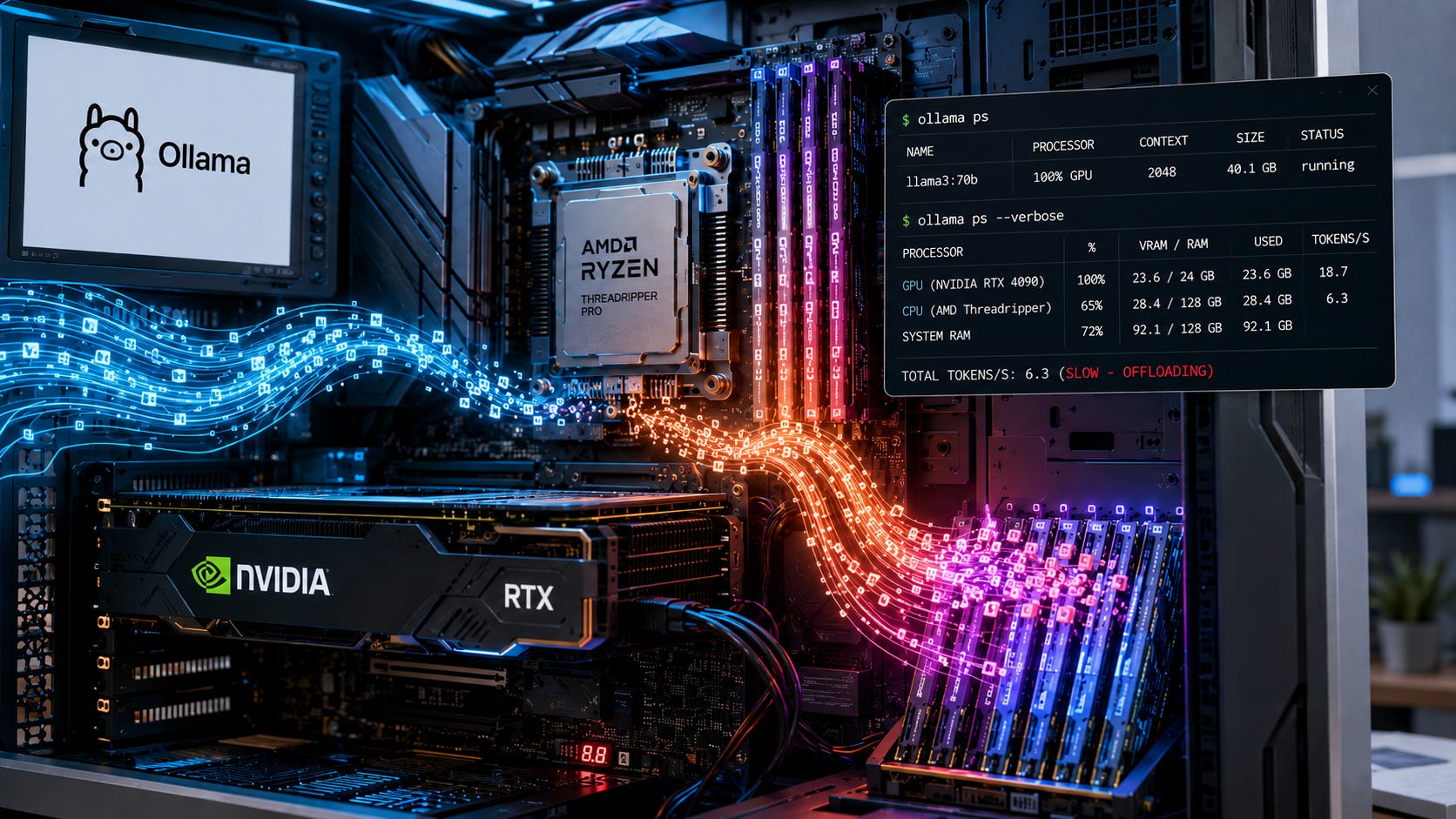
If Ollama starts fast and then drops to painfully slow inference, the problem is usually not “Ollama is broken.” The likely cause is that the model, its context window, or the runtime KV cache no longer fits cleanly in GPU memory, so work spills into CPU and system RAM. That turns a local LLM from usable to miserable.
The fix is to confirm the processor split with ollama ps, reduce context length, use a smaller or more efficient quantization, and check Ollama logs before reinstalling anything. Ollama’s own context-length docs say larger context windows require more memory and recommend avoiding CPU offload for best performance.
More on bottlenecks with local LLMs:

Quick answer
Run this first:
ollama psLook at the PROCESSOR column. If it does not say 100% GPU, you are offloading at least part of the workload to CPU. Ollama’s docs specifically recommend checking the processor split with ollama ps when diagnosing context length and model offloading.
Then try the safe fixes in this order:
Lower the context length.
Use a smaller quantized model.
Stop other GPU-heavy apps.
Check logs with debug enabled.
Update your GPU driver.
Only then consider more VRAM, more unified memory, or a different model.
Do not start by reinstalling Ollama. Most slowdowns come from memory pressure, GPU discovery problems, or context settings.
What this problem means
Ollama runs local models by loading model weights and runtime data into available hardware memory. When enough GPU memory is available, inference can stay on the GPU. When the model or context cannot fit, Ollama may run part of the workload on CPU or system RAM.
That fallback is functional, but slow.
The key source of confusion is that a model can fit at first, then slow down later as the context grows. A short chat with an 8K context may run well. A long coding session, RAG workflow, or agent task can push memory use higher because the model needs to keep more tokens available in memory.
Ollama’s current context-length page says context length is the number of tokens the model can access in memory, and that increasing context length increases the memory required to run the model.
Common causes
The model does not fully fit in VRAM
A model that is too large for your GPU may still run, but not fully on the GPU. That means slower generation.
The context window is too large
Ollama now defaults context length based on available VRAM: 4K context below 24 GiB VRAM, 32K context for 24 to 48 GiB, and 256K context for 48 GiB or more. The same page says large-context tasks like agents, web search, and coding tools should use at least 64K tokens, but it also warns that larger context length requires more memory.
That is the tradeoff. More context gives the model more working memory, but it can push the workload out of GPU memory.
GPU discovery failed
If Ollama cannot properly detect or initialize your GPU, it may fall back to CPU. Ollama’s troubleshooting docs say it inventories GPUs at startup and recommends current NVIDIA drivers when discovery fails.
AMD driver or ROCm support is wrong
Ollama’s hardware support page says AMD support depends on ROCm and lists supported AMD GPUs. Its troubleshooting page also says AMD driver mismatches can cause GPU discovery failures and CPU fallback.
The slowdown is hidden in logs
A GitHub issue opened on February 14, 2026 describes user confusion around GPU-to-CPU fallback, including cases where debug logs are the only clear indication that GPU layers failed to fit or were reduced.
That issue is not an official fix by itself. It is useful evidence of the failure mode users are seeing.
Fix 1: Check whether Ollama is actually using the GPU
Run:
ollama psExpected good result:
NAME             ID              SIZE      PROCESSOR    CONTEXT
gemma3:latest    a2af6cc3eb7f    6.6 GB    100% GPU     65536
Ollama’s docs show this exact kind of output and say to verify model offloading under PROCESSOR.
If you see a CPU/GPU split, or CPU only, the model is not fully running on the GPU.
What to do next
If the model is partially on CPU, reduce context length first. If it is CPU only, check GPU discovery and driver support.
Fix 2: Reduce context length
Context is useful, but it is not free. Large context windows can quietly eat memory and push the model into CPU offload.
Try a lower context length:
OLLAMA_CONTEXT_LENGTH=4096 ollama serveOr use a more moderate setting:
OLLAMA_CONTEXT_LENGTH=8192 ollama serveFor heavier workflows, try stepping up gradually:
OLLAMA_CONTEXT_LENGTH=16384 ollama serveThen run the model again and check:
ollama psIf the PROCESSOR column improves from mixed CPU/GPU to 100% GPU, context length was the issue.
Ollama documents OLLAMA_CONTEXT_LENGTH=64000 ollama serve as a way to set context length when serving, but it also warns that larger context increases memory requirements.
Fix 3: Create a lower-context Modelfile
For a persistent model profile, create a Modelfile:
FROM llama3.1:8b
PARAMETER num_ctx 4096
Then create a custom model:
ollama create llama3.1-8b-4k -f ./Modelfile
ollama run llama3.1-8b-4k
Ollama’s Modelfile reference says PARAMETER num_ctx sets the context window used to generate the next token, and its example shows PARAMETER num_ctx 4096.
Use this when you want a safe “fast profile” for daily work.
Fix 4: Use a smaller or more efficient model
If lowering context length does not solve the slowdown, the model itself may be too large for your hardware.
Try a smaller model:
ollama pull llama3.1:8b
ollama run llama3.1:8b
Or choose a smaller quantized variant from the model page you are using.
The practical rule is simple: fit matters before speed. A smaller model running fully on GPU often feels better than a larger model split across GPU and CPU.
Fix 5: Enable debug logs
Ollama’s troubleshooting docs recommend checking logs when Ollama does not behave as expected. They list different log locations for macOS, Linux, Docker, and Windows.
macOS
cat ~/.ollama/logs/server.logLinux with systemd
journalctl -u ollama --no-pager --follow --pager-endDocker
docker ps
docker logs <container-name>
Windows
Open Run with Win + R, then use:
explorer %LOCALAPPDATA%\OllamaCheck the latest server.log.
To enable debug logging on Windows, quit the Ollama app from the tray menu, then run:
$env:OLLAMA_DEBUG="1"
& "ollama app.exe"
Ollama documents this Windows debug process in its troubleshooting page.
Look for messages about GPU discovery, insufficient VRAM, CPU fallback, CUDA, ROCm, Metal, or library selection.
Fix 6: Check GPU support and drivers
NVIDIA
Ollama’s hardware support page says NVIDIA GPUs need compute capability 5.0 or newer, with driver version 531 or newer. It also notes that compute capability 5.0 through 6.2 requires driver version 570 or newer.
Check your GPU:
nvidia-smiOn Linux, also try:
sudo nvidia-modprobe -uIf GPU discovery fails after suspend or resume, Ollama says reloading the NVIDIA UVM driver can help:
sudo rmmod nvidia_uvm
sudo modprobe nvidia_uvm
Ollama lists this as a workaround for a Linux suspend and resume driver bug.
AMD
On Linux, Ollama says AMD GPU access can require video and render group permissions for /dev/kfd, and that OLLAMA_DEBUG=1 can help during GPU discovery.
Check device permissions:
ls -lnd /dev/kfd /dev/dri /dev/dri/*For driver mismatch problems, Ollama says ROCm 7 Linux libraries require a compatible ROCm 7 kernel driver, and older drivers can cause GPU discovery to hang and fall back to CPU.
Fix 7: Limit which GPU Ollama uses
On multi-GPU NVIDIA systems, you may want Ollama to use a specific GPU.
First list GPUs:
nvidia-smi -LThen set:
CUDA_VISIBLE_DEVICES=GPU-UUID-HERE ollama serveOllama’s hardware support docs say CUDA_VISIBLE_DEVICES can limit Ollama to a subset of NVIDIA GPUs, and that UUIDs are more reliable than numeric IDs because ordering can vary.
This helps when one GPU has more free VRAM than another.
Fix 8: Reduce batch and generation load
Ollama’s API supports advanced runtime options, including num_ctx, num_batch, num_gpu, main_gpu, and num_thread. The legacy GitHub API docs show these options in a request body.
For API workflows, test a smaller context and batch:
curl http://localhost:11434/api/generate -d '{
  "model": "llama3.1:8b",
  "prompt": "Write a short test response.",
  "stream": false,
  "options": {
    "num_ctx": 4096,
    "num_batch": 1
  }
}'
Then compare tokens per second from the final response. Ollama’s API docs say token speed can be calculated by dividing eval_count by eval_duration and multiplying by 10^9, since durations are returned in nanoseconds.
Fix 9: Stop competing GPU workloads
Before assuming Ollama is at fault, close anything else using VRAM:
Games
ComfyUI
Stable Diffusion WebUI
DaVinci Resolve
Blender
Browser AI features
Other local model servers
Docker containers using GPU
Then reload the model:
ollama stop <model-name>
ollama run <model-name>
Check again:
ollama psIf the processor split improves, VRAM pressure from other apps was part of the problem.
Fix 10: Use a realistic hardware target
A larger GPU does not fix bad settings, but too little VRAM creates a hard ceiling.
Practical local LLM targets:
8GB VRAM: Good for smaller 7B and 8B models at modest context. Avoid large context and heavy coding agents.
12GB VRAM: Better for 8B and some 14B class models with careful quantization. Still watch context size.
16GB VRAM: More comfortable for mid-size models, but large context can still trigger offload.
24GB VRAM: Strong local AI baseline for larger quantized models and longer sessions.
48GB or more: Better for large context, heavier RAG, agents, and larger models.
Ollama’s own context defaults reflect this broad split: below 24 GiB gets 4K context, 24 to 48 GiB gets 32K, and 48 GiB or more gets 256K.
More on GPUs for local LLMs:

How to test whether the fix worked
Use a repeatable prompt:
curl http://localhost:11434/api/generate -d '{
  "model": "llama3.1:8b",
  "prompt": "Write 300 words explaining why VRAM matters for local LLMs.",
  "stream": false
}'
Then check:
ollama psLook for:
PROCESSOR    CONTEXT
100% GPU     4096
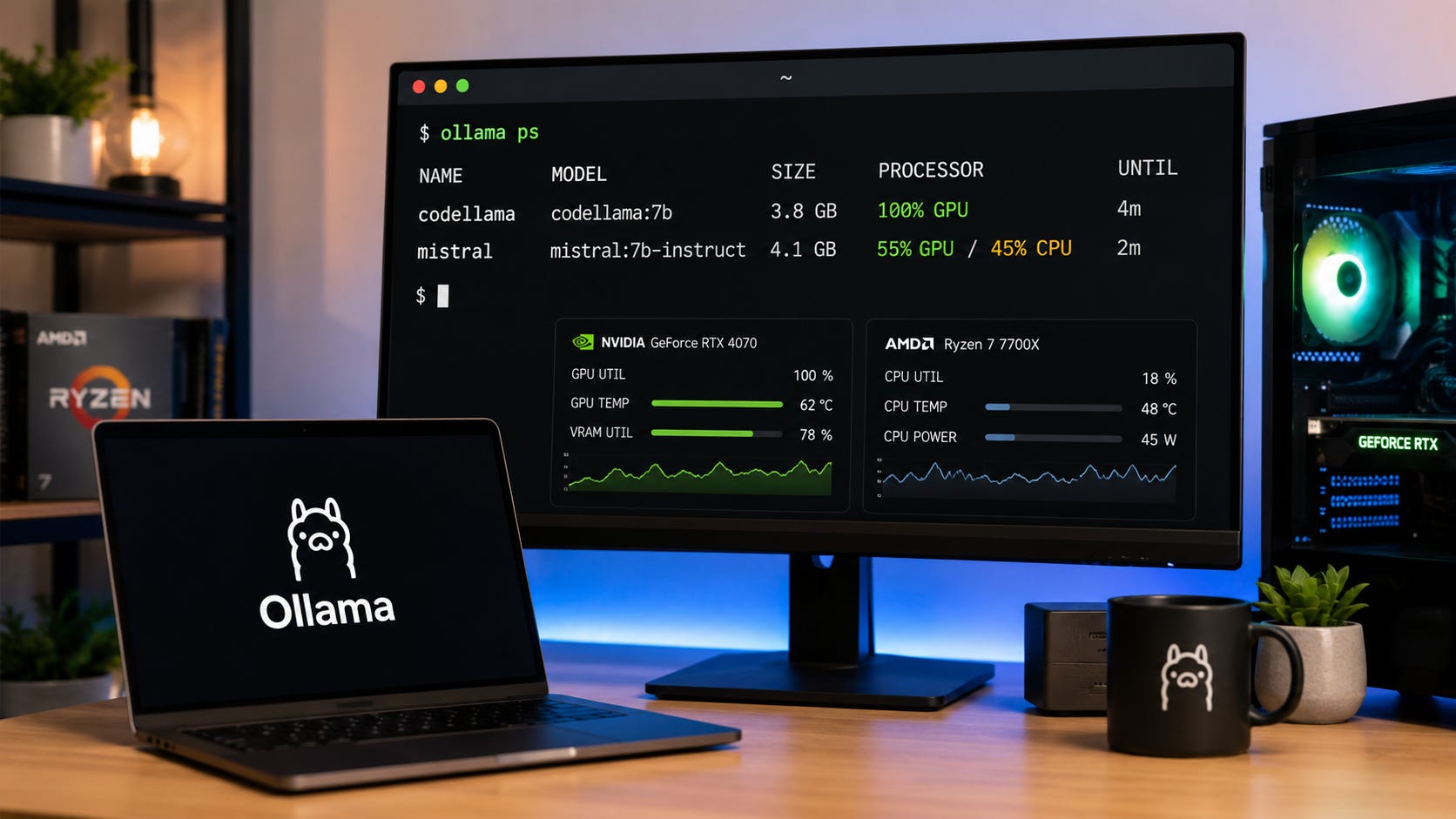
Also compare token speed using eval_count and eval_duration from the final API response. Ollama documents those fields and the token-per-second calculation in its API docs
.
Common mistakes
Mistake: setting context to the model maximum
Many users see a model supports a huge context window and immediately set Ollama to that number. That is a good way to destroy performance if the hardware cannot hold the working set.
Use the smallest context that solves the task.
Mistake: assuming “model size” equals total memory required
The model file is only part of the memory story. Runtime context and KV cache can push a previously working setup over the edge.
Mistake: ignoring ollama ps
Guessing wastes time.
ollama pstells you whether the model is fully on GPU, partially offloaded, or CPU-bound.
Mistake: blaming the CPU first
A fast CPU does not make CPU offload feel like GPU inference. CPU fallback can keep the model usable, but it is not the performance target.
Mistake: buying a faster low-VRAM GPU
For local LLMs, more VRAM can matter more than raw gaming speed. A faster card with too little memory can still fall into CPU offload.
Privacy and account-risk notes
This is one reason Ollama is worth fixing rather than abandoning at the first slowdown. A working local setup keeps prompts, documents, code, meeting notes, and internal workflows on your machine unless you deliberately connect external services.
That privacy benefit disappears if the local setup becomes too slow and forces you back to a hosted model for every serious task.
The practical goal is not to run the largest model possible. It is to run the largest useful model that stays fast and predictable on hardware you control.
FAQ
Why is Ollama suddenly slow?
The most likely reason is that the model or context no longer fits fully in GPU memory, so Ollama is using CPU or system RAM. Run
ollama psand check thePROCESSORcolumn.
How do I know if Ollama is using my GPU?
Run:
ollama psIf the
PROCESSORcolumn says100% GPU, the loaded model is fully on GPU. If it shows CPU or a CPU/GPU split, you are offloading.
Does increasing context length make Ollama slower?
It can. Ollama says larger context length increases memory requirements. If the larger context pushes the model out of VRAM, performance can drop sharply.
Should I set Ollama to 64K context?
Only if your task needs it and your hardware can handle it. Ollama says large-context tasks like agents, web search, and coding tools should use at least 64K tokens, but it also warns to make sure enough VRAM is available.
What is KV cache bloat?
KV cache is runtime memory used so the model can keep track of previous tokens during generation. As context grows, memory use grows. If that runtime memory pushes past available VRAM, performance can collapse into CPU offload.
Is CPU offload bad?
It is useful as a fallback, but bad for performance. CPU offload can keep a model running when it does not fit in VRAM, but the price is slower generation.
Should I buy more RAM or more VRAM?
For Ollama performance, VRAM usually matters first. System RAM helps avoid crashes when workloads spill over, but it does not make CPU offload as fast as GPU inference.
Final recommendation
Start with measurement, not guesswork.
Run ollama ps, lower context length, test again, and check the logs. If your model becomes 100% GPU after reducing context, the problem was memory pressure from context or KV cache growth. If Ollama still cannot use the GPU, move to driver and GPU discovery troubleshooting.
Only buy hardware after you know the failure mode. For local LLMs, the best upgrade is usually more usable GPU memory, not a faster card with the same cramped VRAM.
Explore more from Popular AI:
Start here | Local AI | Fixes & guides | Builds & gear | Popular AI podcast
What has caused the worst Ollama slowdown for you so far: too much context, the wrong model size, GPU driver problems, or hidden CPU offloading?