


A ComfyUI crash on a powerful PC can send you shopping for the wrong upgrade. Many image workflows still run comfortably with 32GB of system RAM. Move to 64GB when repeated runs exhaust host memory, and consider 96GB for demanding video or multitasking workloads that show a measurable need.
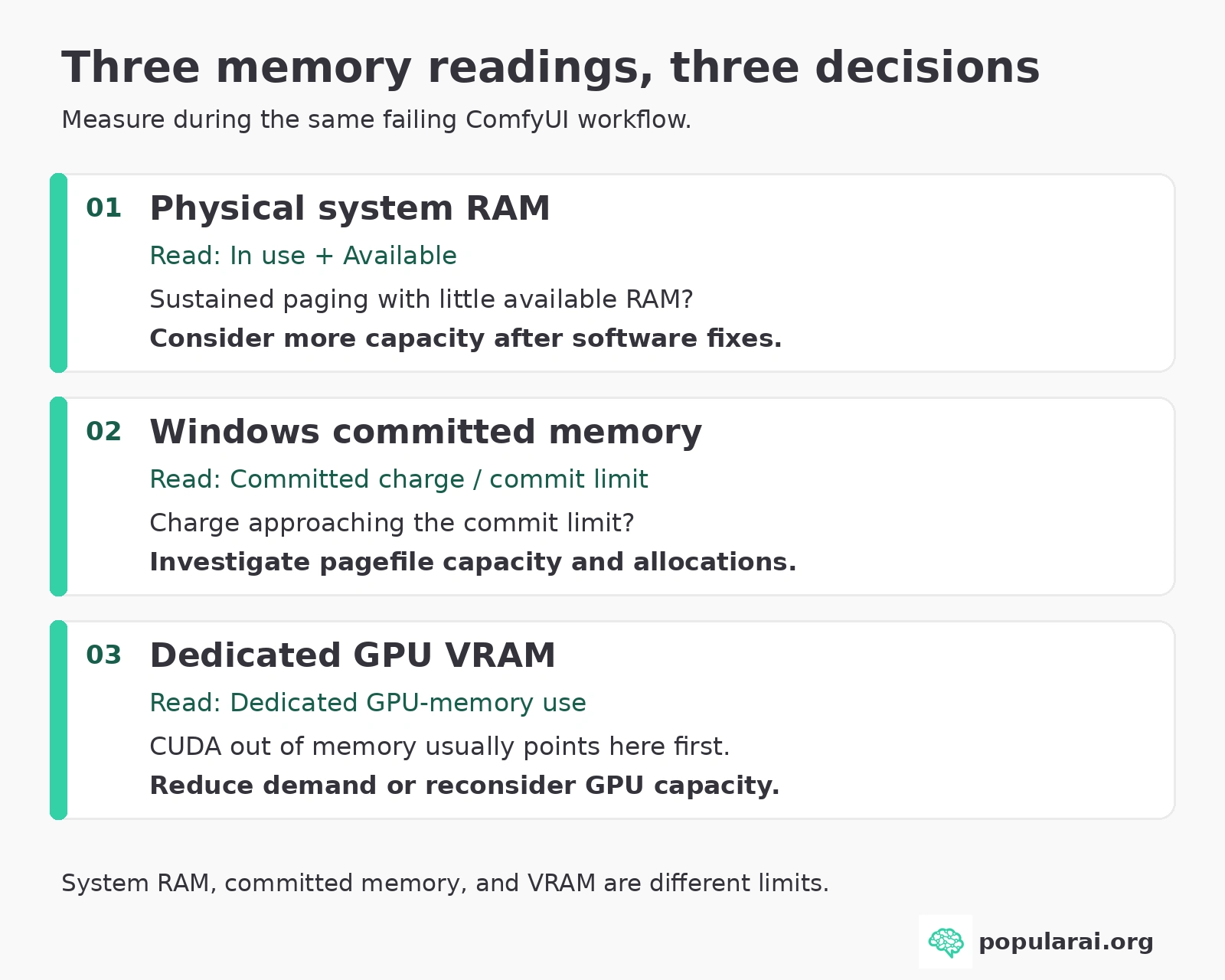
Before ordering memory, measure physical RAM, Windows committed memory, and dedicated GPU VRAM during the failing workflow. Those three readings can point to three different fixes.
Disclosure: This post includes Amazon affiliate links. If you buy through them, Popular AI may earn a small commission at no extra cost to you.
ComfyUI RAM quick verdict: 32GB, 64GB, or 96GB
32GB: Keep it for SDXL-class image generation and other modest workflows when there is headroom and little paging. A 24GB GPU does not automatically require 64GB of system RAM.
64GB: Choose this for frequent large-checkpoint swaps, FLUX workflows, multiple models, or video work that demonstrably exhausts 32GB. It is the default upgrade, not a universal minimum.
96GB or more: Buy for repeatable heavy video runs, large host-side models, or simultaneous applications that push a 64GB system into sustained paging. A measured 64GB limit, not a model’s name, should trigger the purchase.
Why ComfyUI can run out of memory with a 24GB GPU
Your graphics card has VRAM, while Windows, Python, browsers, model loaders, and offloaded model weights use system RAM. Having 24GB of one does not provide unlimited capacity in the other.
When ComfyUI moves model data between the GPU and host, the system may need a substantial amount of both. Model format, precision, frame count, resolution, custom nodes, caching, and other applications affect the result.
ComfyUI supports dynamic VRAM management, asynchronous weight offloading, disk-backed loading, and cache controls. These settings change where model data lives and when it moves. Your installed version and its memory settings belong in any comparison between two machines.
As a result, two users running a similarly named video model may report radically different RAM demand. An image workflow that stays in VRAM can be comfortable on 32GB, while a video graph with several models and aggressive host offloading can struggle on 64GB.
Windows adds another complication: committed memory is not the same as physical RAM in use.
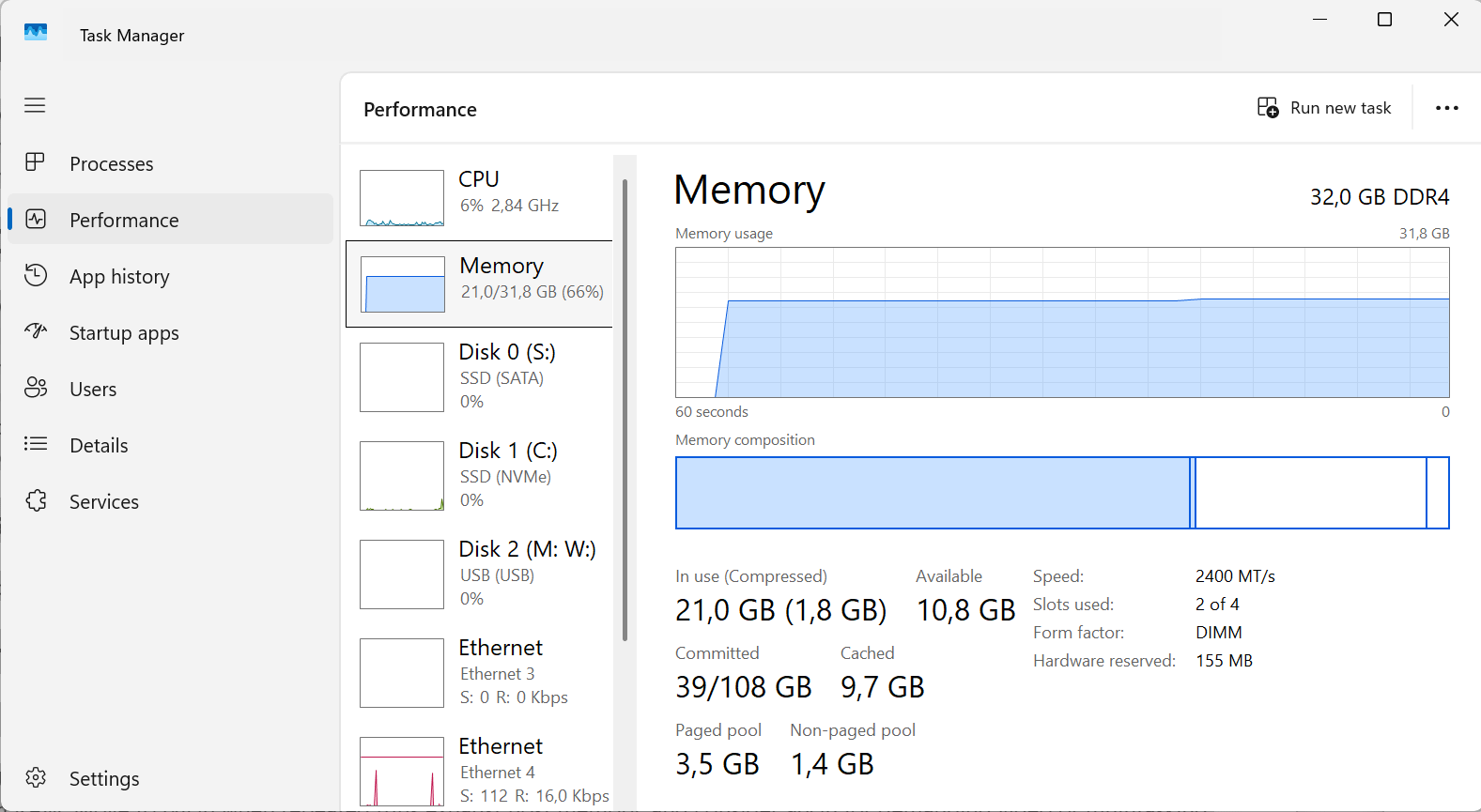
Windows committed memory represents memory the system has promised to back. The commit limit is approximately installed RAM plus its pagefiles. An allocation can fail when the committed charge reaches that limit even if the physical-memory chart doesn’t look full.
In a May 2025 issue, a Windows 11 user running a Wan workflow on ComfyUI 0.3.35 reported about 45GB of actual memory use, 75GB committed, and an 80GB commit limit on a system with 64GB installed.
That older, user-reported case doesn’t establish how every current build behaves. It shows why buying RAM based on a single Task Manager percentage can miss the cause. Keep the error message, software version, and memory readings together so you can investigate the allocation that actually failed.
How to measure how much RAM ComfyUI really needs
Measure the workflow you intend to keep running, at your normal resolution, frame count, precision, and batch settings. A small test image won’t answer whether your usual video graph fits. The measurement needs to represent the work you want the computer to do.
Start from a fresh reboot if prior runs leave confusing caches, then follow this repeatable Windows test.
Record the baseline. Open Task Manager, choose Performance → Memory, and note
In use,Available, andCommitted(the current charge and its limit). Under Performance → GPU, note dedicated GPU-memory use. Record what else is open.Run the exact problem graph. Include its LoRAs, upscalers, video frames, or ControlNet branches. Watch the readings at model loading, sampling, and decoding rather than checking only after the run ends.
Look for sustained pressure. If available physical RAM approaches zero, the disk stays busy, and Resource Monitor shows frequent hard faults while ComfyUI slows, paging is likely hurting the workflow. A brief spike or a large file cache alone is weaker evidence.
Check the failing allocation. A
CUDA out of memorymessage usually points first to GPU allocation. A Windows commit limit reached, a pagefile error, or host-sideMemoryErrorpoints elsewhere. Save the full console error and the readings just before failure.Repeat once with background applications closed. If removing a game, editor, or browser brings the system comfortably below the limit, decide whether you actually need those programs open together before purchasing anything.
On Linux, free -h and vmstat 1 help reveal host-memory availability and swap activity. nvidia-smi helps monitor NVIDIA VRAM. Neither a single snapshot nor a process’s private-memory figure captures the whole system. Compare the same graph across repeated runs.
For purchase planning, allow roughly 20–30% spare physical capacity above your observed sustained peak, including the other programs you want open. That margin is a buying guideline, not a ComfyUI specification. Apply it to physical use during the workload, rather than treating the committed charge as a direct RAM requirement.
For example, a run that approaches 29GB of real physical use on a 32GB computer gives little breathing room. Moving to 64GB is reasonable.
A 64GB system with only 35GB physically in use but a very high committed charge needs a pagefile and allocation investigation before it needs 96GB.
When 32GB, 64GB, and 96GB make sense
▪ 32GB: keep it if image generation is stable
For a machine dedicated mainly to single-image work, 32GB is a valid starting point. The GPU often makes the larger difference to image-generation speed and model fit.
If your typical graph finishes without heavy swapping, extra unused RAM will not magically make diffusion sampling faster.
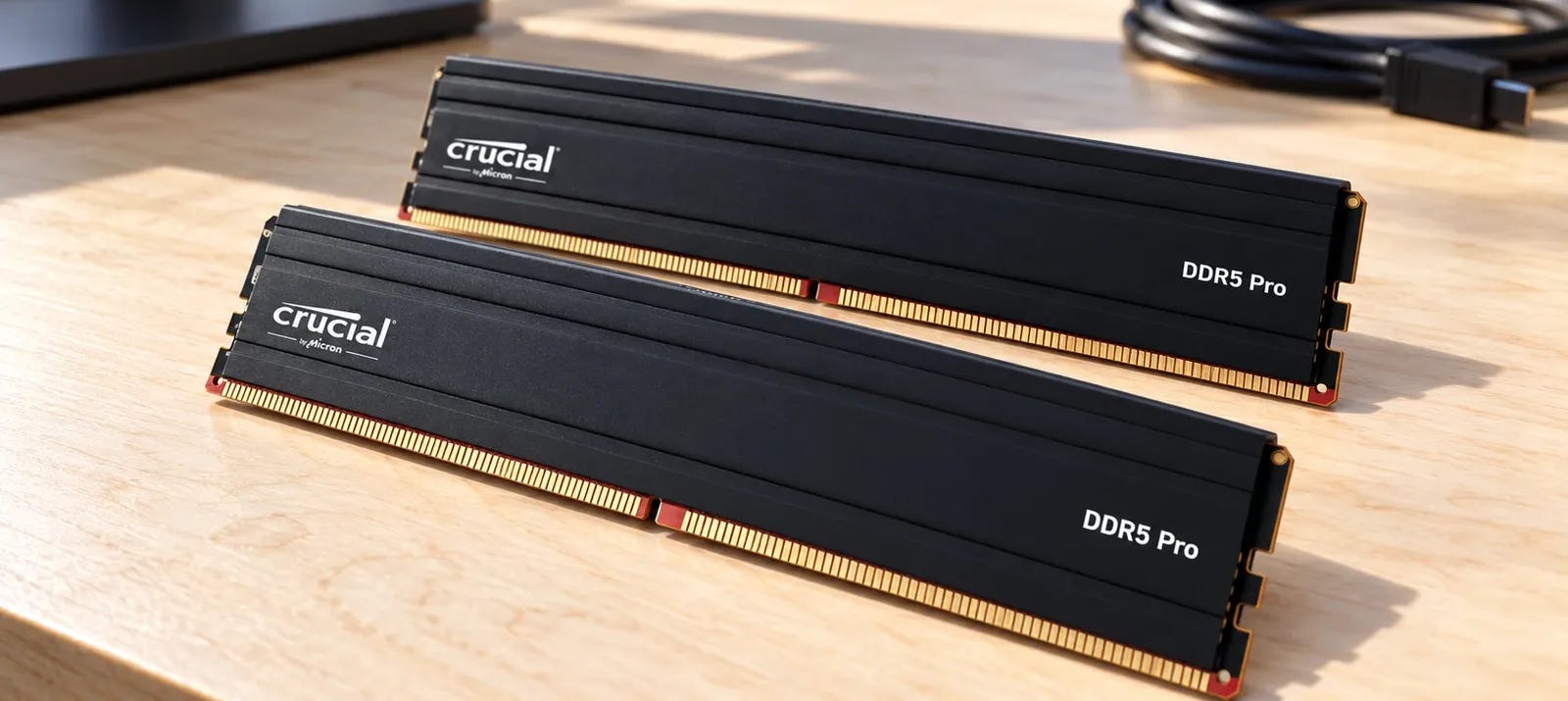
A representative desktop kit is Crucial Pro DDR5-6000 32GB (2×16GB). If you already own 32GB, don’t replace it merely for a slightly different advertised speed. Capacity, stability, and the memory pressure you measured should drive this decision.

Keep the memory already working unless measurements expose a limit.
▪ 64GB: the strongest practical upgrade from 32GB
64GB gives the host more space for checkpoints, offloaded weights, cached data, and applications left open during generation.
It is especially useful if the same demanding image or modest video workflow regularly drives a 32GB machine into paging. It also avoids having to close everything whenever a larger graph starts.
For a compatible DDR5 desktop, Crucial Pro DDR5-6000 64GB (2×32GB) is a concrete two-DIMM example. The recommendation is for the additional capacity. Compare its total price with other supported 64GB kits before paying for a faster profile.

Its advertised 6000 MT/s profile requires motherboard and CPU support. A less expensive, supported DDR5-5200 or DDR5-5600 kit can be the smarter purchase if ComfyUI needs capacity rather than premium timings.
Price makes this a harder decision in October 2026. Recent U.S. listings for 64GB DDR5 kits around $1,000 or more make an unnecessary upgrade expensive. Compare the supported kits available when you buy, rather than treating that range as a fixed price.
At those prices, the evidence for an upgrade should be much stronger than a single failed run.
▪ 96GB: buy it for confirmed 64GB pressure
A 2×48GB configuration adds 50% more capacity than 64GB while filling only two desktop DIMM slots.
It is attractive for repeated image-to-video work, large host-resident components, multiple simultaneous jobs, or editing applications that stay open while ComfyUI works.
It is poor value for someone whose observed peak is 25GB.
The Crucial Pro 96GB DDR5-5600 (2×48GB) kit is a capacity-first example. Check the full product name and selected capacity before paying. A retailer can change the variant behind an otherwise familiar listing.

An Amazon-linked price tracker for this 96GB kit provides a price reference, but its displayed offer can change. The approximately $1,460 September 2026 observation is a dated reference. Check the actual offer before using it in a purchase comparison.
At that level of spending, try lowering memory demand before buying. The extra 32GB has a clear purpose when a repeatable workload exceeds 64GB. It has little to offer a machine that already finishes the same jobs with physical memory to spare.
If your workload still exceeds 96GB, larger configurations may be justified. That is the point to examine the platform’s maximum tested memory capacity and whether a workstation platform makes economic sense, instead of assuming four consumer DIMMs will run at their advertised top speed.
Try these fixes before upgrading RAM
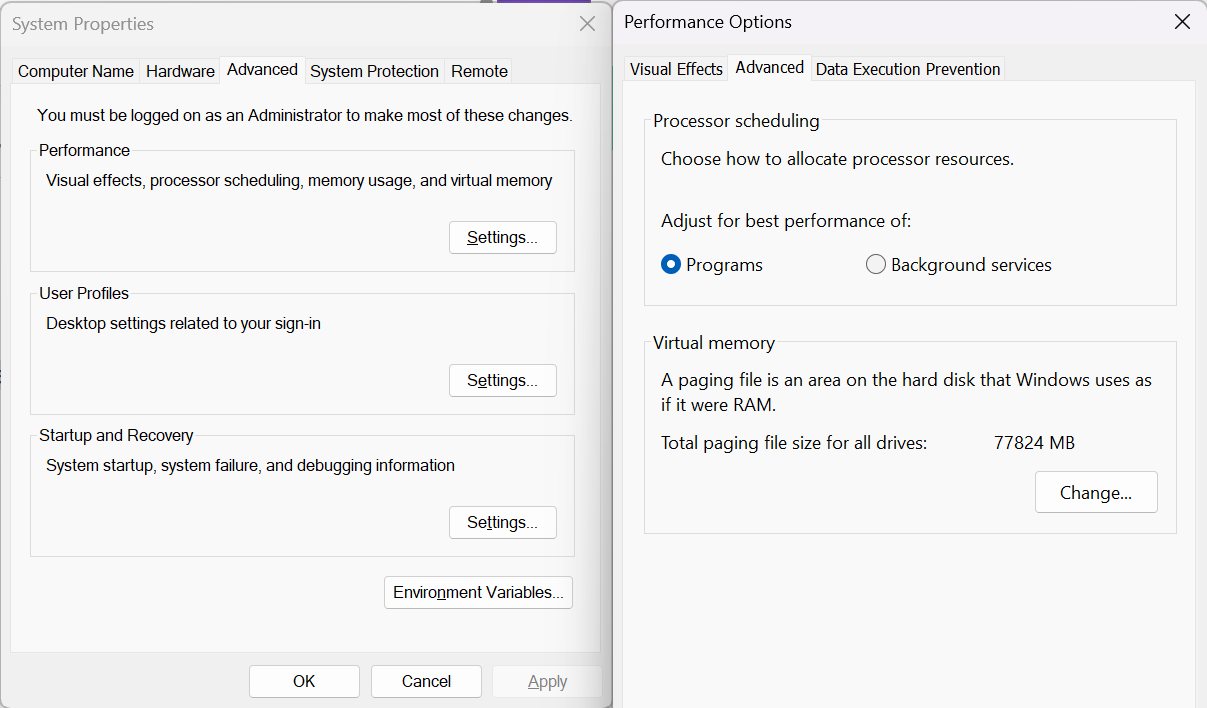
▪ First, check the Windows pagefile.
If the committed charge approaches the commit limit but physical RAM remains available, Microsoft’s guidance supports providing enough pagefile-backed commit capacity. A system-managed pagefile on a drive with adequate free space is a safer starting point than disabling it or assigning an arbitrary tiny size.
Enlarging it can prevent commit-limit failures, although actual swapping to disk will still be much slower than using RAM.
▪ Next, reduce a genuine GPU-memory bottleneck. Lower frame count, resolution, batch size, or model precision where the model and nodes support it. Try a smaller or quantized model when an appropriate version exists.
Adding 64GB of system RAM cannot transform a 12GB GPU into one with 24GB of dedicated VRAM.
▪ Finally, review ComfyUI’s caching and offload choices.
The --cache-none option can reduce RAM/VRAM use at the cost of recomputing nodes. --cpu-vae moves VAE work to the CPU to save VRAM but can increase host-memory pressure.
--lowvram is not a universal fix: current documentation says it has no effect when dynamic VRAM is enabled. Options such as --disable-smart-memory can actually push more data into system RAM.
Use the flags supported by your installed version and change one setting at a time.
If memory pressure began after installing custom nodes, isolate the affected graph and compare it with a built-in template. A custom node that holds intermediate data or a dependency combination that fails during loading can change the memory profile.
Use ComfyUI-Manager to identify and manage installed nodes. Its presence alone doesn’t diagnose a RAM shortage. Compare the affected workflow and a built-in template before treating a custom-node failure as evidence that you need another memory kit.
Check RAM compatibility before paying
Capacity is not the only buying constraint.
⚠️ A DDR4 motherboard cannot accept DDR5. A laptop may need SO-DIMMs or have soldered RAM. Ordinary desktop DDR5 uses UDIMMs, while many professional systems require registered memory.
▪ Check the exact motherboard, CPU, BIOS revision, memory capacity limit, and manufacturer qualified-vendor list before buying.
For most supported dual-channel desktops, 2×32GB is the straightforward 64GB configuration, and 2×48GB is the straightforward 96GB configuration.
Filling four slots can force lower stable frequencies, especially with high-density DIMMs. Do not assume two separate kits will behave like one validated four-DIMM kit.
▪ Check AMD’s overclocked-memory compatibility list where relevant, then confirm the kit against your motherboard manufacturer’s qualified-memory list and BIOS support. An advertised profile on the box doesn’t settle whether your specific configuration will run it reliably.
▪ If you own a DDR4 system, price a supported DDR4 upgrade before considering a CPU and motherboard replacement just to gain DDR5.
If you already have 2×16GB DDR5, replacing it with a matched 2×32GB or 2×48GB kit is often cleaner than adding another pair. Sell or reuse the original kit rather than mixing modules without support.
Stability wins over a small frequency advantage when a generation run takes hours.
How the buying recommendations were chosen
These buying thresholds draw on ComfyUI’s memory-related command-line definitions, official Windows memory guidance, manufacturer compatibility information, U.S. retailer listings, and labeled community reports.
The three capacities are purchasing thresholds, not measured universal requirements for FLUX, Wan, or any particular model.
A December 2025 ComfyUI user report describes memory pressure on a 64GB machine while generating video and running other applications. Its comments describe different outcomes even when running related video workflows. Anecdotes establish the problem, not the RAM recommendations.
For broader build advice, see our budget ComfyUI workstation guide.
If you’re weighing memory speed against capacity for other local models, our DDR5 speed versus capacity analysis covers that separate question.
More on local AI builds:


Buy more ComfyUI RAM only when the measurements justify it
Keep 32GB if real image workflows run reliably without sustained paging. Upgrade to 64GB when the same jobs repeatedly exhaust physical memory after sensible software fixes. Choose 96GB only when you can show that 64GB is the obstacle, usually with heavier video or concurrent work.
If VRAM is the limit, spend your money there or change the workflow. If committed memory is the problem, inspect the pagefile and allocations first.
A measurement taken during the failing graph is worth more than a shopping cart full of RAM.
Explore more from Popular AI:
Start here | Local AI | Builds & gear | Autonomy & policy | Fixes & guides | Popular AI podcast