


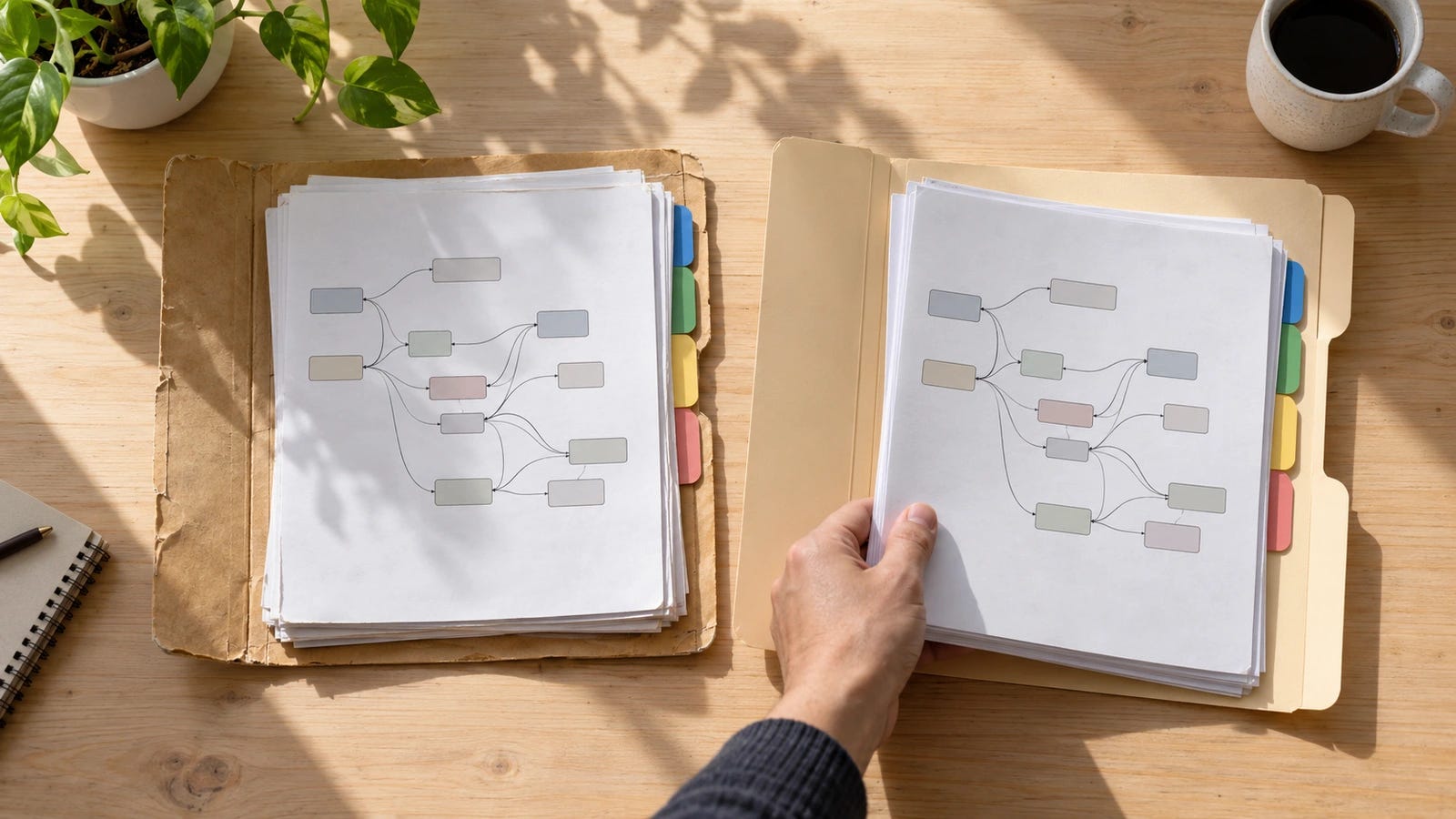
Moving ComfyUI to a new PC can leave you with every workflow JSON file intact and a screen full of missing-node and missing-model errors. To preserve a working setup, back up the files and record the software environment that runs them. Restore both into a separate installation, and keep the original PC untouched until the new one completes a representative workflow.
Quick fix: back up the whole ComfyUI setup
Close ComfyUI on the old computer.
Copy your models, custom nodes, user data, workflows, configuration, and any inputs or outputs you need.
Record the Python and PyTorch environment before disconnecting the machine.
On the new PC, start with an appropriate ComfyUI installation, restore the files into its actual data directories, repair model paths, and install missing dependencies.
Keep the working setup and backup until the restored installation passes a generation test. A Manager snapshot alone does not include every file you need.
Why copying a workflow or custom_nodes folder fails
A workflow JSON describes a graph and its settings. It does not bundle the model weights, Python libraries, custom-node code, or external files referenced by that graph. ComfyUI supports JSON workflow export, separate model directories, and custom nodes, so a complete move needs more than the graph file.
A missing-node warning usually means the extension is absent or failed to import. A missing-model warning means the model file is absent, stored under a different category, or outside ComfyUI’s search paths. A Python import error usually points to an absent or incompatible package. Check which failure you have before changing files or reinstalling packages. Each problem needs a different fix.
1. Diagnose and back up the old installation
First identify whether you use Windows portable, Desktop, or a manual Python installation. Check the startup console or logs for the actual user directory, model directories, and Python executable, especially if you use custom launch flags. Record your GPU, driver, Python and PyTorch versions, ComfyUI release or Git commit, and essential custom-node versions. Keep those notes with the backup so you can compare the old and new environments.
Make one backup folder containing:
models/and any external model libraries, including checkpoints, diffusion models, text encoders, LoRAs, VAEs, and upscalers.custom_nodes/, including manually installed extensions and their files.user/, including saved workflows, settings, and Manager data. Export important workflows separately as.jsontoo.input/, importantoutput/files, and any custom datasets or reference assets.extra_model_paths.yaml, other launch and configuration files, and a note of absolute paths, symlinks, and launch arguments.
Some folders may live outside the installation root. Check where your installation actually reads its data instead of assuming everything sits under ComfyUI/. An external model library still needs a backup even when the app folder is copied in full.
If ComfyUI-Manager is installed, save a snapshot as another recovery aid. Its snapshot support is incomplete for custom nodes not managed by Git. The snapshot records installation state. Keep a separate backup of your models, workflows, and Python environment information.
For a manual Python installation, activate the working virtual environment and run:
python --version
python -m pip freeze > comfyui-packages.txt
python -m pip check
Keep comfyui-packages.txt with the backup. Record git rev-parse HEAD from a Git-based ComfyUI checkout when available. A portable installation can query packages using its own embedded Python, commonly python_embeded\python.exe, rather than the system Python. The package record needs to describe the environment ComfyUI actually uses.
2. Restore ComfyUI on the new PC
Use the restore method that matches your installation. A portable folder can include its Python runtime, while Desktop stores application files separately from its working data. For a manual installation, rebuild the Python environment for the new operating system and GPU.
▪ Windows portable: copy the folder and check compatibility
On another compatible Windows PC, copying the complete ComfyUI_windows_portable folder is often the closest thing to a direct transfer. It includes the application, embedded Python environment, and launch scripts. Choose an appropriate official Windows portable build if the new GPU needs a different package or runtime.
Copy the folder to a normal writable location, such as D:\AI\ComfyUI_windows_portable, and use the launch script appropriate to the new GPU. If ComfyUI starts but nodes fail to import, reinstall their dependencies using that installation’s Python. Installing them into another Python on the PC won’t repair the environment running ComfyUI. Don’t blindly carry over GPU-specific wheels when switching hardware.
▪ Desktop: restore the data to the right installation
Desktop installations separate app files from user-selected model and workflow storage. In the original Desktop app, Windows settings live in %APPDATA%\ComfyUI, including config.json and extra_models_config.yaml. The basePath setting points to the main data directory. Newer Comfy Desktop builds support separate installations and importing existing setups.
Install Desktop on the new PC, create or import a separate setup, and locate its model, custom-node, user, input, and output directories. Restore your backup into those locations. Recreate external model mappings and compare app configuration where necessary. Avoid blindly replacing the new app’s binaries or entire configuration. Paths and installation formats can differ across Desktop generations, so an old configuration file may point to folders that don’t exist on the new computer.
▪ Manual Python: rebuild the environment
Copy your ComfyUI checkout and files, but create a new virtual environment with a compatible Python version. Follow the ComfyUI manual installation instructions for the appropriate PyTorch build for your new operating system and GPU. From the ComfyUI directory, run python -m pip install -r requirements.txt. Then install each required custom node’s documented dependencies in that same environment.
Use the saved comfyui-packages.txt to compare versions. Don’t treat it as a universal reinstall command. Packages pinned to a former CUDA build, platform, or Python version may fail on the new machine. If possible, restore the recorded ComfyUI and node revisions before updating anything. Changing versions during the move makes it harder to tell whether a failure came from the migration or an update.
3. Fix missing models and restore Manager snapshots
If model files are present but dropdowns are empty, check extra_model_paths.yaml. Put base_path and model-category mappings beneath a named section. Replace old drive letters with paths that exist on the new PC, then restart ComfyUI and inspect the startup log. For Desktop, verify which configuration file the launcher actually passes. Check folder keys, YAML structure, and model-path configuration errors if the files still don’t appear.
Recent Manager versions store configuration and snapshots under user/__manager/, while older versions used user/default/ComfyUI-Manager/. During the security migration, old snapshots are not automatically migrated. Check your backup before copying older snapshots into the protected location. A snapshot restore takes effect after a restart, so selecting Restore is not the last step.
4. Test the restored workflow before deleting anything
Open a saved workflow that uses your most important model and several custom nodes. Check that model dropdowns contain the correct files, nodes load without warnings, and the workflow completes a generation. Compare the new output for obvious differences. Don’t demand pixel-identical results across different GPUs, package versions, or nondeterministic operations.
Keep the original installation and backup until these checks pass:
Your saved workflows and required input assets are accessible.
Models and custom nodes appear, with no startup import failures.
At least one representative workflow runs and writes a usable output.
If the workflow still fails, keep the new installation separate and read the first relevant startup traceback. Check for ModuleNotFoundError, missing model paths, or CUDA/PyTorch compatibility before changing more packages. For failures introduced by version changes, follow the steps to recover ComfyUI workflows after a broken update.
Keep ComfyUI recoverable for the next PC move
Keep model libraries outside app-update directories where practical. Save explicit workflow JSON exports and record package and node versions before major changes. Treat custom nodes as third-party code and inspect unknown scripts before running them. Don’t copy tokens or API keys indiscriminately into backups or share logs containing private paths and credentials.
Preserve the old installation, restore into a separate one, and run your hardest essential workflow before switching computers for good. A successful launch gets you to the canvas. A completed workflow confirms that the files, paths, nodes, and dependencies survived the move together.
More on ComfyUI troubleshooting:


Explore more from Popular AI:
Start here | Local AI | Builds & gear | Autonomy & policy | Fixes & guides | Popular AI podcast