


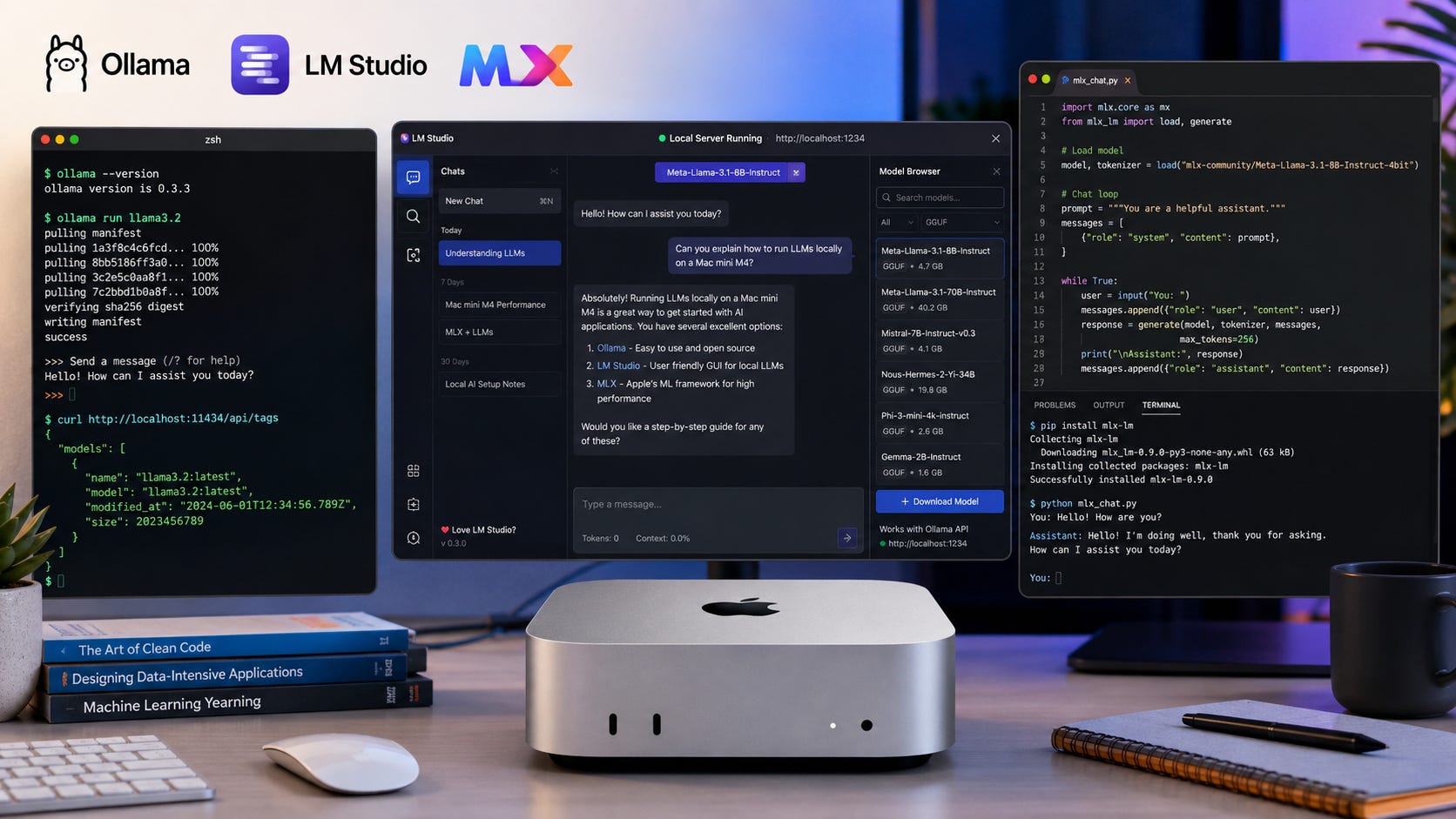
A Mac mini M4 can run local LLMs well when you choose the right model size, keep context length under control, and use the right runtime for the job.
This guide shows how to run a local LLM on Mac mini M4 using three practical paths: Ollama for the fastest command-line setup, LM Studio for a polished desktop app, and MLX LM for Apple-native power users.
The goal is simple: get a working local chat model on your Mac, confirm that it is actually running locally, and know what to change when it feels slow or runs out of memory.
This is a setup guide, not another Mac mini buying guide. If you already have a Mac mini M4, or you are close to buying one, use this as the practical next step.
More on running local LLMs on a Mac:

Quick answer: start with Ollama, then add LM Studio
Use Ollama first if you want the easiest working local LLM setup on a Mac mini M4. Install the macOS app, run a small model, and test the local API at localhost:11434. Ollama’s macOS documentation lists macOS Sonoma 14 or newer and Apple M-series CPU and GPU support.
Use LM Studio if you want a desktop interface, model search, document chat, runtime settings, and an OpenAI-compatible local server without living in Terminal. LM Studio’s system requirements list Apple Silicon Mac support, macOS 14.0 or newer, and 16GB or more RAM recommended.
Use MLX if you want the Apple-native Python path. MLX LM is a Python package for text generation and fine-tuning LLMs on Apple Silicon, with Hugging Face Hub integration and a simple pip install mlx-lm setup.
For a 16GB Mac mini M4, start with 3B to 8B models. For 24GB or 32GB, try stronger 8B to 12B models. For an M4 Pro Mac mini with 48GB or 64GB, you can experiment with larger models, but speed and context length still matter. Apple’s Mac mini tech specs list the M4 model with 16GB unified memory configurable to 24GB or 32GB, and the M4 Pro model with 24GB configurable to 48GB or 64GB.
Who this guide is for
This guide is for Mac mini M4 owners who want a private local assistant for general chat, summaries, lightweight coding help, private document work, local API experiments, prompt testing, RAG prototypes, or a fallback when hosted AI tools are unavailable, expensive, or too restrictive.
It is also a natural follow-up to our Mac mini buying coverage. If you are still deciding which configuration to buy, start with the existing guide to the best Mac mini for local LLMs that covers the broader M4 versus M4 Pro buying question, and the companion guide on Mac mini LLM performance in 2026.
Skip this guide if you need frontier-model quality for complex coding, deep reasoning, or large research workloads. Local LLMs on a Mac mini are useful, but they are not a clean replacement for the best hosted models.
More on Mac mini LLM performance:

What you need before starting
You need a Mac mini with Apple Silicon. This guide targets M4 and M4 Pro models.
You also need macOS 14 Sonoma or newer. Ollama’s Mac documentation and LM Studio’s requirements both list macOS 14 or newer for current Mac support.
For memory, treat 16GB unified memory as the practical floor. It is enough for smaller models, but 24GB or 32GB is much more comfortable. The Mac mini M4 with 16GB unified memory is the entry point, while higher-memory configurations give you more room for model weights, context, and normal desktop apps.
You also need free disk space for model files. Ollama’s macOS docs warn that LLM model storage can require tens to hundreds of GB, depending on what you download.
Finally, you need a stable internet connection for downloading models. After the model files are on the machine, LM Studio’s offline documentation says core local functions can run without internet.
Good starting model ranges:
16GB Mac mini M4:
llama3.2,gemma3:4b, or another small 3B to 8B model.24GB or 32GB Mac mini M4: try 8B to 12B class models.
48GB or 64GB M4 Pro: try 14B, 27B, or 32B class models after smaller tests.
For a first test, do not overthink the model. The Ollama Llama 3.2 library page gives you a simple, small starting point that works well for setup checks.
What you will have when finished
By the end, you will have three usable local LLM paths.
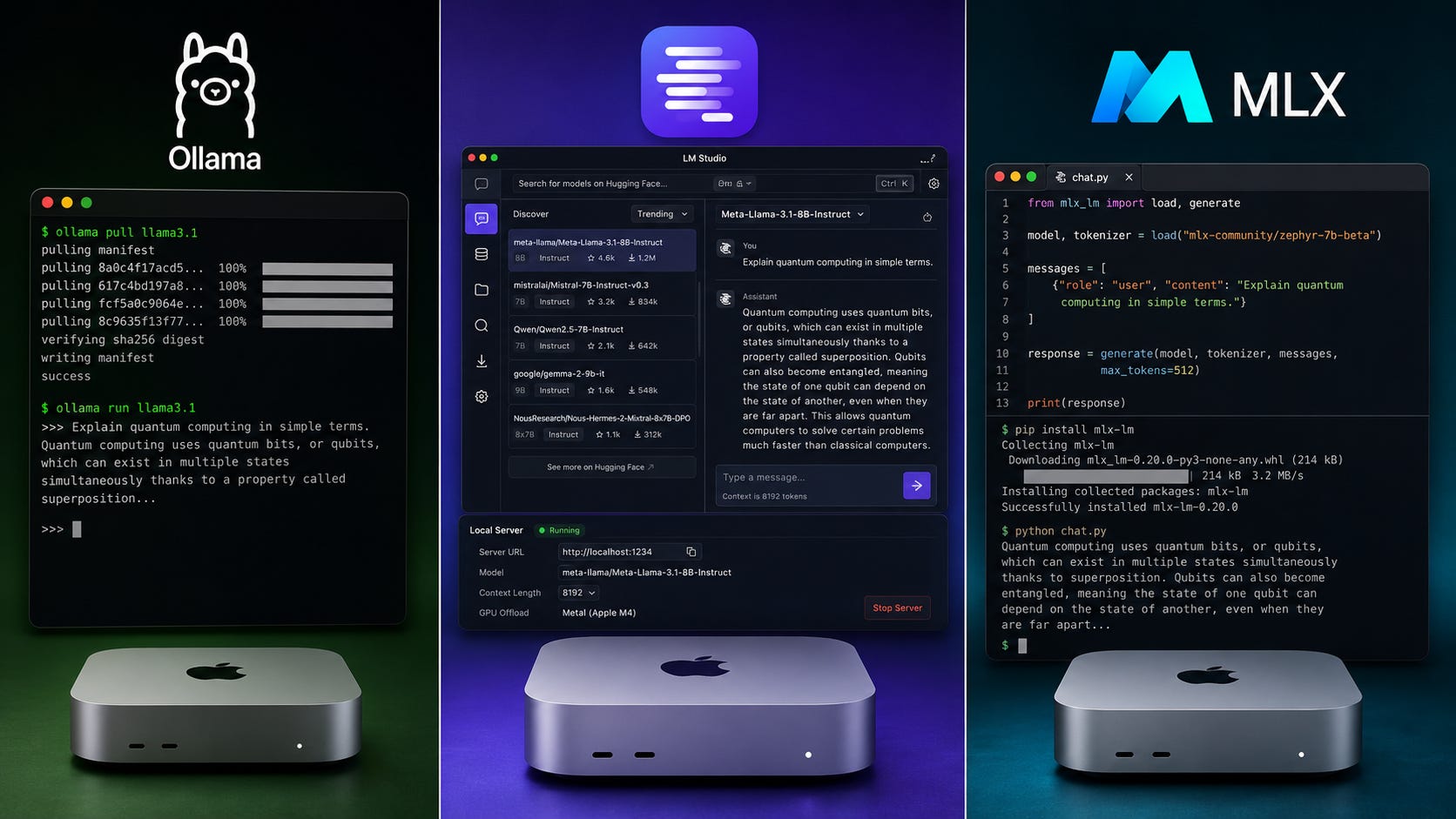
Ollama will run a local model from Terminal and through a local API. LM Studio will run a downloaded model in a desktop chat interface. MLX LM will run an Apple-native model from Python tools.
You do not need all three for daily use. Most readers should install Ollama and LM Studio first, then add MLX only if they want to experiment with Apple-native workflows.
Step 1: Check your Mac mini configuration
Open Apple menu > About This Mac and check four things: chip, memory, macOS version, and available storage.
For the chip, confirm whether you have M4 or M4 Pro. For memory, check whether you have 16GB, 24GB, 32GB, 48GB, or 64GB. For macOS, confirm that you are on Sonoma 14 or newer. For storage, make sure you have enough free space before downloading multiple models.
This matters because Apple Silicon uses unified memory. The model, context window, macOS, browser, and other apps all share the same memory pool.
More memory does not automatically make a weak model smarter. It lets you load larger models, use longer context, and keep the machine responsive while the model is running.
Apple lists the M4 Mac mini at 120GB/s memory bandwidth, while the M4 Pro model is listed at 273GB/s. That bandwidth gap matters because local LLM inference on unified-memory machines is often sensitive to memory bandwidth. You can check the current configuration details on Apple’s Mac mini technical specifications.
Step 2: Install Ollama on Mac mini M4
Ollama is the fastest way to get a local model running.
Go to the Ollama download page and install the macOS app. The download page says macOS requires Sonoma 14 or later.
Move Ollama to the Applications folder when prompted. Then open Terminal and run:
ollamaOllama’s quickstart says running ollama opens the interactive menu.
Now run a small model:
ollama run llama3.2When the model finishes downloading, ask:
Explain what a local LLM is in one paragraph.Exit the chat with:
/byeIf that works, your Mac mini is now running a local LLM.
Step 3: Test Ollama’s local API
Ollama is useful because other apps can talk to it locally.
Run:
curl http://localhost:11434/api/generate -d '{
  "model": "llama3.2",
  "prompt": "Write a three-line checklist for testing a local LLM.",
  "stream": false
}'
Ollama’s API introduction says the local API is served by default at http://localhost:11434/api.
You should see a JSON response with generated text. It may look messy in Terminal, but it proves your local model server is responding.
To see which models are loaded, run:
ollama psOllama’s FAQ says ollama ps shows currently loaded models and whether they are running on CPU, GPU, or split between CPU and GPU memory.
Step 4: Keep Ollama local only
Ollama supports both local and cloud workflows. For this guide, keep the setup local unless you deliberately want cloud models.
Ollama’s FAQ says local runs do not send prompts or data back to Ollama when users run locally. The same FAQ documents a local-only mode that disables Ollama cloud features.
To disable cloud features, create or edit this file:
mkdir -p ~/.ollama
nano ~/.ollama/server.json
Add:
{
  "disable_ollama_cloud": true
}
Or set the environment variable:
launchctl setenv OLLAMA_NO_CLOUD 1Then restart the Ollama app.
Use this setting when privacy and repeatability matter more than cloud convenience.
Step 5: Manage Ollama storage
By default, Ollama stores models on macOS at:
~/.ollama/modelsOllama’s FAQ documents that macOS model folder location.
To see what you have installed:
ollama listTo remove a model:
ollama rm llama3.2Model files add up fast. A 256GB Mac mini can become cramped once you download several models, especially if you also keep media projects, Xcode, Docker images, or large document sets on the same drive.
Step 6: Install LM Studio
LM Studio is the friendlier route for people who want a desktop app instead of a Terminal-first setup.
Download LM Studio for macOS, open the app, and confirm that your system meets the requirements. LM Studio’s system requirements list Apple Silicon M1 through M4 support, macOS 14.0 or newer, and 16GB or more RAM recommended.
Open the Discover tab and search for a model.
Good first searches:
llama 3.2 3b
gemma 3 4b
qwen 7b
mistral 7b
LM Studio’s model download documentation says the app can download supported models from Hugging Face. The docs also explain that model options often include quantized variants such as Q3_K_S or Q_8, and recommend choosing a 4-bit option or higher if your machine can run it.
For the base 16GB Mac mini M4, choose a 4-bit model in the 3B to 8B range first. Do not start with a 27B model and blame the Mac when it crawls.
Step 7: Load and chat with a model in LM Studio
In LM Studio, go to Chat, open the model loader, select the model you downloaded, use a modest context size first, and send a test prompt.
Try this:
You are running locally on my Mac. Give me a five-bullet checklist for testing whether a local LLM setup is useful for daily work.LM Studio’s getting started guide explains that loading a model means allocating memory for the model weights and parameters. That is why a model can fail or slow down if it does not fit comfortably.
If the model loads and responds, your LM Studio setup works.
Step 8: Use LM Studio’s local server
LM Studio can expose a local OpenAI-compatible API. That is useful for scripts, coding tools, test apps, and workflows that normally expect an OpenAI-style endpoint.
In LM Studio, open the Developer or Server area, start the local server, note the port, usually 1234, and load a model.
Test with cURL:
curl http://localhost:1234/v1/chat/completions \
  -H "Content-Type: application/json" \
  -d '{
    "model": "use-the-model-id-from-lm-studio",
    "messages": [
      { "role": "user", "content": "Say this is a local LM Studio test." }
    ],
    "temperature": 0.7
  }'
LM Studio’s OpenAI compatibility docs say you can point existing OpenAI clients at LM Studio by changing the base URL to the local server, with examples using http://localhost:1234/v1.
This is the cleanest path if you want local apps without rewriting everything around a new API.
Step 9: Install MLX LM for Apple-native local LLMs
MLX is the Apple-native route. It is less beginner-friendly than LM Studio, but it gives power users a direct path into Apple Silicon tooling.
First, create a clean Python environment:
mkdir -p ~/local-llm-mlx
cd ~/local-llm-mlx
python3 -m venv .venv
source .venv/bin/activate
python -m pip install --upgrade pip
Install MLX LM:
pip install mlx-lmThe MLX LM GitHub repository says the easiest setup is pip install mlx-lm, and describes MLX LM as a Python package for text generation and fine-tuning LLMs on Apple Silicon.
Run a basic generation test:
mlx_lm.generate --prompt "Give me a short explanation of unified memory for local LLMs."Run an interactive chat:
mlx_lm.chatThe same MLX LM documentation says mlx_lm.chat starts a chat REPL and that the default model for generation and chat is mlx-community/Llama-3.2-3B-Instruct-4bit.
To specify a model:
mlx_lm.generate \
  --model mlx-community/Mistral-7B-Instruct-v0.3-4bit \
  --prompt "Write a practical local LLM test plan for a Mac mini."
Step 10: Choose the right model for your Mac mini M4
Local LLM setup problems usually come from choosing a model that is too large, a quantization that is too heavy, or a context window that is too ambitious.
The safe approach is to start small, confirm that everything works, and only then move upward.
16GB Mac mini M4
The best starting range is 3B to 8B models.
Try:
ollama run llama3.2
ollama run gemma3:4b
A 16GB Mac mini M4 is good for private notes, short summaries, simple rewriting, and lightweight coding help. It is not the right machine for large daily 32B workloads.
If you are buying specifically for local LLMs and can afford more unified memory, the 24GB or 32GB configurations are more comfortable than the entry model.
24GB or 32GB Mac mini M4
The best starting range is 8B to 12B models.
Try:
ollama run gemma3:12bThis is where the Mac mini becomes much more useful. You get more room for model weights, context, and normal desktop apps.
A higher-memory Mac mini still needs realistic expectations. You may get better answers from a stronger model, but long context, heavy multitasking, and oversized models can still push the machine into slow behavior.
48GB or 64GB Mac mini M4 Pro
The best starting range is 14B to 32B class experiments, depending on quantization and context.
This is the better Mac mini path for larger local LLMs. Apple’s Mac mini tech specs list M4 Pro configurations up to 64GB unified memory, and the M4 Pro also has higher memory bandwidth than the base M4.
For broader performance context, our existing comparison of llama.cpp vs Ollama vs LM Studio speed is the better follow-up once the basic setup works.
More on choosing the best LLM runner:

Step 11: Test the setup with real prompts
Do not judge a local LLM by one clever demo. Test it against work you actually do.
Use these prompts:
Summarize this pasted article in 7 bullets. Separate facts from interpretation.

[PASTE TEXT]
Review this code for obvious bugs. Do not rewrite it unless you find a real issue.
[PASTE CODE]Turn these rough notes into a clean outline. Keep every factual claim from the notes and flag anything that needs verification.
[PASTE NOTES]Write a short email based only on these facts. Do not add promises, dates, prices, or claims I did not include.
[PASTE FACTS]A useful local model should be fast enough, accurate enough, and private enough for a specific workflow. It does not need to beat every hosted model.
Common errors and fixes
Error: the model is painfully slow
The model may be too large, the context window may be too high, or the model may not be using acceleration effectively.
Try a smaller model first. Use a 4-bit quantized model in LM Studio. Reduce context length. Close memory-heavy apps. In Ollama, run:
ollama psCheck whether the model is loaded on GPU, CPU, or split between the two. Ollama documents this in the Processor column.
To prevent the same problem later, start with 3B or 4B models on 16GB machines, then move upward only after the smaller setup works.
Error: the model will not load
The model probably does not fit comfortably in unified memory.
Quit browsers, Docker, Xcode, and memory-heavy apps. Pick a smaller model. Choose a lower quantization size in LM Studio. Reduce context length. Reboot if memory pressure stays high.
Do not use model size as a status symbol. The best local model is the one that fits and responds reliably.
Error: Ollama command not found
The Ollama app may be installed, but the CLI link is missing from your PATH.
Open the Ollama app, let it create the CLI link when prompted, restart Terminal, and run:
which ollama
ollama --version
Ollama’s macOS docs say the app checks whether the CLI is present in your PATH and can prompt to create a link in /usr/local/bin.
Error: LM Studio search does not work offline
LM Studio can run downloaded models offline, but model search and downloads require internet access.
Reconnect to the internet, download the model, then use offline mode afterward. LM Studio’s offline docs say searching and downloading models require connectivity, while chatting with downloaded models can stay local.
Error: MLX install fails
Your Python environment may be stale, broken, or running under the wrong architecture.
Make a fresh virtual environment, upgrade pip, and install again:
python3 -m venv ~/mlx-test
source ~/mlx-test/bin/activate
python -m pip install --upgrade pip
pip install mlx-lm
If that still fails, check that you are on Apple Silicon and not forcing an Intel or Rosetta Python environment.
Error: the answer quality is weak
The setup works, but the model is not strong enough for the task.
Try a better model in the same size class. Try a larger model if your memory allows it. Use a stricter prompt. Break the task into smaller steps. For high-stakes work, use a hosted frontier model and keep local models for private drafts, summaries, and repeatable internal tasks.
Privacy, security, and account-risk notes
Local LLMs reduce cloud dependency only when the workflow stays local.
Ollama’s FAQ says local runs do not send prompts or data back to Ollama, while cloud-hosted models are processed as a service. The same FAQ documents how to disable cloud features.
LM Studio’s offline documentation says downloaded models can run offline, chat inputs stay on the device, document chat processing is local, and local server requests stay local or on the local network.
Still, watch these traps. Downloading models requires internet access. Hugging Face model pages may have licenses you need to respect. Local servers can become network risks if exposed beyond localhost. Prompts can still leak through logs, screenshots, browser extensions, scripts, or copied files. A local model can hallucinate with full confidence.
A local setup is private, but it is not magically correct.
For sensitive work, keep the local server bound to localhost unless you know exactly why you are exposing it.
Ollama vs LM Studio vs MLX: which should you use?
Use Ollama if you want the fastest setup, you like Terminal, you want a simple local API, or you plan to connect other tools to localhost:11434.
Use LM Studio if you want a desktop app, easier model discovery, document chat, a local OpenAI-compatible server with less setup, and a simple way to compare models without memorizing commands. LM Studio’s app documentation is the best place to check current app features, runtimes, and local workflow details.
Use MLX if you are comfortable with Python, want Apple-native experiments, want access to MLX-compatible models on Hugging Face, or care about fine-tuning and deeper local AI work.
Most Mac mini M4 users should start with Ollama and LM Studio. MLX is the next step once you know which models and workflows are worth keeping.
Further reading
For hardware buying context before setup, pair this guide with our best Mac mini for local LLMs and its broader Mac mini LLM performance in 2026 guide.
For runtime choices after setup, compare the same workload across Ollama, LM Studio, and llama.cpp using our local LLM speed comparison.
FAQ
Can the Mac mini M4 run local LLMs?
Yes. The Mac mini M4 can run local LLMs, especially smaller 3B to 8B models. The experience improves with 24GB or 32GB unified memory, and the M4 Pro models give more headroom with up to 64GB unified memory, according to Apple’s Mac mini technical specifications.
Is 16GB memory enough for local LLMs on a Mac mini M4?
Yes, but stay realistic. Use small models, modest context windows, and close heavy apps. LM Studio recommends 16GB or more RAM and says 8GB Macs may still work with smaller models and modest context sizes.
Is Ollama better than LM Studio on Mac mini M4?
Ollama is better for quick command-line setup and local API use. LM Studio is better for a desktop chat interface, model browsing, document chat, and local server workflows. LM Studio’s documentation also describes support for local runtimes and app-based model management on Apple Silicon Macs.
Is MLX faster than Ollama?
It depends on the model, quantization, context length, and workload. MLX is Apple-native and worth testing on Apple Silicon, but Ollama is easier for most users. Popular AI’s separate llama.cpp vs Ollama vs LM Studio speed guide is the better place to compare runtimes after your setup works.
Do local LLMs work without internet?
Yes, once the model files are downloaded. LM Studio says downloaded models, document chat, and local server use can run without internet. Ollama can also run local models without sending prompts to Ollama, according to Ollama’s FAQ.
What model should I install first?
Start with
llama3.2orgemma3:4bin Ollama. The Ollama Llama 3.2 library page is a simple place to begin if you want a small model for setup testing before moving to larger options.
The best Mac mini M4 local LLM setup starts small
Install Ollama first and run a small model. Then install LM Studio if you want a friendlier interface and a local OpenAI-compatible server. Add MLX when you are ready to test Apple-native models and Python workflows.
For a 16GB Mac mini M4, stay in the 3B to 8B range. For 24GB or 32GB, test 8B and 12B models. For M4 Pro with 48GB or 64GB, experiment with larger models, but do not ignore speed, context length, and daily usability.
The Mac mini M4 is a strong local LLM box when you treat it like a quiet, efficient private assistant. It is not a magic replacement for every hosted model. Use it where local control matters, and keep hosted tools for jobs where frontier capability matters more than privacy or ownership.
If you are still buying hardware, use Apple’s Mac mini configuration details to choose memory first, then storage. If you already have a Mac mini M4, the best move is to start with Ollama, prove the setup works, and only then chase larger models.
Explore more from Popular AI:
Start here | Local AI | Fixes & guides | Builds & gear | Popular AI podcast
If you were setting up a local LLM on a Mac mini M4 today, what would matter most to you: privacy, speed, offline access, or avoiding another AI subscription?