


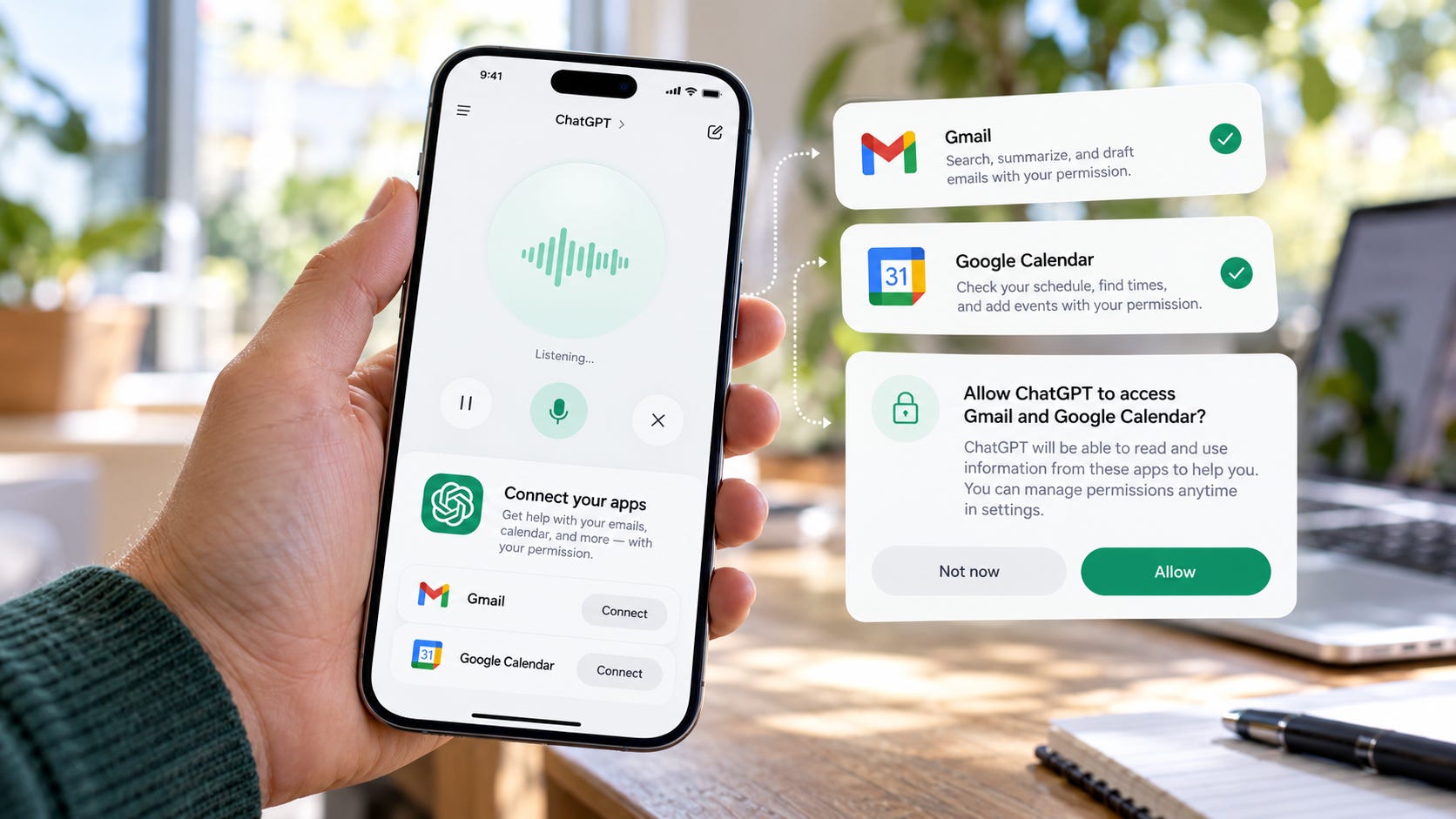
ChatGPT Voice can now reach into connected apps while you talk to it. That can mean checking Gmail, reading your calendar, finding files in Drive, or handing a longer task to ChatGPT Work without switching back to typing.
The useful part is obvious. The risk sits in permissions you may have configured weeks or months ago. OpenAI says Voice now uses plugins and connected apps already available to your account, while existing app connections, permissions, and usage limits still apply.
Voice is a new control surface for authority you may already have granted. Before you start treating it like a hands-free assistant, check what those connected accounts can actually read and change.
ChatGPT Voice connected apps permissions: key takeaways
OpenAI added plugin and connected-app support to ChatGPT Voice on September 23, 2026. Voice can use apps available to your account during a spoken conversation.
Voice does not automatically gain extra provider access. Provider permissions, app capabilities, workspace controls, and ChatGPT approval settings still limit what it can do.
ChatGPT can be set to ask before reads and changes, allow reads without another prompt, automatically allow some low-risk actions, or in eligible cases allow supported actions without repeated approval.
If a Voice action requires approval, OpenAI says you must review it on screen. Spoken approval is not supported.
Google permissions deserve a close look. OpenAI documents
gmail.modifyfor Gmail andcalendar.eventsfor Google Calendar, and those scopes can authorize more than passive reading.A sensible starting point for a sensitive personal or work account is Always ask. Allow read actions can make sense once you understand the integration and want hands-free retrieval without automatically granting write actions.
What changed on September 23
OpenAI’s September 23 release added plugin support to Live Voice on the web, iOS, and Android. Voice can use plugins and connected apps already available to the account.
The same release expanded Voice inside ChatGPT Work. A spoken instruction can initiate document, presentation, spreadsheet, connected-app, or browser work. An unfinished Voice task in Work can continue in text after the call ends.
That changes the practical role of Voice. You no longer have to describe an inbox or calendar from memory. You can potentially ask what is actually in the connected account. You can ask for a message to be found, a calendar item to be checked, or a file to be located while the conversation continues.
Early users are already probing that boundary. One Reddit user reported asking Voice to inspect Gmail and write to a Google Drive document in the same session. That is anecdotal evidence of one user’s experience, not a guarantee that every account, plan, app, or action behaves the same way.
The change is still useful because it removes interface friction. It also makes stale permissions easier to exercise. An app connection you barely noticed while typing can become part of a natural spoken workflow.
What ChatGPT Voice permissions actually control
There are several permission layers. Treating them as one switch makes the feature look either safer or scarier than it is.
The first layer is the external account. When you connect Google, Microsoft, or another provider, you authorize access to that service. Those provider permissions set the outer boundary of what the connection can potentially reach.
The second layer is the app or plugin. A broad OAuth scope does not prove that every action allowed by that scope is exposed inside ChatGPT. The app still has its own supported capabilities.
Managed workspaces add another control point. An administrator can disable an app, limit its use, or restrict which members can access it.
Then ChatGPT has its own approval settings. OpenAI currently documents four possible permission levels, although the choices shown can vary by account, app, connected account, and workspace:
Always ask: ChatGPT asks before reading app information or making changes.
Allow read actions: ChatGPT can read without asking, but changes still require approval.
Allow low-risk actions: some lower-risk actions can proceed automatically, while higher-risk actions may still require confirmation or be denied.
Allow all actions: supported actions can run without additional approval prompts when that option is available. OpenAI labels this as elevated risk.
Those settings do not expand the provider grant. They decide how readily ChatGPT may use authority that already exists. OpenAI’s broader guidance on connected apps makes the same account boundary clear: the connected account, provider permissions, available app actions, and workspace controls still determine what ChatGPT can reach.
That is the control mechanism worth understanding before you make Voice part of a daily routine.
Your Gmail connection may have more than read access
The Google authorization layer deserves special attention because the names people use casually, such as “email access,” do not tell you whether the underlying grant is read-only.
OpenAI’s Google app documentation lists the gmail.modify scope for Gmail.
Google describes gmail.modify as allowing an application to read, compose, and send email from your Gmail account. The scope does not permit the Gmail API’s immediate permanent deletion of threads and messages while bypassing trash.
A Gmail connection with that provider scope should therefore not be treated as inherently read-only.
That still does not mean every Gmail action is automatically available in ChatGPT Voice. The ChatGPT app has to support the action. Workspace policy can restrict it. ChatGPT’s approval policy can stop it for confirmation. Some sensitive actions can be denied.
The useful mental model is simple: provider scope tells you the maximum authority granted at that layer. ChatGPT can still expose less.
Google Calendar can include edit authority too
Calendar follows the same pattern.
OpenAI lists the calendar.events scope for its Google Calendar integration. Google says calendar.events can view and edit events on all calendars available through that grant.
So “Can Voice see my calendar?” is only half the permission question. The provider-level authorization can also support changes.
Whether Voice can actually perform a specific edit still depends on the app’s supported actions, the connected account, workspace restrictions, and the approval mode you selected. A calendar scope capable of edits is not the same thing as every calendar edit being automatically executable.
That difference is easy to miss because the user-facing workflow is conversational. The underlying permissions are not conversational at all. They are normal account permissions with real effects on another service.
Can ChatGPT make changes without you touching the screen?
Potentially, yes. The answer depends on the action and the permission setting.
With Always ask, ChatGPT asks before reading connected information or making changes. This is the most deliberate option when you are learning what an integration can do.
With Allow read actions, retrieval gets easier. Voice can read supported information without another prompt, while changes still require approval.
With Allow low-risk actions, ChatGPT can automatically approve actions it treats as lower risk. Higher-risk actions may still require confirmation or be denied.
An eligible connected account can also expose Allow all actions. That can let supported actions run without another approval prompt. It does not override provider permissions, workspace restrictions, or safety controls.
OpenAI says actions can receive extra review when they affect another service, expose sensitive information, or are difficult to undo. Its examples include sending email, editing or deleting records, changing sharing or security settings, making purchases, and disclosing sensitive information.
Voice also has a practical backstop. When an action needs approval, you must use the on-screen controls to approve or decline it. Saying “yes” out loud is not enough.
That breaks the fantasy of a completely screenless assistant. For consequential actions, a little friction is doing useful work.
The permission setup I would use first
Get the practical setup guide, including which permissions to use, what to check in Google, and how to reduce unnecessary account access.
This section is available to paid subscribers only. Upgrade to keep reading.
FAQ
Can ChatGPT Voice read my Gmail?
Yes, when an eligible Gmail connection is available to your account and has the required authorization. Voice can use supported connected apps available to your account, subject to existing app permissions, workspace restrictions, and plan availability.
Can ChatGPT Voice change my Google Calendar?
The Google authorization documented for Calendar includes the
calendar.eventsscope, which can authorize viewing and editing events. Whether a specific Voice edit is available still depends on the ChatGPT app, the connected account, workspace settings, and approval rules.
Can I approve a Voice action just by saying yes?
No. When a Voice action requires approval, OpenAI says you must use the on-screen controls to approve or decline it. Spoken approval is not supported.
Does Voice bypass my existing plugin settings?
No. Existing app connections, permissions, workspace restrictions, and usage limits continue to apply. Voice gives you another way to invoke supported tools. It does not replace those controls.
Does disconnecting Gmail delete information already used in ChatGPT?
No. Disconnecting stops future access through that connection, but it does not automatically delete existing conversations, saved files, your Memory summary, or other saved memories. Those controls are separate.
ChatGPT Voice permissions should match the job you want done
ChatGPT Voice now makes Gmail, Calendar, Drive, and other connected apps easier to use without touching the keyboard. The convenience is real, especially for quick retrieval while you are moving between tasks.
The safest useful setup is also straightforward. Connect only the services you need. Know what the provider scopes authorize. Keep Always ask while learning the integration. Move to Allow read actions when hands-free retrieval is worth it. Grant broader automatic actions only when you understand the exact capability you are enabling.
Before saying “check my inbox,” “move that meeting,” or “update the document,” inspect the account behind the request.
Hands-free should not mean permission-free.
More on this subject:


Explore more from Popular AI:
Start here | Local AI | Builds & gear | Autonomy & policy | Fixes & guides | Popular AI podcast