


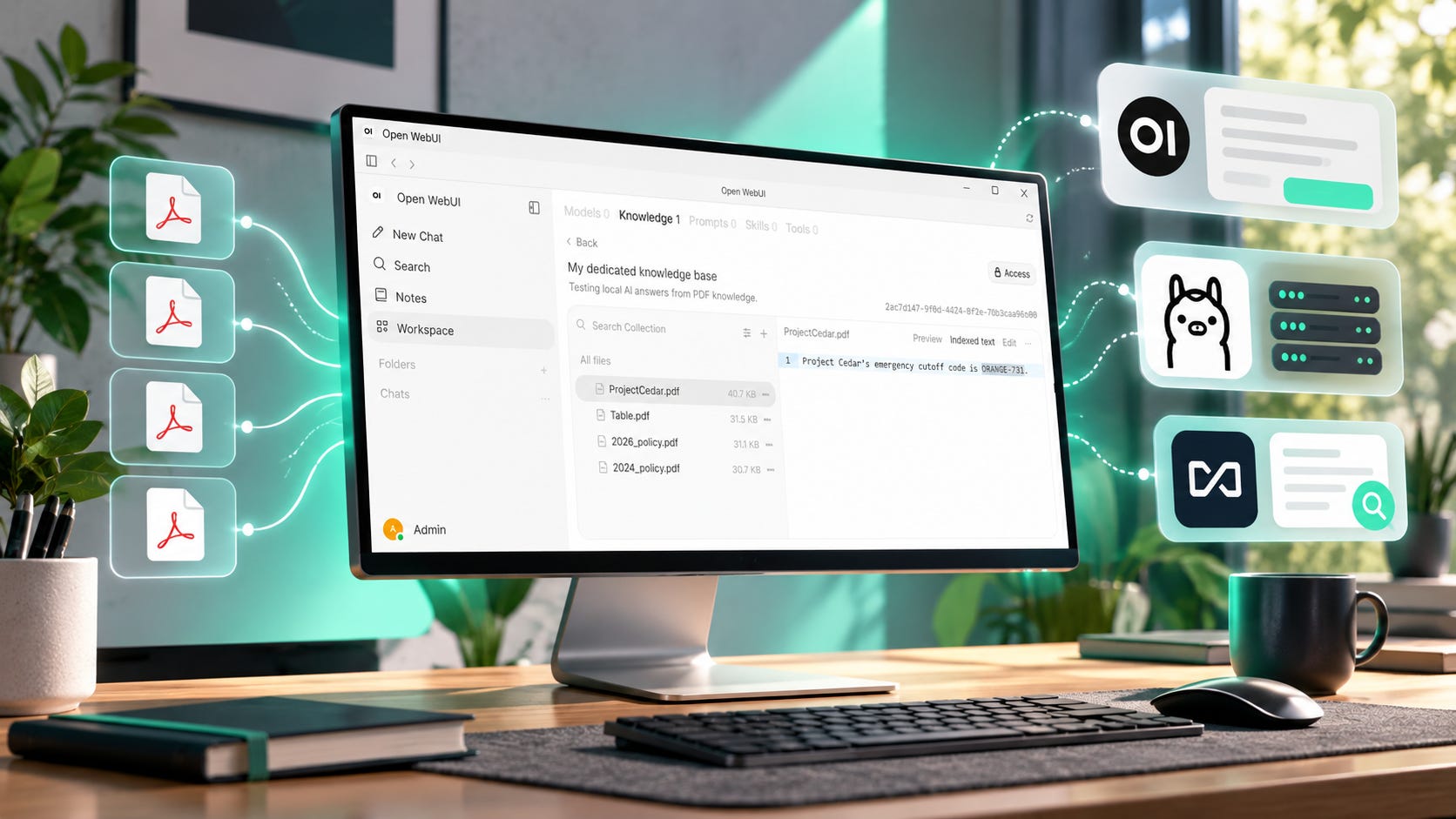
A local LLM can answer a question confidently while looking at the wrong PDF, missing the page that contains the answer, or citing a passage that does not support what it just said.
The fix usually starts before the chat model. Reliable local RAG has to extract the document correctly, retrieve the right passages, give the model enough evidence, and then verify that each important claim is supported by the cited text.
This guide uses Ollama with Open WebUI as the main setup because Open WebUI exposes enough of the retrieval process to show where a failure happened. An AnythingLLM workflow appears later.
Quick answer: verify the evidence before tuning the model
For trustworthy local PDF chat, treat a citation icon as a pointer to evidence, not proof that the answer is grounded.
Start with a small test collection. Inspect the text extracted from every PDF. Run known-answer questions and negative controls. Check which passages were retrieved. Only then should you tune chunk size, embeddings, hybrid search, reranking, context length, or the chat model.
Open WebUI’s Knowledge system supports focused RAG retrieval, full-document context, semantic search, exact-text search, file inspection, and indexed-text previews. The indexed text is the material the retrieval system can actually search. If the answer disappeared during PDF extraction, a better LLM will not bring it back.

That indexed-text view is the first place to look when a PDF assistant appears clueless. Sometimes the model never received the evidence because the evidence never survived extraction.
Who this local PDF RAG workflow is for
This workflow is for someone who already has, or wants, a private document assistant built around Ollama and a local interface such as Open WebUI or AnythingLLM.
It is especially useful when the collection contains dozens or hundreds of PDFs, scanned records, manuals, books, research papers, contracts, reports, or a mix of document types. Those collections expose failures that a clean five-page PDF can hide.
For a few short PDFs, full-document context can be simpler. RAG earns its keep when the collection becomes too large to put into the model prompt every time, or when you need targeted lookup across many files.
If you are still building the machine and software around this workflow, Popular AI has a broader local AI guide covering models, privacy, hardware, and APIs plus a private AI server build using Ollama and Open WebUI. Readers who want to extend the same local setup into tool use can also see the guide to private AI agents with Ollama.
More on building your local AI server:


What you need before starting
You need Ollama, Open WebUI, at least one local chat model, and enough storage for the documents and their embeddings.
Open WebUI recommends Docker for most installations and documents connections to separate or bundled Ollama deployments. Its quick-start instructions cover Windows, Linux, and macOS. Ollama likewise provides downloads for Windows, macOS, and Linux.
For this guide, you also want a local embedding model. Open WebUI can use its local SentenceTransformers default or point the RAG embedding engine at Ollama. Ollama’s embedding library currently includes models such as nomic-embed-text, mxbai-embed-large, Qwen3 Embedding, EmbeddingGemma, and multilingual options.
A sensible starting point is:
ollama pull nomic-embed-textOllama lists nomic-embed-text as a dedicated embedding model that can be pulled locally and used through its embedding API.
You do not need a huge GPU just to test whether retrieval works. Embedding and retrieval are separate stages from response generation. A smaller chat model can still reveal whether the correct evidence reached the prompt, even if you later move to a stronger model for difficult synthesis.
What you will have when finished
You will have a local knowledge base that you can test instead of trusting on vibes.
More specifically, you will know how to determine whether a bad answer came from:
PDF extraction.
Retrieval.
Context limits or tool use.
The LLM itself.
A citation that looks convincing but does not support the claim.
That diagnostic split saves time because it tells you which layer to change. Swapping the chat model is wasted effort when the parser never extracted the sentence you need.
Step 1: Build a small retrieval torture test
Do not start troubleshooting with 300 PDFs.
Create a miniature collection whose correct answers you already know. Four or five files are enough, and each file should test a different failure mode.
Make one ordinary text PDF containing a deliberately unusual fact. For example:
Project Cedar’s emergency cutoff code is ORANGE-731.Create two PDFs that deliberately contradict one another:
2024 policy: returns are accepted within 14 days.And:
2026 policy: returns are accepted within 30 days. This policy supersedes the 2024 policy.Make a scanned PDF containing another unique sentence. A photographed or scanned page is fine.
Finally, make a small table containing something such as:

Save each as a separate PDF.
This tiny collection tests ordinary retrieval, conflicting evidence, OCR, and table extraction. It also gives you a controlled way to tell whether a later configuration change improved anything.
Do this before importing your real archive. A retrieval system is much easier to debug when you know exactly what it should find.
Step 2: Create a dedicated Open WebUI knowledge base
In Open WebUI, go to Workspace > Knowledge, create a new knowledge base, and upload the test files.
Keep the test knowledge base separate from your real collection. You want repeatable questions without unrelated chunks contaminating the results.
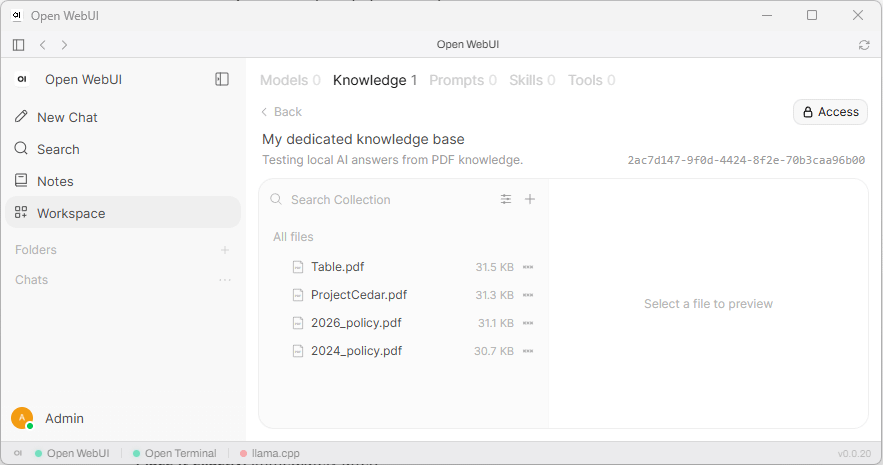
Wait until document processing has finished before testing. Files still being extracted or embedded are not ready for a fair retrieval test.
For this first pass, use Focused Retrieval rather than Full Context. The point is to make the retrieval system prove that it can find the right evidence. Full Context can hide retrieval problems because it sends much more of the document to the model.
Step 3: Inspect what the PDF parser actually extracted
This is the step people skip, then spend an evening changing embedding models.
Open a file inside the Open WebUI knowledge base and switch from the original preview to Indexed text. That is the representation used for retrieval. If a table is mangled there, the embedding model cannot reconstruct the missing relationships later. If a scan produces no useful text, vector search has nothing useful to retrieve.
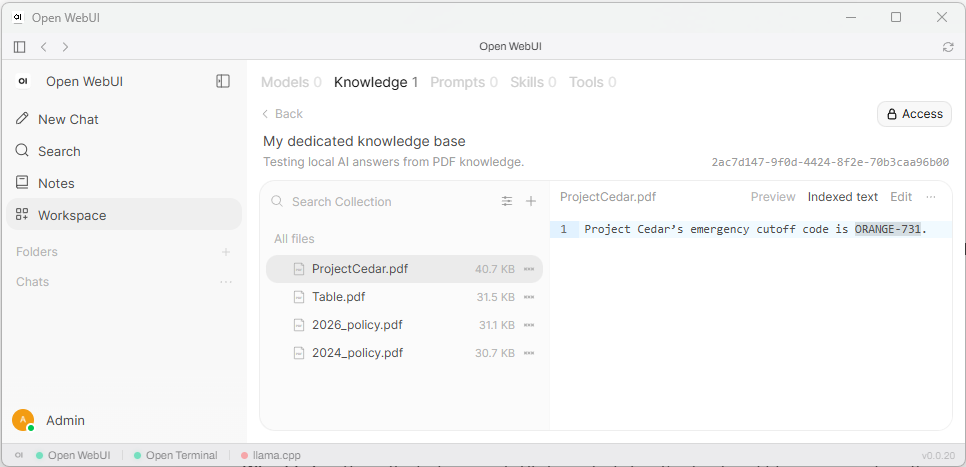
Check every test document.
▪ Your normal PDF should look almost identical to the source.
▪ Your scanned PDF should contain the sentence you deliberately placed in the scan.
▪ Your table should still preserve the relationship between BX-22 and 113 kg.
If those checks fail here, stop. You have an extraction problem, not a chat-model problem.
Open WebUI’s document-extraction system explicitly covers text-based PDFs, scanned PDFs, images containing text, and multiple extraction methods. Use that layer to fix extraction before changing retrieval settings.
For scanned PDFs and difficult tables
For awkward PDFs, Docling is worth testing because its Open WebUI integration exposes OCR and table-parsing controls. The current configuration supports do_ocr, table_mode, ocr_engine, and OCR language settings, including an accurate table mode.
The useful configuration concept is straightforward:
{
  "do_ocr": true,
  "table_mode": "accurate",
  "ocr_engine": "tesseract",
  "ocr_lang": ["eng"]
}
Do not enable heavy OCR for everything automatically. A clean digital PDF usually does not need it, and heavier extraction adds work without fixing a problem that is not there.
Use a stronger extraction path for files that actually need one. Then re-upload the affected file and inspect its indexed text again. Changing the parser after ingestion does not repair text that was already extracted.
Step 4: Establish a retrieval baseline before tuning
Once extraction looks right, configure retrieval.
Open WebUI’s documented defaults include a character splitter, chunk size of 1000, overlap of 100, Top K of 3, and the local all-MiniLM-L6-v2 embedding model. Its current general guidance recommends token splitting, larger chunks and overlap, and a wider candidate pool, while suggesting a lower Top K for local models with tight context windows.
For a local PDF test, start conservatively:
Text splitter: token
Markdown header splitting: on
Chunk size: 1000
Chunk overlap: 100
Top K: 5
Full context: off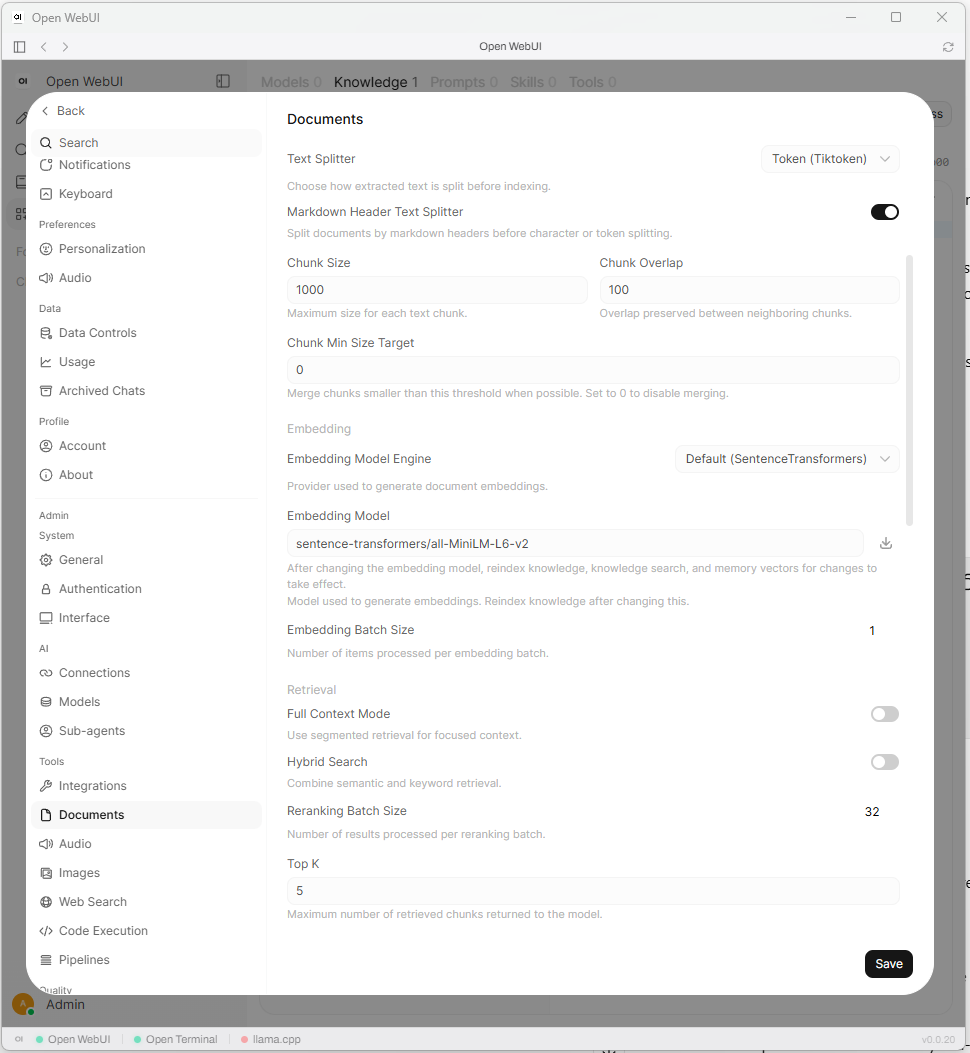
Do not treat those numbers as sacred. They are a baseline designed to give you room to observe what changes.
A local model with a large usable context window can often handle a wider retrieval set. If recall is poor and the model has room, try Top K 10 and then 15.
If increasing Top K starts feeding the model loosely related passages, back off. More retrieved text can improve recall, but it can also bury the useful evidence under noise.
Consider hybrid retrieval before obsessing over chunk size
Pure semantic retrieval is good at finding passages with similar meaning. Exact names, serial numbers, acronyms, error strings, dates, file names, and document titles behave differently.
Open WebUI supports hybrid retrieval that combines BM25 keyword search with vector search and can apply reranking. That is useful when a knowledge base contains ordinary prose alongside identifiers such as:
BX-22
ISO-1047
invoice_2026_0419
OPENAI_API_KEY
Open WebUI’s newer knowledge tools also separate semantic content queries from exact text or regular-expression searches. That gives the system two different ways to find evidence instead of asking one embedding model to solve every lookup problem.
If a human would reach for Ctrl+F, exact-text retrieval deserves a test before you start rewriting the chunking strategy.


Step 5: Make the model retrieve before it answers
Current Open WebUI behavior depends on how knowledge is attached and which function-calling mode the model uses. For model-attached or folder-attached knowledge in Default or Native mode, the knowledge is offered through built-in tools and the model decides whether to search it. A weak tool-calling model can therefore make a working knowledge base look broken.
Check that Builtin Tools and the Knowledge Base tool category are enabled for the model. Open WebUI’s model settings also expose a Citations capability that shows sources returned by knowledge, file retrieval, and supported built-in tools.
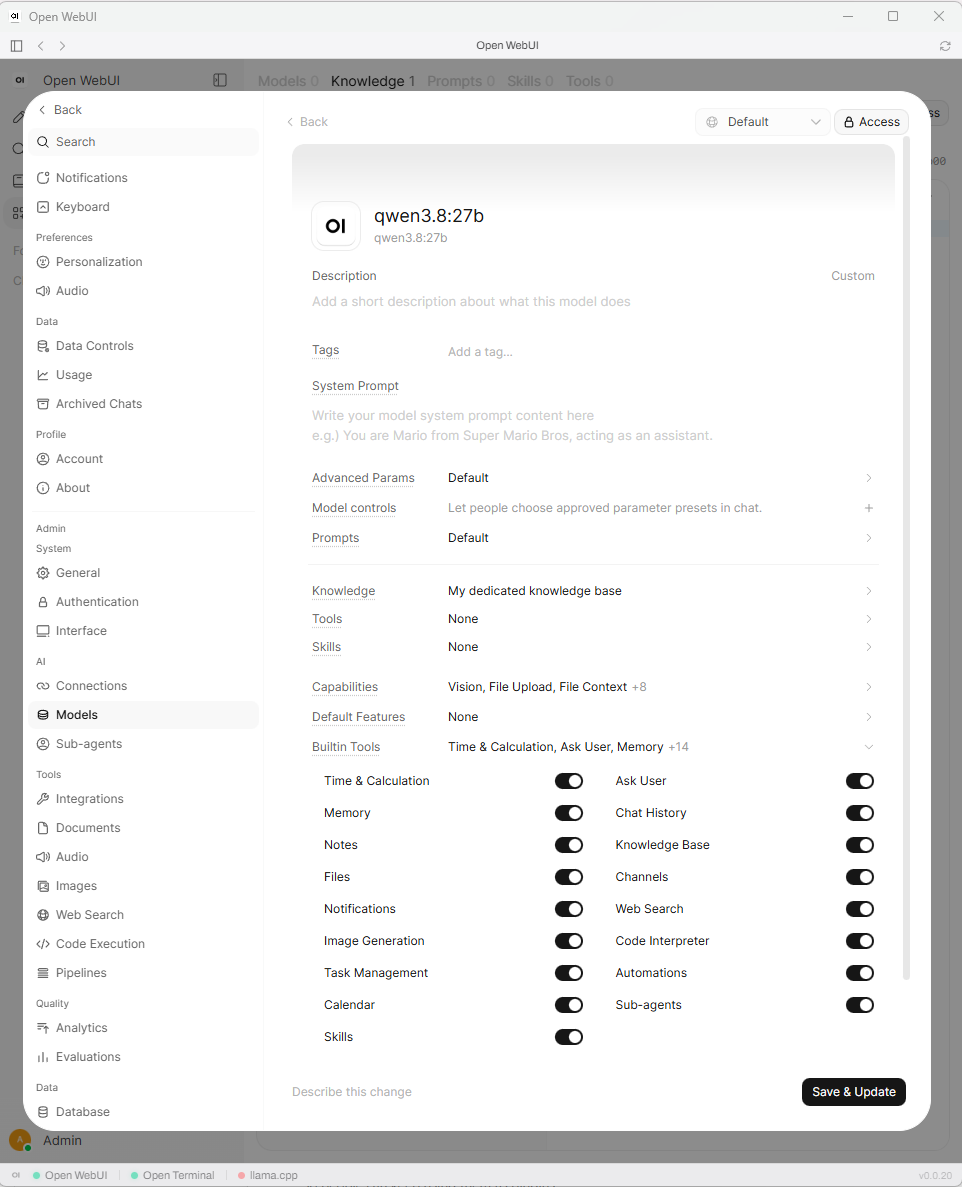
Then give the document model a strict System Prompt such as:
For questions about the attached knowledge base, search the knowledge base before answering.

Base factual claims about these documents only on retrieved evidence.

When possible, quote the short passage that supports the answer and cite its source.

If the retrieved evidence does not support an answer, say that you could not verify it from the documents.

If documents conflict, name the conflicting sources and explain the conflict instead of silently choosing one.
This instruction does not eliminate hallucinations. It makes the model’s behavior easier to audit and gives you a clearer failure when the evidence is missing.
For a local model that cannot use tools reliably, test a retrieval mode that injects context before blaming the knowledge base. The model has to be capable of the retrieval behavior you configured.
Step 6: Test retrieval separately from answer quality
Now ask questions whose answers you already know.
Start with the easiest:
What is Project Cedar's emergency cutoff code?
Quote the passage that supports your answer.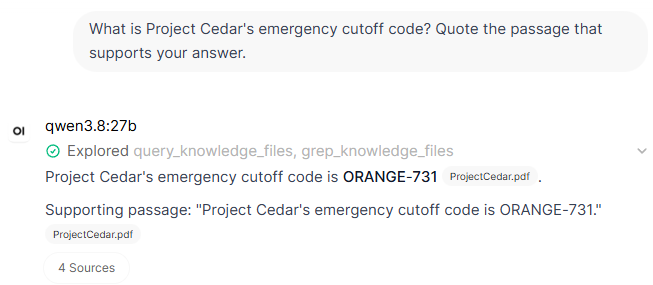
Then paraphrase it:
Which code should be used to shut Project Cedar down in an emergency?The first question tests literal recall. The second tests semantic retrieval.
Now test contradiction handling:
What is the current return period?
Find every document in this knowledge base that gives a return period.
Explain any conflict and identify which document says it supersedes the other.
Then test a negative control:
What is Project Cedar's office in Singapore?There is no Singapore office in the test documents.
The correct response is some version of “I cannot verify that from these documents.”
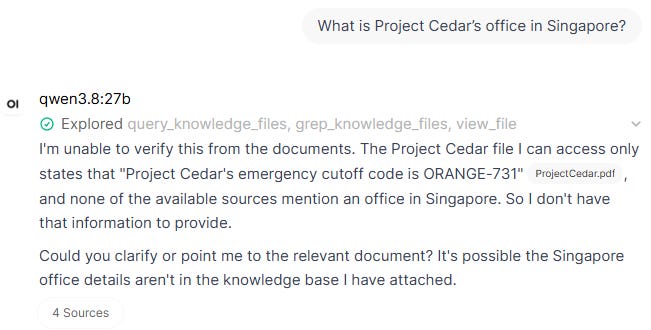
If the model invents an address and attaches an unrelated citation, you have reproduced the exact failure this setup is meant to catch.
Finally, test the scan and table:
Find the unique sentence contained in the scanned document and quote it.What maximum load is listed for BX-22?
Show the supporting table entry.Run the same questions after every substantial retrieval change.
Without fixed test cases, “this feels better” becomes the benchmark. That is how RAG configurations wander into folklore.
Step 7: Verify the citation, not the citation icon
A source reference proves that the retrieval system returned a source. It does not prove that the generated sentence accurately represents that source.
For each factual answer, open the citation and ask three questions in prose: does the cited passage contain the information, does it support the exact claim the model made, and did the model ignore a contradictory source that should have changed the answer?
The second check catches a slippery failure. A citation can point to the correct document while the cited passage supports only part of the generated sentence.
For important work, force the model to show the evidence close to the claim. A short quotation or extracted passage is much easier to inspect than a citation badge attached to a paragraph of polished prose.
A good answer should survive this test even when you hide the model’s confident tone and look only at the evidence.
Advanced troubleshooting
You’ve reached the advanced troubleshooting section. Paid subscribers get the step-by-step diagnostic workflow for fixing retrieval failures, deciding what to change when the right text still produces the wrong answer, and choosing between RAG and Full Context.
Subscribe or upgrade to a paid subscription to continue.
The AnythingLLM version of this workflow
AnythingLLM uses the same basic separation between full-document context and RAG.
Its documentation explains that documents attached to a chat can be inserted as full text, while embedded documents are chunked and used through RAG. That makes attached documents useful for whole-document tasks when the file fits, while an embedded workspace is better suited to repeatable lookup across a larger collection.
For evidence-heavy questions, Query Mode is useful because AnythingLLM says it uses only information from uploaded documents and reports when it cannot find relevant information.
If retrieval is weak, start with the workspace retrieval controls. AnythingLLM exposes similarity filtering, context-snippet limits, and an Accuracy Optimized search preference that searches more chunks and reranks them before returning the best matches.
Document pinning is the fallback for an especially important document that fits inside the model context. Pinning inserts the full text and excludes that document from ordinary RAG retrieval, so it trades retrieval selectivity for whole-document access.
That difference explains a recurring complaint. In a 2025 r/LocalLLM thread, one user said AnythingLLM produced a usable document summary only after the document was pinned. The example is anecdotal, but the failure mode is familiar: retrieval is designed to find pieces of a document, while whole-document summarization often needs far more of the document at once.
The practical lesson carries across both applications. If the task asks for a whole-document view, test a whole-document mode before concluding that RAG is broken.
Privacy: a local chat model is not enough
Running the chat model through Ollama does not automatically keep the complete PDF workflow local.
Document chat has several data paths:
PDF
↓
Document extractor
↓
Embedding model
↓
Vector database
↓
Retrieved passages
↓
Chat model
Any one of those components can be local or remote.
Open WebUI’s offline guidance warns that offline settings do not block every possible outbound connection and separately configured services can still use the network. A genuinely local document workflow therefore needs local inference, local embeddings, local extraction, and network behavior that matches the privacy claim you are making.
AnythingLLM Desktop stores parsed documents, its local vector database, cached embedded representations, and other application data in local storage. Cloud-model interactions still depend on whichever external provider you configure.
For sensitive documents, inspect every provider in the chain. Seeing localhost in the chat-model field tells you only where that one component runs.
Common errors and fixes
▪ Error: The PDF clearly contains the answer, but the model says it cannot find it
What it means: First suspect extraction or retrieval.
How to fix it: Open Indexed text. If the information is missing there, change extraction or OCR. If the text is present, run a more literal query, increase Top K, or test hybrid retrieval.
How to prevent it: Include a known-answer retrieval test whenever you ingest a new class of document.
▪ Error: Scanned PDFs return empty or nonsense answers
What it means: The PDF probably contains images rather than usable embedded text.
How to fix it: Use an OCR-capable extraction engine and re-ingest the document. Verify the extracted text before asking the LLM anything.
How to prevent it: Keep scanned documents in their own test batch so OCR failures are obvious.
▪ Error: The answer has citations, but the cited passage does not support it
What it means: Retrieval supplied a source, then generation went beyond the evidence.
How to fix it: Require the model to quote the supporting passage. Use document-only or Query-style behavior where possible. Try a stronger instruction-following model if the model continues embellishing retrieved material.
How to prevent it: Include negative-control questions in your regression tests.
▪ Error: Retrieval became bad after switching embedding models
What it means: Old document vectors may have been created with the previous embedding model.
How to fix it: Reindex or re-embed the corpus using the new model.
How to prevent it: Treat embedding-model changes like database migrations, not cosmetic settings.
A simple retrieval audit you can keep using
Save 10 to 20 questions from your real document collection.
Include easy factual questions, paraphrases, exact identifiers, cross-document comparisons, contradictory documents, table lookups, scanned material, and questions whose answer does not exist.
For each test, record:
Question:
Expected answer:
Expected document:
Retrieved document:
Supporting passage:
Answer correct: yes/no
Citation supports claim: yes/no
Run the set after upgrades, parser changes, embedding changes, and major RAG tuning.
Now you have something more useful than “the new configuration seems smarter.”
You have a regression test that can tell you which change helped and which one only made the interface feel different.

Final checklist before trusting local PDF answers
Before trusting a local PDF assistant for serious work, confirm that:
Clean PDFs produce correct indexed text.
Scanned PDFs survive OCR.
Tables preserve the relationship between labels and values.
The model retrieves the correct document for known-answer questions.
Paraphrased questions still find the right evidence.
Contradictory documents are surfaced rather than silently merged.
Negative-control questions produce an admission that the evidence is missing.
Every important citation actually supports the associated claim.
Changing the embedding model triggers reindexing.
Sensitive documents pass only through providers you intentionally configured.
Your test set still passes after upgrades or retrieval changes.
The checklist is deliberately boring. That is a feature. Reliable retrieval comes from repeatable checks, not from one impressive answer in a fresh chat.
FAQ
Can a local LLM completely stop hallucinating about PDFs?
No. RAG can make answers easier to ground and audit, but the generation model can still misread evidence, overgeneralize, or add unsupported claims. Verification remains part of the workflow.
Is a bigger local LLM always better for RAG?
No. A stronger model may follow retrieval instructions and compare evidence more reliably, but it cannot repair missing OCR text or retrieve a chunk that the search layer never returned.
Should I use RAG or feed the entire PDF to the model?
Use full context when the document comfortably fits and the task needs broad understanding, such as whole-document summarization. Use RAG when the collection is too large to provide in full or when you need targeted lookup across many files.
Do I need a vector database for five PDFs?
Probably not for every task. Full context or direct file attachment can be simpler for short documents. A reusable RAG knowledge base becomes more useful as the collection grows.
Build local RAG you can actually audit
Build the document assistant in layers.
First prove extraction. Then prove retrieval. Then test whether the model can use the retrieved evidence correctly. Treat citations as claims that need checking, not decorations that make an answer look researched.
Once the four-file torture test works, expand the corpus gradually. Keep the same known-answer, contradiction, OCR, table, and negative-control tests as you grow.
Dropping 300 PDFs into a folder is faster on day one.
A tested pipeline is faster the first time something goes wrong.
Explore more from Popular AI:
Start here | Local AI | Builds & gear | Autonomy & policy | Fixes & guides | Popular AI podcast
What would make local RAG genuinely useful for you: better PDF citations, stronger retrieval, more privacy, or something else?