


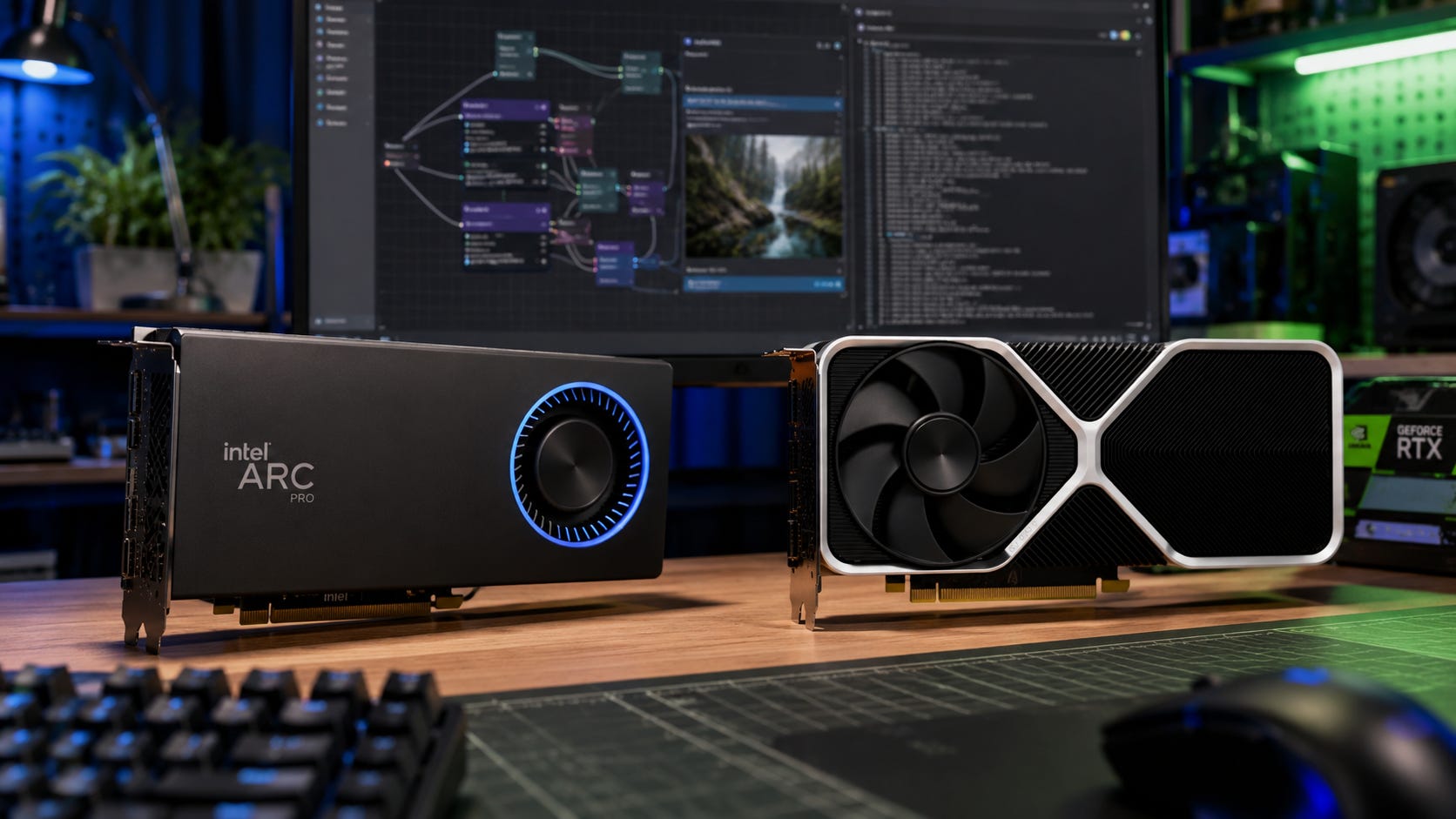
The Arc Pro B60 24GB vs RTX 5060 Ti 16GB local AI decision looks simple on a spec sheet. Intel gives you the cleaner memory number. NVIDIA gives you the cleaner software path.
That tradeoff matters more than a gaming chart if you are building a Windows 11 local AI setup for LM Studio, local LLMs, ComfyUI, coding models, RAG, or an eGPU dock. The Intel Arc Pro B60 24GB can fit workloads that a 16GB card may struggle to hold. The RTX 5060 Ti 16GB is more likely to work with the tutorial, backend, plugin, CUDA build, or GitHub project you are already trying to use.
The practical answer is simple: buy the RTX 5060 Ti 16GB if you want the easiest Windows local AI GPU. Buy the Intel Arc Pro B60 24GB only if you specifically need 24GB of VRAM, accept Intel-specific setup work, and are willing to choose the right backend for each workload.
Disclosure: This post includes Amazon affiliate links. If you buy through them, Popular AI may earn a small commission at no extra cost to you.
Quick verdict: the best local AI GPU for most buyers
Best choice for most Windows local AI users: RTX 5060 Ti 16GB.
It has less VRAM, but NVIDIA’s CUDA ecosystem still gives most users the lowest-friction path for PyTorch projects, llama.cpp CUDA builds, ComfyUI, LM Studio, local coding models, and community troubleshooting. NVIDIA lists the RTX 5060 Ti with 4,608 CUDA cores, fifth-generation Tensor Cores, 16GB or 8GB of GDDR7, PCIe Gen 5, CUDA capability 12.0, 180W total graphics power, and a 600W recommended system power figure on its RTX 5060 family specs page. Check current RTX 5060 Ti 16GB listings before buying, because the card is only compelling when the price stays close to its intended tier.
Best choice if 24GB VRAM is the whole point: Intel Arc Pro B60 24GB.
The Arc Pro B60’s appeal is capacity. Intel’s Arc Pro B60 data sheet lists 24GB of GDDR6, a 192-bit bus, 456 GB/s bandwidth, 160 XMX AI engines, 197 INT8 TOPS, and 120W to 200W board power depending on board design. That makes it more interesting than a normal 16GB card when model fit is the constraint.
Best choice for a Windows 11 eGPU running LM Studio: RTX 5060 Ti 16GB.
The original LocalLLaMA question was about adding an eGPU to a Ryzen AI HX370 system with 64GB RAM, USB-C 40Gbps or OCuLink, Windows 11, and LM Studio. That setup already has enough moving parts. The safer answer is the GPU with fewer software surprises.
Best value only when pricing stays sane: RTX 5060 Ti 16GB near MSRP, Arc Pro B60 near $600 to $650.
The RTX 5060 Ti 16GB was announced at $429 in April 2025, according to The Verge’s launch coverage. Street pricing can drift. Newegg’s RTX 5060 Ti 16GB search page showed visible listings around $599.99 and “more options” as low as $429.99 on some models when checked on July 4, 2026. Micro Center listed the ASRock Arc Pro B60 Creator at $649.99, in-store only, down from an original $799.99 price.
Who this guide is for
This guide is for buyers choosing between these two cards for local AI work rather than gaming.
That includes local LLM chat, local coding models, LM Studio on Windows, ComfyUI, Stable Diffusion-style workflows, Flux, Wan, RAG, private document search, and mini PC or laptop eGPU setups over USB4, Thunderbolt, or OCuLink.
It is especially useful if the B60’s 24GB of VRAM is tempting, but you do not want to spend weekends chasing the right Intel GPU backend.
Skip both cards if you already know you need comfortable 70B-class local inference, serious LoRA training, heavy AI video, or multi-user serving. In that case, compare used RTX 3090s, dual-GPU setups, 32GB to 48GB workstation cards, or cloud rental instead. The broader 24GB NVIDIA tier discussion is covered in our RTX 3090, RTX 4090, and RTX 5090 local AI comparison.
More on choosing the right GPU for local AI:

Why this comparison is tricky
The B60 wins the first spec-sheet argument local AI buyers usually care about: VRAM. A 24GB card can fit models and workflows that a 16GB card cannot fit cleanly. Intel’s Arc Pro B60 data sheet frames the card for local LLM AI projects and Linux multi-GPU deployments, with 24GB memory, 456 GB/s bandwidth, PCIe 5.0 x16 physical support with x8 electrical connectivity, and Windows plus Ubuntu support.
The RTX 5060 Ti wins the practical software argument. NVIDIA’s RTX 5060 family page lists CUDA capability 12.0, Game Ready driver support, Studio driver support, Blackwell architecture, fifth-generation Tensor Cores, and the 16GB GDDR7 memory option. Those specs do not make the card perfect for AI. They make the path from buying a GPU to running a model much more familiar.
That is the whole decision. The B60 is the more interesting local AI card. The RTX 5060 Ti is the safer Windows local AI card.
The AI specs that actually matter
For local LLMs, VRAM is the first wall. If the model, quantization, KV cache, and context do not fit, raw speed does not save the workflow. Intel lists the Arc Pro B60 with 24GB of GDDR6. NVIDIA lists the RTX 5060 Ti with 16GB or 8GB of GDDR7 on the RTX 5060 family specs page.
That extra 8GB on the B60 is not decorative. It can change which quantization you choose, how much context you keep, whether you offload to system RAM, and whether a ComfyUI workflow runs without constant memory gymnastics.
The catch is that software support decides how much of that theoretical advantage you actually get.
Intel lists the B60 at 456 GB/s memory bandwidth. NVIDIA’s public RTX 5060 family page lists the 5060 Ti as a 128-bit GDDR7 card, but it does not expose a clean bandwidth row in the parsed specs. For buying purposes, the simpler point matters more: the B60’s advantage is capacity more than bandwidth.
Software support is where NVIDIA still has the default path. The RTX 5060 Ti benefits from CUDA, which matters for ComfyUI, PyTorch projects, llama.cpp CUDA builds, local training experiments, and community fixes written with NVIDIA cards in mind. NVIDIA lists CUDA capability 12.0 for the RTX 5060 Ti, along with Blackwell architecture, fifth-generation Tensor Cores, and Studio driver support.
Intel is improving, and the B60 is not a dead-end experiment. Intel’s LLM Scaler project targets Arc Pro B60 and B70 GPUs and supports text generation, image generation, video generation, vLLM, ComfyUI, SGLang Diffusion, Xinference, and other model workflows. Its 2026 updates include vLLM, PyTorch 2.10 support, Qwen model fixes, FP8 KV cache support, model streaming load, ComfyUI-related workflows, and Windows installation notes for its Omni path.
That is real progress. It is still more specialized than installing the NVIDIA build and following the common guide.
Power is manageable on both cards, but it matters more in compact desktops and eGPU boxes. Intel’s Arc Pro B60 data sheet lists 120W to 200W total board power depending on board partner and configuration. NVIDIA lists the RTX 5060 Ti at 180W total graphics power, with a 600W recommended system power figure and either an 8-pin PCIe cable or a 300W or greater PCIe Gen 5 cable path.
For a normal desktop, both are realistic. For an eGPU, check the enclosure’s slot width, length, connector, and power supply before you buy either one.
How the recommendation was chosen
The recommendation here is based on AI workload fit first, not gaming rank.
The key factors are VRAM capacity, model fit, Windows 11 and LM Studio usability, official specs from Intel and NVIDIA, retail pricing signals, Intel’s current B60 software stack, NVIDIA’s stronger CUDA path, real user reports from LocalLLaMA and Intel Arc communities, and our own existing coverage of 16GB and 24GB local AI GPU tiers, including the RTX 5060 Ti 16GB vs RX 9070 XT local AI guide.
This is not a firsthand lab benchmark. Public benchmark numbers below come from user reports or project repositories. Treat them as useful signals, not controlled test results.
More on the RTX 5060 Ti for local AI builds:

Intel Arc Pro B60 24GB: why it is tempting
The Intel Arc Pro B60 24GB exists because local AI buyers keep asking for more VRAM without buying a used RTX 3090, a pricey RTX 4090, or a workstation card priced like office furniture.

Intel’s official B60 specs are unusually attractive for this bracket. The Arc Pro B60 data sheet lists 24GB GDDR6, 456 GB/s bandwidth, 160 XMX AI engines, 197 INT8 TOPS, 20 Xe2-HPG cores, 20 ray tracing units, PCIe 5.0 support, and Windows 10, Windows 11, and Ubuntu support. ASRock’s Arc Pro B60 Creator card lists 24GB 192-bit GDDR6, 160 XMX engines, PCIe 5.0 x8, one 8-pin power connector, four DisplayPort 2.1 outputs, and a dual-slot blower-style design.
That makes the B60 a strong candidate for larger quantized local LLMs, longer context than 16GB cards can comfortably handle, ComfyUI workflows where 16GB gets tight, local image and video experiments, Linux multi-GPU inference projects, and workstation users who value VRAM per dollar more than CUDA compatibility.
A Windows user on r/IntelArc reported running a Sparkle Arc B60 24GB on Windows 11 with LM Studio Vulkan, ComfyUI, and video generation tests. In that Arc B60 user report, LM Studio results included Qwen3-14B at about 30 to 32 tok/s, gpt-oss-20b around 39 to 43 tok/s, and Qwen3-30B-A3B-Instruct around 72 to 77 tok/s depending on driver path. The same report showed Flux-1-dev in ComfyUI at about 6.5 to 7.02 seconds per iteration for that specific workflow.
That is enough to say the B60 is viable. It is not enough to say the B60 is the easiest buy.
Intel Arc Pro B60 24GB: the catch
The B60’s problem is not that it cannot run AI workloads. The problem is that the best path depends on the backend.
Intel’s LLM Scaler is active and clearly aimed at B60 and B70 AI workloads, but it is a specialized stack. It includes Intel-specific optimized paths for vLLM, ComfyUI-style Omni workflows, SGLang Diffusion, Xinference, quantization options, and model-specific support updates. The vLLM project has also described Intel Arc Pro B-Series support for local LLM serving, including multi-GPU scaling, PCIe P2P data transfer, long context support, LoRA, structured outputs, tool calling, and mixed precision recipes.
That is good news for Linux, vLLM, and serious inference users. It is less comforting for a Windows eGPU buyer who wants to stay inside LM Studio and avoid driver branches, XPU support questions, Vulkan behavior, OpenVINO, old IPEX advice, and Intel-specific containers.
Intel’s PyTorch story has also been changing. Intel’s Extension for PyTorch installation page says the extension reached end of life by the end of March 2026 and recommends using PyTorch directly because Intel CPU and GPU support has been upstreamed into native PyTorch. That direction is healthy. It also means old forum guidance can become stale quickly.
Buy the Intel Arc Pro B60 only if this sentence does not scare you: I am willing to choose the right Intel backend for the workload.
RTX 5060 Ti 16GB: why it is the safer choice
The RTX 5060 Ti 16GB is less exciting on paper because 16GB is a compromise. Better software support does not turn it into a 24GB card.

For Windows local AI, boring often wins.
The RTX 5060 Ti gives you CUDA compatibility, strong PyTorch and llama.cpp CUDA paths, straightforward LM Studio support, better odds that a ComfyUI tutorial assumes your hardware, NVIDIA Studio driver support, more community recipes, and a better chance that a random AI GitHub project works without hunting for an Intel-specific branch.
NVIDIA lists the RTX 5060 Ti with 4,608 CUDA cores, fifth-generation Tensor Cores, 759 AI TOPS, Blackwell architecture, 16GB or 8GB GDDR7, PCIe Gen 5, AV1 encode and decode, CUDA capability 12.0, and 180W total graphics power.
Community documentation around the RTX 5060 Ti is also becoming more reproducible. The club-5060ti project focuses on RTX 5060 Ti 16GB local inference recipes, separates single-card and multi-card result lanes, and asks contributors to include hardware context, model details, benchmark method, runtime details, context length, KV cache settings, prompt shape, tokens per second, and caveats. That kind of CUDA-centered documentation is exactly why NVIDIA keeps winning the setup experience.
RTX 5060 Ti 16GB: the catch
The 5060 Ti’s limitation is obvious: 16GB VRAM.
A single RTX 5060 Ti 16GB can be a good local LLM card, especially for quantized 7B, 8B, 12B, 14B, 20B, and some 27B to 35B-class experiments. A LocalLLaMA user reported practical RTX 5060 Ti 16GB local LLM results in llama.cpp, including Windows and Ubuntu comparisons for several Qwen-derived coding models. The same report treated a 30B coder profile as a practical default at first, then later updated the post after testing a stronger 35B setup with the right runtime and offload strategy.
That is a useful signal, but it does not erase the VRAM ceiling. A 16GB card still limits higher-quality quants, long context, large MoE models with generous KV cache, Flux and heavier ComfyUI chains, local video workflows, training, fine-tuning, and running multiple models or services at once.
Our earlier RTX 5060 Ti 16GB vs RX 9070 XT guide reached the same broad conclusion: the 5060 Ti 16GB is useful because it combines 16GB VRAM with CUDA, but it remains a compromise and becomes harder to justify when pricing moves too close to stronger 24GB options.
Windows 11 and LM Studio recommendation
For the exact buyer in the Reddit thread, the RTX 5060 Ti 16GB is the safer recommendation.
The original setup was Windows 11, LM Studio, Ryzen AI HX370, 64GB RAM, and an external GPU over USB-C 40Gbps or OCuLink, according to the LocalLLaMA post. That is not the same as building a dedicated Ubuntu inference box. It is a convenience-focused setup with several compatibility variables already in play.
Use the RTX 5060 Ti 16GB if you want the least painful LM Studio setup, the best chance of following normal Windows guides, easy ComfyUI support, better local coding model compatibility, fewer surprises with random AI repos, and a card that also behaves normally for gaming and creator apps.
Use the Arc Pro B60 24GB if you want more VRAM than a normal 16GB card, a new 24GB GPU instead of a used RTX 3090, Intel B60-specific experimentation, Linux or containerized inference, vLLM or LLM Scaler serving, and a project where model fit matters more than convenience.
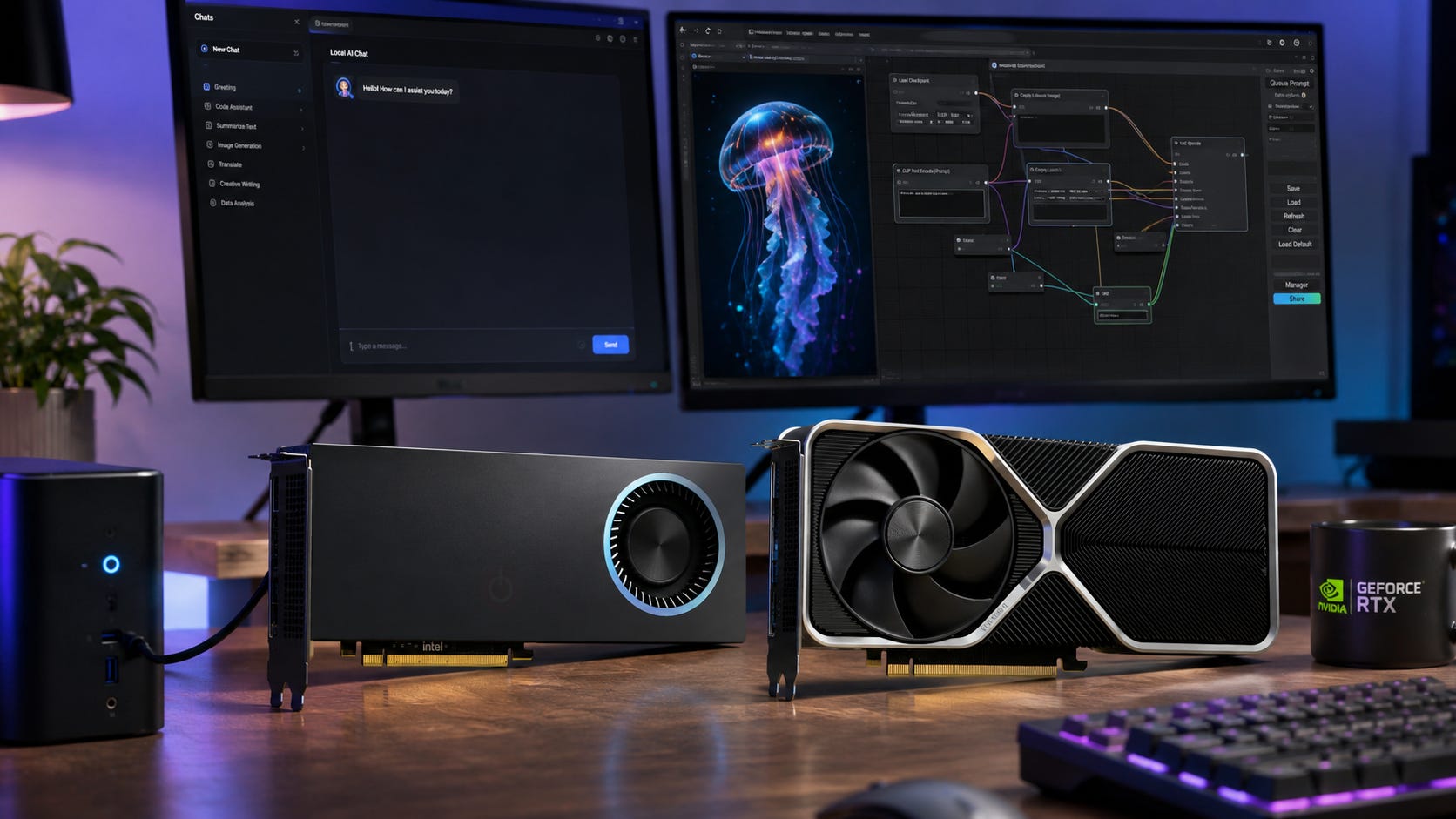
eGPU notes for USB4, Thunderbolt, and OCuLink
For local AI inference, an eGPU link is usually less punishing than it is for gaming once the model is loaded. It can still affect model load times, prompt processing, first-token latency, and workflows that move data across the link often.
OCuLink is the better choice if your machine supports it and the setup will stay mostly stationary. Local AI Master’s Thunderbolt vs OCuLink eGPU AI testing treats OCuLink as a lower-overhead PCIe path, while USB4 and Thunderbolt are more convenience-oriented. The same testing found steady-state inference was relatively close once models were resident in VRAM, while model loading and latency were better over OCuLink.
Both cards in this comparison are PCIe 5.0 x8-class designs in practice. Intel’s B60 data sheet describes Gen 5.0 x16 physical with x8 electrical support, and many RTX 5060 Ti board listings show x8 electrical connectivity even though NVIDIA’s base specs list PCIe Gen 5 support.
That means neither card is a natural full-x16 monster. For an eGPU, the bigger questions are practical: does the enclosure fit the card, does it power the card safely, does Windows detect it reliably, does your AI app use the right backend, do you plan to swap models constantly, and do you need the GPU for display output at the same time?
For that reason, the RTX 5060 Ti still has the edge for a Windows eGPU. The B60 is more interesting over OCuLink if you are comfortable treating the setup as a project.
Best picks by use case
For Windows 11 and LM Studio, the RTX 5060 Ti 16GB is the better default. LM Studio users who want a normal desktop-style experience should buy NVIDIA first unless they have a specific reason not to. The 5060 Ti 16GB gives enough VRAM to be useful, enough speed to feel responsive, and the CUDA path that most local LLM guides assume.
For larger models on a new card, the Arc Pro B60 24GB is the better fit when the model you want simply does not fit comfortably in 16GB. Its 24GB capacity is the main reason to buy it, and Intel’s B60-specific LLM Scaler work makes the card more credible than older “non-NVIDIA for AI” advice would suggest.
For ComfyUI on Windows, the RTX 5060 Ti 16GB is still safer. The B60 can run ComfyUI-style workloads, and Intel’s stack now includes ComfyUI-related paths through LLM Scaler. A public B60 report also showed Flux-1-dev running in ComfyUI on Windows 11. Even so, ComfyUI’s plugin ecosystem, CUDA assumptions, and community troubleshooting make NVIDIA easier.
For local coding models, the RTX 5060 Ti has the better software path today. The B60 has more room for larger quants and context. If you are using LM Studio and llama.cpp on Windows, the RTX 5060 Ti is simpler. If you are willing to test Intel Vulkan, OpenVINO, or LLM Scaler paths, the B60 becomes more interesting.
For Linux inference serving, the B60 makes more sense than it does as a casual Windows card. Intel’s strongest B60 story is scalable AI inference, especially on Linux, where Intel’s Arc Pro B60 materials emphasize local LLM projects, Linux multi-GPU deployments, and software development.
For a mini PC or laptop eGPU setup, the RTX 5060 Ti 16GB is the safer pick. The eGPU already adds complexity. Unless the whole point is 24GB, do not add a second layer of Intel-specific AI backend friction.
Price and value
The RTX 5060 Ti 16GB was announced at $429, according to The Verge, but actual retail pricing can drift. On July 4, 2026, Newegg’s RTX 5060 Ti 16GB search page showed visible listings around $599.99, with some “more options” ranges that included lower prices such as $429.99 on one Gigabyte WindForce listing.

That makes the rule simple. At $430 to $500, the RTX 5060 Ti 16GB is a strong Windows local AI buy. At $550, it can still be reasonable if you want CUDA and a new card. At $600 or more, compare it against 24GB options before buying.
The Arc Pro B60 is a different calculation. Micro Center listed the ASRock Arc Pro B60 Creator at $649.99 on July 4, 2026, with in-store pickup only and a limit of one per household. At that price, the B60 is not cheap, but it is one of the few new 24GB cards in reach of a serious local AI buyer.

Buy the B60 when the extra 8GB over the RTX 5060 Ti changes your workload. Do not buy it because 24GB sounds better in isolation.
What about RX 7900 XTX and RX 9000 cards?
The Radeon RX 7900 XTX is still worth considering if you want 24GB VRAM and are comfortable with AMD’s software path. AMD’s current Windows ROCm support matrix lists ROCm 7.2.1 support for gfx1100 hardware including the RX 7900 XTX, but AMD also notes that PyTorch on Windows includes ROCm components while the full ROCm stack is not yet supported on Windows. AMD’s Linux ROCm matrix lists the RX 7900 XTX, RX 7900 XT, and RX 7900 GRE under ROCm 7.2.1 support.
That makes AMD more viable than it used to be, especially on Linux. It does not make AMD the easiest answer for a Windows 11 LM Studio eGPU buyer.
The RX 9000 series is also relevant, especially if you want newer AMD support and gaming value. For this exact comparison, the main decision is still CUDA convenience versus 24GB VRAM. We have already covered the RTX 5060 Ti 16GB versus RX 9070 XT decision separately.
Who should buy the RTX 5060 Ti 16GB?
Buy the RTX 5060 Ti 16GB if you are on Windows 11, use LM Studio, want ComfyUI without extra backend drama, want CUDA, are using an eGPU, want a new card with warranty, mostly run quantized models that fit in 16GB, value community support, and can buy it close to MSRP.021
Do not buy it if you know your target model needs more than 16GB, want comfortable heavy Flux or video workflows, need long context, see pricing too close to 24GB options, or can safely buy a used RTX 3090 and accept the power draw.
Who should buy the Intel Arc Pro B60 24GB?
Buy the Arc Pro B60 24GB if you specifically need 24GB VRAM, want a new 24GB card, are comfortable with Intel GPU software, are willing to test Vulkan, OpenVINO, XPU, or LLM Scaler paths, may move the workload to Linux, care more about model fit than plug-and-play setup, and are building a local inference workstation.
Do not buy it if you want the simplest Windows experience, expect every AI repo to support your GPU cleanly, mainly train models, rely on CUDA-specific extensions, dislike debugging drivers and backends, or are building an eGPU setup where you want the fewest variables.
More on the Arc Pro B60 for local AI:

The practical buying rule
For most readers, the rule is direct.
If you are asking which card to buy for Windows 11, LM Studio, and an eGPU, buy the RTX 5060 Ti 16GB.
If you already know why 24GB matters for your model, and you are willing to use Intel’s best-supported paths, buy the Arc Pro B60 24GB.
That may feel unsatisfying because the B60 is the cooler hardware story. But a GPU is useful when your tools run, your models fit, and your workflow does not turn into a driver archaeology project.
FAQ
Is the Intel Arc Pro B60 24GB good for local AI?
Yes, but it is best for users who specifically need 24GB of VRAM and are willing to use Intel-friendly software paths. Intel’s own Arc Pro B60 data sheet positions the card for local LLM projects and Linux multi-GPU deployments, and Intel’s LLM Scaler targets Arc Pro B60 and B70 workflows across vLLM, ComfyUI-style workflows, SGLang Diffusion, Xinference, text generation, image generation, and video generation.
Is the RTX 5060 Ti 16GB good for local LLMs?
Yes. The RTX 5060 Ti 16GB is a good entry-to-mid local LLM GPU because it combines 16GB VRAM with CUDA support. It is still a 16GB card, so larger models, longer context, and heavier quants will hit limits. NVIDIA lists the RTX 5060 Ti with 16GB or 8GB of GDDR7, CUDA capability 12.0, and fifth-generation Tensor Cores.
Which is better for LM Studio on Windows?
The RTX 5060 Ti 16GB is the better default choice for LM Studio on Windows. The Arc Pro B60 can work, and public users have reported LM Studio Vulkan results on Windows 11 with the B60, but NVIDIA remains the simpler and better-supported path for most users.
Which is better for ComfyUI?
The RTX 5060 Ti 16GB is the safer ComfyUI choice for Windows users. The Arc Pro B60 can run ComfyUI-style workloads through Intel-specific paths, and at least one public user report showed Flux-1-dev in ComfyUI on a B60, but NVIDIA still has the stronger default ecosystem.
Should I buy the Arc Pro B60 instead of a used RTX 3090?
Usually no, unless you want a new card, lower power, or Intel experimentation. A used RTX 3090 24GB gives you 24GB of NVIDIA VRAM and CUDA, but it also brings used-card risk and higher power draw. Popular AI’s RTX 3090 local AI coverage explains why the RTX 3090 remains a strong 24GB value card in 2026.
Does 24GB VRAM matter more than CUDA?
It depends on whether the model fits. If your workload fits inside 16GB, CUDA support on the RTX 5060 Ti is usually more valuable. If your workload fails because 16GB is not enough, the B60’s 24GB becomes more important. The mistake is pretending one rule covers every model, context length, quantization, and workflow.
Is the Arc Pro B60 a good eGPU card?
It can be, but it is not the lowest-risk eGPU choice. The B60’s 24GB VRAM is attractive, and its power range is manageable, but Windows eGPU buyers already have enough compatibility variables. The RTX 5060 Ti 16GB is the safer eGPU recommendation unless you specifically need 24GB.
The safest local AI GPU depends on your bottleneck
Buy the RTX 5060 Ti 16GB if this is your first local AI GPU, you are on Windows 11, you use LM Studio, or you want an eGPU setup that behaves as normally as possible.
Buy the Intel Arc Pro B60 24GB if you are deliberately buying for 24GB VRAM, you are comfortable with Intel’s software stack, and you are willing to optimize around the workloads that actually benefit from the extra memory.
The B60 is the better conversation piece. The RTX 5060 Ti is the better default purchase. For most Windows local AI buyers, default matters.
Explore more from Popular AI:
Start here | Local AI | Builds & gear | Autonomy & policy | Fixes & guides | Popular AI podcast
For your local AI GPU build, would you choose more VRAM with the Arc Pro B60 24GB, or the easier software path with the RTX 5060 Ti 16GB?