


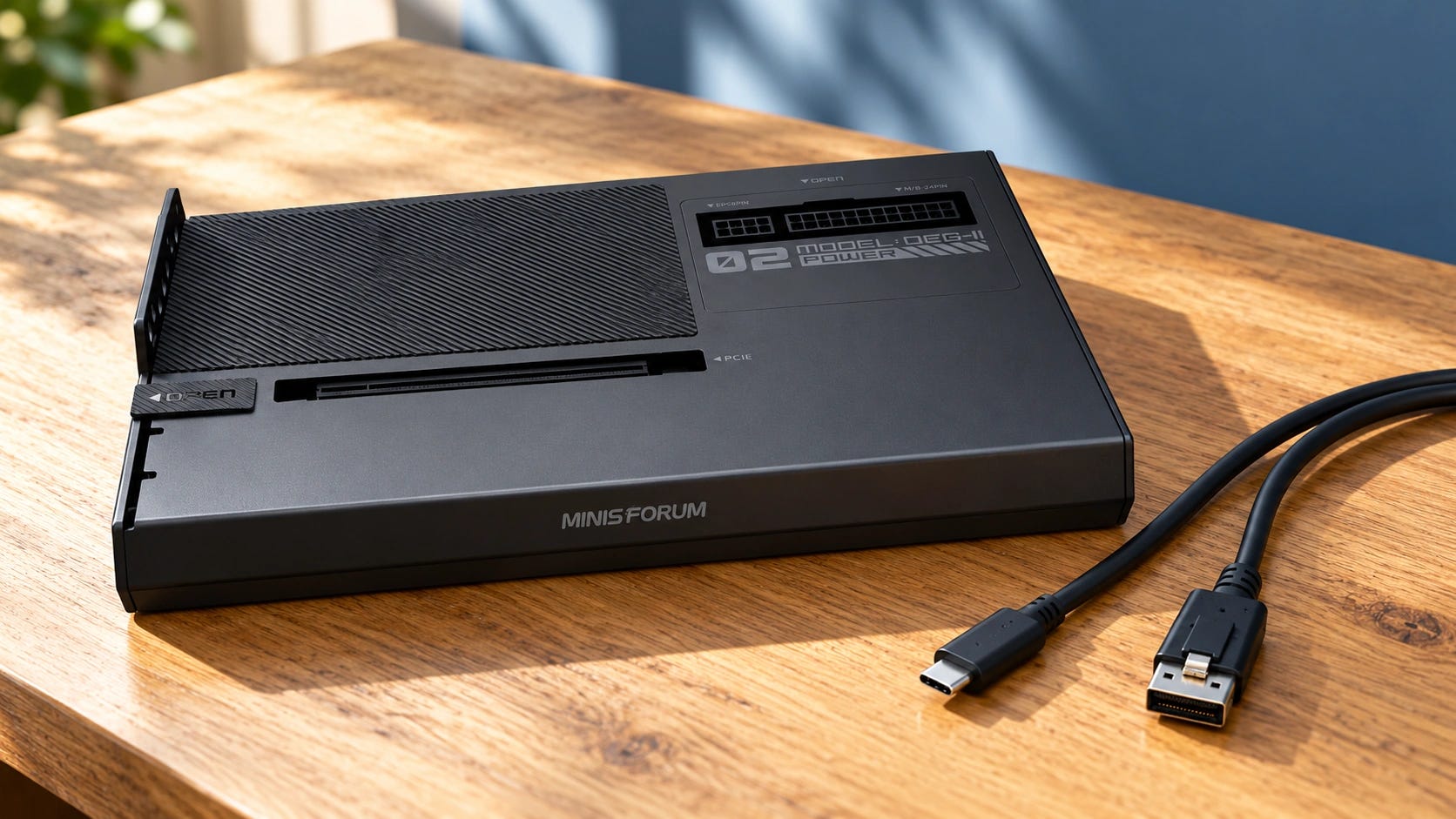
Yes, an external GPU can run local LLMs and ComfyUI effectively. An eGPU for local AI is most appealing when you already own a capable computer and want more VRAM without replacing the whole machine. But the catch is bandwidth. USB4 and Thunderbolt can handle AI inference well when a model stays entirely in GPU memory, but loading large models, CPU offloading, and some multi-GPU workloads can expose their limitations.
For a laptop, USB4 or Thunderbolt is usually the practical route. A dock such as the MINISFORUM DEG2 lets you reuse a desktop graphics card, provided the host supports the connection. For a mini PC with OCuLink, that connection is generally the better choice. If you’re building a serious multi-GPU AI machine from scratch, internal PCIe remains preferable.
Disclosure: This post includes Amazon affiliate links. If you buy through them, Popular AI may earn a small commission at no extra cost to you.
Quick verdict: which eGPU connection should you buy?
Best value for an OCuLink mini PC: The MINISFORUM DEG1 is a straightforward PCIe 4.0 x4 dock, listed at $109 in the U.S. manufacturer store on October 27, 2026. You’ll need a compatible OCuLink port, GPU, and separate power supply.
Best versatile dock: The MINISFORUM DEG2 combines OCuLink with USB4 v2/Thunderbolt 5 compatibility. At the manufacturer’s listed $239.90, it makes sense if you want to use one desktop GPU with different computers.
Best DIY route for an existing USB4 or Thunderbolt 4 laptop: The ADT-Link UT3G is a 40Gbps USB4-to-PCIe adapter. It can serve a single-GPU AI setup, although its exposed-board design, separate power supply, and inconsistent retail availability make it less convenient than a complete enclosure.
Skip the eGPU purchase if your main workload constantly transfers model data between CPU RAM and VRAM, or if you’re planning a multi-GPU workstation where fast GPU-to-GPU communication is important.
USB4 vs Thunderbolt vs OCuLink: what changes for local AI?
An eGPU connects a desktop graphics card through a much smaller data link than a typical internal PCIe slot. The GPU still has its own VRAM and performs calculations locally. The restricted connection primarily affects how quickly data moves between the host computer and the card.
▪ USB4 and Thunderbolt 3/4: convenient, but shared bandwidth
A conventional USB4 40Gbps connection offers a theoretical link rate of 5GB/s before protocol overhead. Thunderbolt 3 and 4 use comparable 40Gbps links, although their PCIe tunneling implementations and minimum requirements differ.
USB4 dynamically shares bandwidth between different protocols. Intel specifies 40Gbps for Thunderbolt 4 and 80Gbps bidirectionally for Thunderbolt 5.
Neither number is a guarantee of GPU transfer speed. Controller design, PCIe tunneling, other connected devices, firmware, and cable capability all affect the usable bandwidth.
A USB-C connector alone does not establish eGPU compatibility. An ordinary USB 3.2 port cannot run a PCIe graphics card through a USB4 eGPU adapter.
▪ Thunderbolt 5 and USB4 v2: faster, with conditions
Thunderbolt 5 raises the available link bandwidth to 80Gbps bidirectionally and increases PCIe tunneling capability. USB4 v2 also supports higher-speed operation.
These improvements can reduce bottlenecks during large transfers, but both the computer and dock must support the required connection mode. Attaching an 80Gbps dock to a 40Gbps laptop doesn’t upgrade the laptop’s controller.
For a local LLM that is already loaded entirely into VRAM, spending more on Thunderbolt 5 may produce little benefit during ordinary token generation.
▪ OCuLink: a more direct PCIe connection
OCuLink commonly exposes four PCIe 4.0 lanes directly from the host. That provides approximately 7.9GB/s of theoretical bandwidth in each direction before overhead, without USB4’s tunneling layer.
The connection is attractive for mini PCs that already expose an OCuLink port, particularly when model loading or repeated transfers are substantial.
⚠️ OCuLink doesn’t normally supply GPU power or laptop charging, and consumer OCuLink GPU setups generally must not be hot-plugged. Shut down the host before connecting or disconnecting the cable.
An OCuLink connector also needs to be wired to a usable PCIe host interface. It cannot be created by attaching an ordinary passive adapter to a USB-C port.
Which connection is best for your AI workload?
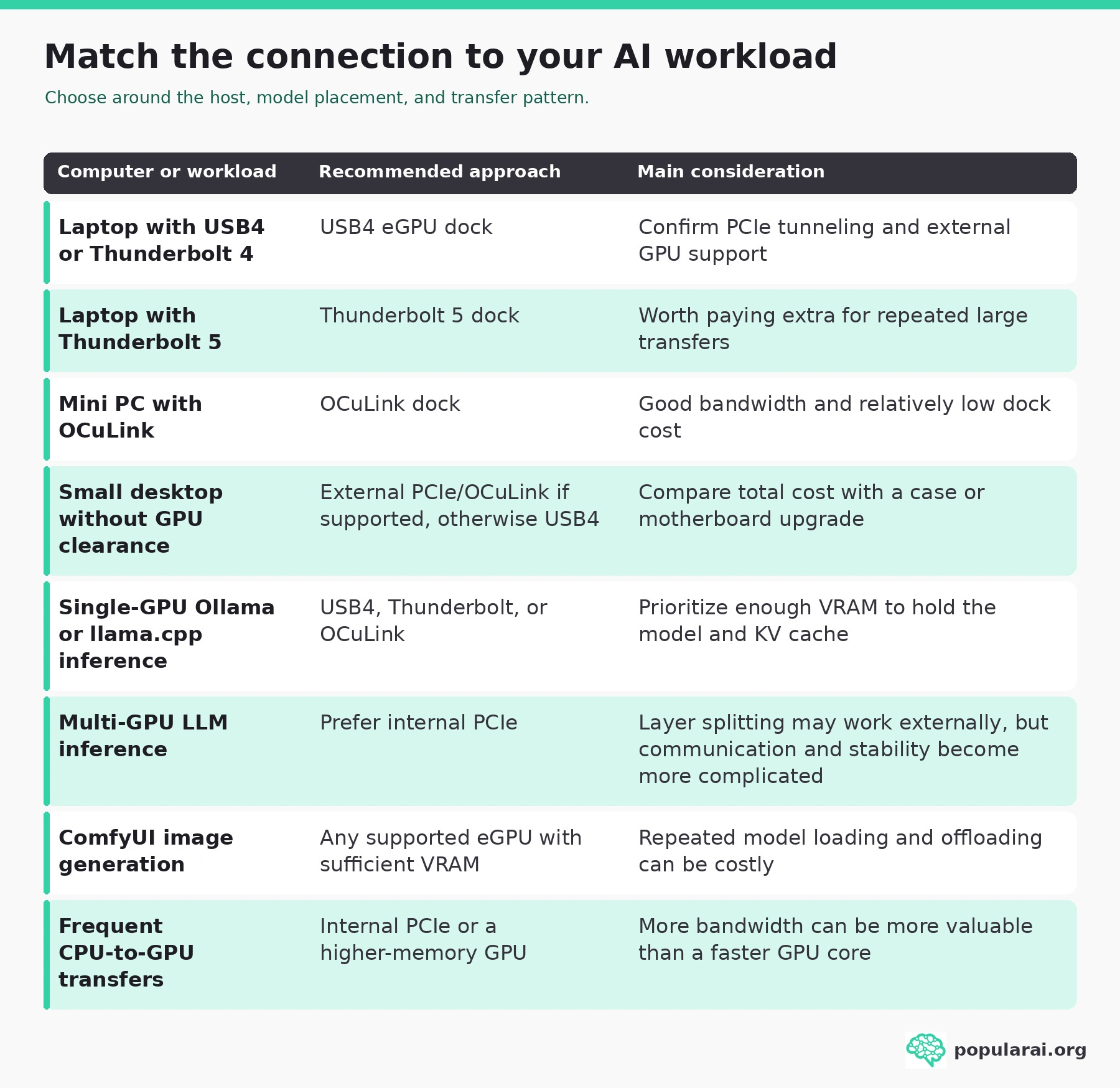
▪ For a laptop with USB4 or Thunderbolt 4, choose a USB4 eGPU dock after confirming PCIe tunneling and external GPU support. A Thunderbolt 5 laptop can justify a Thunderbolt 5 dock for repeated large transfers. A mini PC with OCuLink benefits from an OCuLink dock’s bandwidth and relatively low cost.
▪ For a small desktop without GPU clearance, use external PCIe/OCuLink if supported, or USB4 otherwise. Compare the full cost with a case or motherboard upgrade. Single-GPU Ollama or llama.cpp inference can work over USB4, Thunderbolt, or OCuLink, but prioritize enough VRAM for the model and KV cache.
▪ Prefer internal PCIe for multi-GPU LLM inference. External layer splitting may work, but communication and stability become more complicated. ComfyUI image generation can use any supported eGPU with sufficient VRAM, although repeated model loading and offloading can be costly. Frequent CPU-to-GPU transfers favor internal PCIe or a higher-memory GPU, since more bandwidth can be more valuable than faster GPU cores.
The biggest mistake is assuming that a 40Gbps eGPU automatically runs local AI at a fixed percentage of desktop performance. Published inference results show much more variation.
What published local LLM benchmarks actually show
Use tests that measure AI workloads directly when judging an eGPU for local LLMs. Gaming frame rates are a poor substitute because game rendering, model loading, prompt processing, and token generation stress the connection differently.
In Jan’s published tests, Mistral 7B Q4_K_M running through llama.cpp produced 100.43 tokens/s on a desktop RTX 4090 and 62.22 tokens/s on a Thunderbolt 3 RTX 4090 eGPU. The external card was connected to a Razer Blade 14.
That’s a substantial difference, but it isn’t a controlled measurement of Thunderbolt overhead alone. The test used different host computers, including different CPUs and PCIe connections. It demonstrates that the eGPU worked and remained useful. It doesn’t establish a universal 38% eGPU penalty.
A llama.cpp benchmark comparing internal and external RTX 3090s, published by developer slewsys, shows why prompt processing and generation need separate measurements. Using an HP Z8 G4, internal and Thunderbolt-connected RTX 3090 cards, and a partially GPU-offloaded gpt-oss-120b model, the tester recorded:
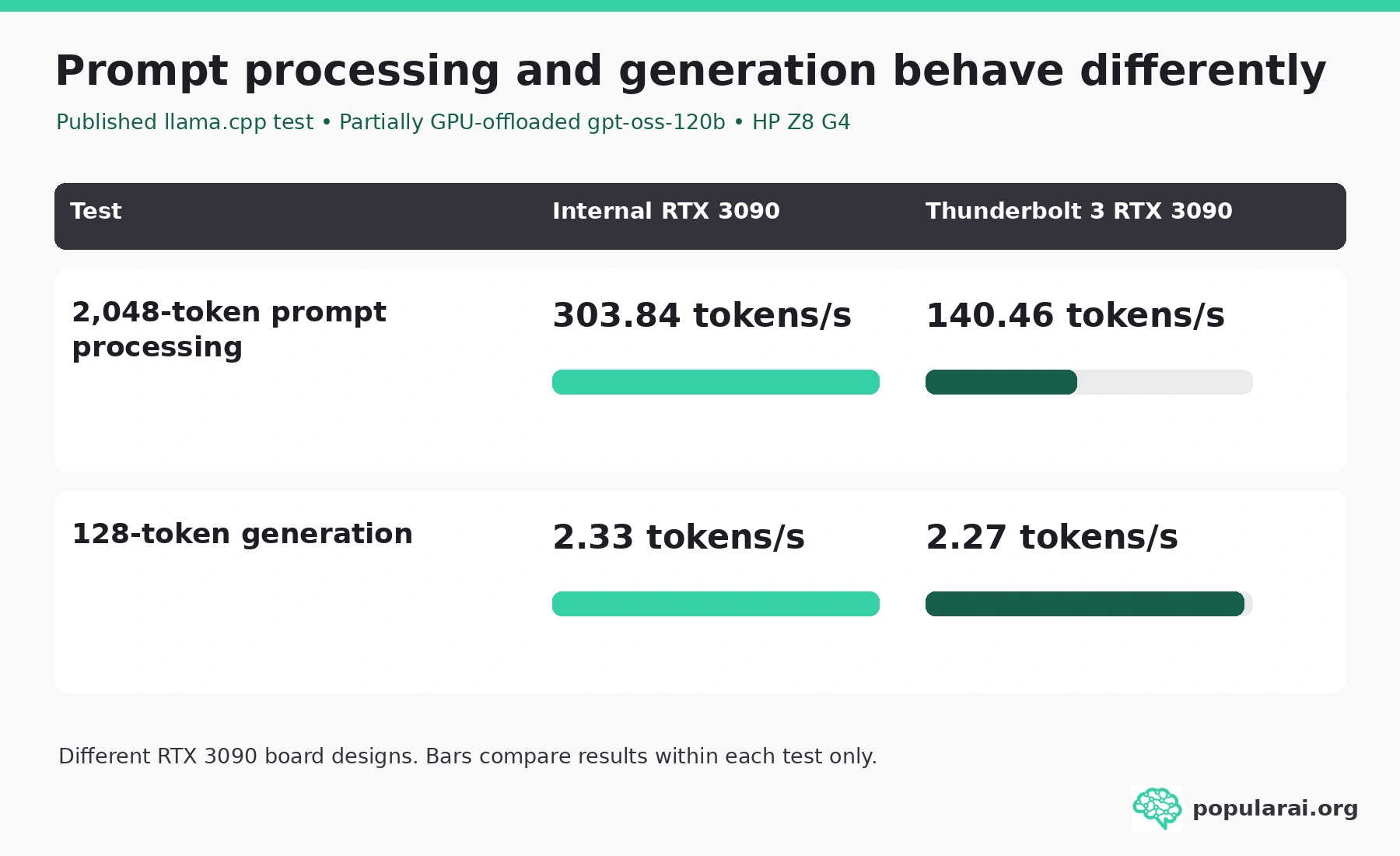
For 2,048-token prompt processing, the internal RTX 3090 recorded 303.84 tokens/s, compared with 140.46 tokens/s over Thunderbolt 3. In the 128-token generation test, the results were 2.33 tokens/s internally and 2.27 tokens/s externally.
The cards were different board implementations, so the comparison has limits. Still, the change in prompt-processing speed was much larger than the change in token generation.
There’s also evidence that modern non-NVIDIA cards can work externally. An Intel Arc Pro B70 USB4 setup documented in October 2026 uses a 32GB GPU with llama.cpp on a Minisforum mini PC. Its author reports successful full-GPU inference, including Qwen-family models, and approximately 20–30-second cold loads when switching models. Those results describe one configured system, rather than a comparison against the same GPU installed internally.
Taken together, these examples support a practical rule: an eGPU is most attractive when you load a model once, keep it in VRAM, and reuse it.
Where eGPU bandwidth affects AI performance
Model loading is an obvious bottleneck. Weights must travel from storage and system memory to the graphics card. A restricted external link can make cold starts and frequent model changes noticeably slower.
Prompt processing is more complicated. The CPU, inference backend, attention implementation, batch size, and model placement all influence the result. When execution repeatedly crosses the host connection, USB4 or Thunderbolt can become expensive.
During token generation, a fully GPU-resident model can perform much of its work inside the card. The GPU’s own memory bandwidth is often more important than the external cable. That’s why a 40Gbps link can still deliver useful decoding performance.
Once model layers spill into system RAM, the calculation changes. The CPU may process some layers while the GPU processes others, or data may move across the host connection during execution. Neither arrangement benefits from treating system RAM as interchangeable with VRAM.
Multi-GPU inference introduces another layer of complexity. llama.cpp supports different ways to split a model across GPUs. Layer splitting can be relatively practical because work crosses device boundaries less frequently. Tensor splitting creates greater communication demands and has additional software limitations.
Two GPUs also don’t automatically become one large, unified memory pool for every AI application.
For ComfyUI, the decisive question is whether the active models and intermediate data fit in GPU memory. A workflow that keeps its denoising model resident is a better candidate than one that repeatedly loads checkpoints, swaps text encoders, or offloads components to RAM. ComfyUI supports NVIDIA, AMD, and Intel GPUs, although installation paths and backend compatibility differ.
The external GPU docks worth considering
▪ MINISFORUM DEG1: best budget dock for OCuLink mini PCs
The DEG1 is a straightforward choice for someone who already owns an OCuLink-equipped mini PC and a compatible desktop GPU.

Its PCIe 4.0 x4 connection avoids USB4 tunneling, while the open-frame design accommodates large desktop cards without the dimensional restrictions of a conventional enclosure. The U.S. manufacturer store listed the DEG1 at $109 on October 27, 2026. The MINISFORUM DEG1 is also listed on Amazon.
The dock does not include a desktop GPU or ATX/SFX power supply. It also cannot help a laptop whose only expansion connection is USB4.
Buy it when you have a native OCuLink port and want the least complicated external PCIe setup. Skip it if you’re hoping to connect it through an ordinary USB-C port.
▪ MINISFORUM DEG2: best for USB4 v2, Thunderbolt 5, and mixed hosts
The DEG2 makes more sense when you need flexibility. It supports OCuLink and USB4 v2/Thunderbolt 5 connectivity, adds an M.2 SSD slot and peripheral connections, and can be used with a desktop graphics card and separate ATX/SFX power supply.

The manufacturer listed the DEG2 at $239.90 on October 27, 2026. The MINISFORUM DEG2 Amazon listing was around $247. Treat both as dated price references, since prices can change.
One important caveat: the extra connectivity does not guarantee better local LLM decoding. On a 40Gbps host, the DEG2 still operates within the host’s connection capability. Its premium is easier to justify if you have Thunderbolt 5, expect to upgrade your computer, or intend to share one GPU between machines.
Buy it for that flexibility. Skip it if you already have OCuLink and need only an inexpensive GPU connection.
▪ ADT-Link UT3G and UT4G: for hands-on USB4 builds
The UT3G is useful because it exposes the basic ingredients of a USB4 eGPU without bundling them into an expensive enclosure. It uses the ASMedia ASM2464PDX controller and supports PCIe tunneling over a compatible 40Gbps USB4 or Thunderbolt connection.
ADT-Link’s UT4G-BK7 and UT4G-BK8 variants add mounting brackets. They remain 40Gbps adapters, so the UT4G name does not mean an 80Gbps host connection.

Retail availability is inconsistent. Compare the total cost of any ADT-Link UT3G eBay offer with the DEG2 before buying a bare adapter. We couldn’t verify a suitable current U.S. Amazon listing for the exact UT3G or UT4G variant. Check the offer’s condition, power-supply requirements, and return terms before paying.

These boards suit technically comfortable users who can handle PSU wiring, exposed components, and operating-system troubleshooting. A complete enclosure is a better choice when you need protection against accidental contact or frequent transport.
Which GPU should you connect?
Choose the GPU capacity before the dock. Determine the VRAM requirement of the models you intend to run, including their KV cache and other memory overhead.
▪ A 16GB GPU can be enough for smaller quantized LLMs and many ComfyUI workflows. A 24GB card opens up larger model choices. A 32GB card offers more room for bigger models and longer contexts. Plan for model weights, KV cache, and context when estimating local LLM VRAM requirements.
▪ An existing RTX 3090 is a sensible eGPU candidate because it has 24GB of VRAM and established CUDA support. However, buying one specifically for an eGPU is no longer an automatic bargain. U.S. used-market observations include a completed RTX 3090 eBay sale at $1,325 on October 6, 2026. A single sale does not establish the going rate, but it shows why the card’s reputation as a cheap 24GB option needs checking against actual offers. Check the actual cost against newer alternatives.
▪ Higher-capacity alternatives also deserve attention. The AMD Radeon AI PRO R9700 provides 32GB, as does the Intel Arc Pro B70. NVIDIA’s newer consumer and professional cards span additional VRAM and performance tiers, including 32GB GeForce and higher-memory workstation models.
NVIDIA remains the easier default for users who rely on CUDA-specific packages and ComfyUI custom nodes. AMD’s ROCm and Intel’s oneAPI/SYCL paths are viable for selected workloads, but require more attention to software compatibility. Check Ollama’s supported GPUs and backend requirements for the card and operating system you intend to use.
A compact integrated eGPU such as the 8GB GPD G1 may suit portable graphics work. It isn’t our choice for a buyer whose primary goal is substantially increasing local LLM capacity.
More on VRAM for local AI:

The hidden cost of an eGPU setup
The advertised dock price is only part of the purchase. A low dock price helps most when you can reuse the GPU and power supply. If you need to buy both, compare the full setup with a desktop upgrade before deciding that the external route saves money.
An open eGPU dock needs a suitable power supply, the correct GPU power connectors, a compatible cable, and adequate clearance for the graphics card. High-power cards also create heat and noise outside the computer chassis.
Check the exact GPU’s length, thickness, connector placement, and power requirements. A power supply rated for the card’s sustained draw may still be unsuitable if it lacks the correct connectors or enough transient headroom.
The host computer needs scrutiny too. Firmware settings, BIOS support, PCIe resource allocation, IOMMU behavior, operating-system authorization, and driver compatibility can determine whether a theoretically compatible dock works reliably.
Windows and Linux are practical starting points for supported NVIDIA eGPU configurations. Apple’s conventional macOS eGPU support requires an Intel-based Mac. There is now an experimental alternative: TinyGPU supports selected AMD and NVIDIA cards over USB4/Thunderbolt through the tinygrad software stack. That doesn’t provide general, drop-in compatibility with every Ollama, CUDA, or ComfyUI workflow.
Don’t budget for a Mac eGPU as though it were an ordinary Windows CUDA setup.
How to compare eGPU benchmarks properly
Any performance comparison should separate loading, prompt processing, generation, and image creation. A single tokens-per-second figure misses too much.
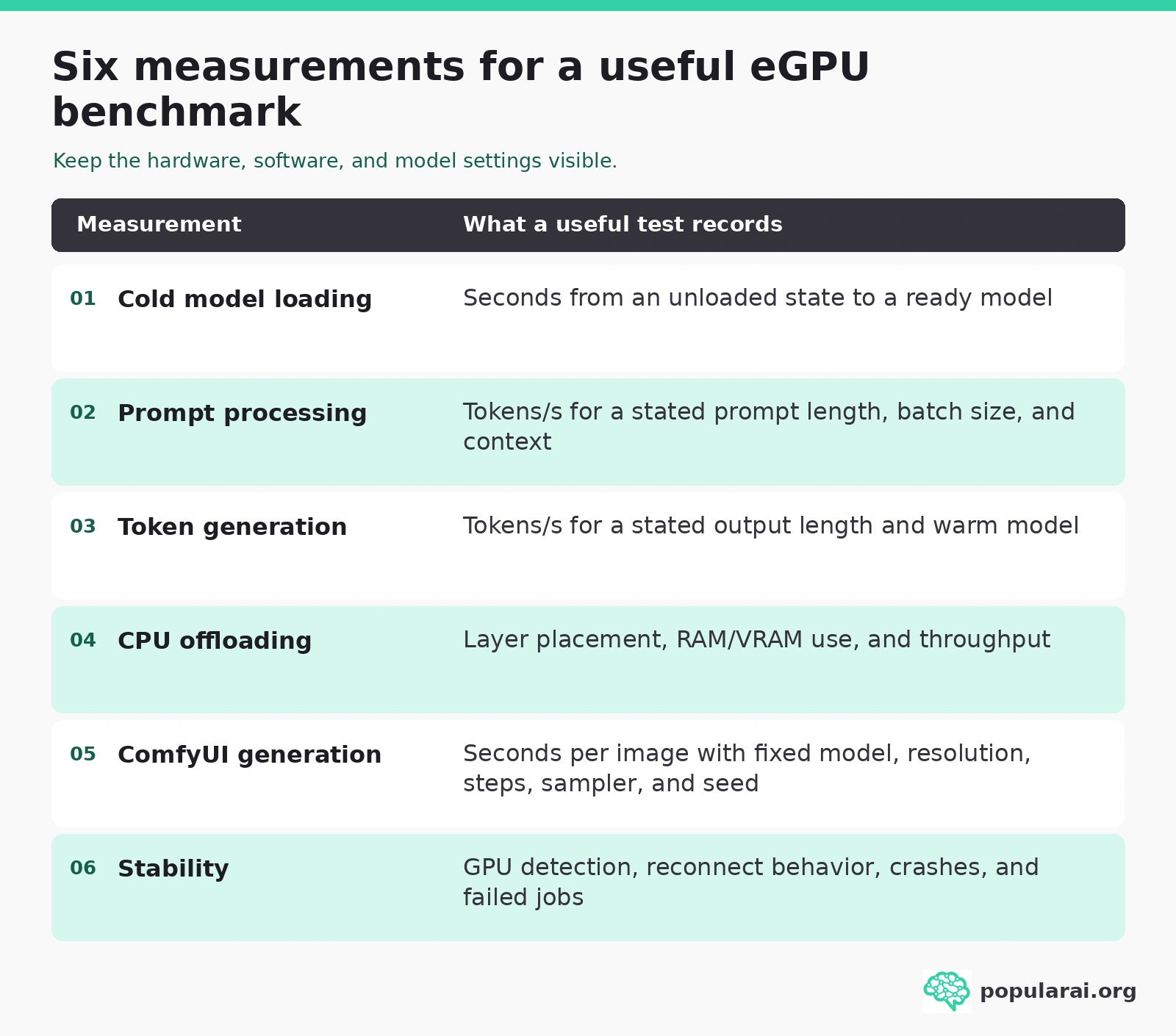
Measure cold model loading in seconds from an unloaded state to a ready model. Record prompt-processing tokens/s alongside prompt length, batch size, and context. Measure token-generation tokens/s with a stated output length and a warm model.
For CPU offloading, record layer placement, RAM/VRAM use, and throughput. For ComfyUI generation, compare seconds per image with the model, resolution, steps, sampler, and seed fixed. Stability testing should record GPU detection, reconnect behavior, crashes, and failed jobs.
A credible comparison also identifies the GPU, dock, host CPU, cable, operating system, drivers, software versions, quantization, and whether the model fits entirely in VRAM.
Without those details, “OCuLink is 20% faster” or “Thunderbolt barely loses performance” tells a buyer very little.
Should you buy an eGPU or build a separate AI computer?
Buy an eGPU when you already have a capable laptop or mini PC, need one additional GPU, and expect to keep your usual LLM or image-generation workload in VRAM. The purchase is particularly attractive if you already own the GPU and a suitable power supply.
Build or upgrade a desktop when you’re buying the CPU, GPU, dock, power supply, and other components together. The external connection adds cost and another source of compatibility problems without necessarily saving enough money to justify it.
A desktop is also preferable for users planning two or more GPUs. With dual RTX 3090s for local AI, account for power and software limitations as well as the combined VRAM capacity.
An older small desktop might need only a larger case, better power supply, or different motherboard to accommodate another card. Price those changes before committing to an elaborate external setup.
For occasional experimentation, renting a cloud GPU can be cheaper than buying an expensive card that spends most of its life idle. For regular private workflows, owned hardware becomes more attractive because it avoids recurring compute charges and dependence on a remote service.
More on the RTX 3090 for local AI:

Buy an eGPU for the computer you already own
For a mini PC with OCuLink, an inexpensive dock such as the MINISFORUM DEG1 is the sensible starting point. Pay extra for a MINISFORUM DEG2 when its USB4 v2/Thunderbolt 5 flexibility serves a computer you use or intend to buy. For a USB4 laptop, a supported external GPU can run local LLMs and ComfyUI effectively when the workload fits in VRAM.
The best reason to use an eGPU is to extend a computer you already own. The worst reason is to avoid building a desktop while spending almost as much money on a complicated external substitute.
If you’re chasing bigger models through constant CPU offloading or assembling a serious multi-GPU system, put the money toward more usable VRAM and a proper internal PCIe configuration instead.
Explore more from Popular AI:
Start here | Local AI | Builds & gear | Autonomy & policy | Fixes & guides | Popular AI podcast