


For everyday local LLM use, 16GB of VRAM is a practical starting point. Move to 24GB for useful 27B–32B quantized models, or 32GB if you want more room for long documents and coding sessions. Running a 70B-class model comfortably often calls for 64GB or more, depending on quantization and context.
A model’s download size won’t tell you whether it fits. The GPU also needs memory for the conversation and the software running the model. A setup that handles a short chat can run out of VRAM when you feed it a long document, even though you’re using exactly the same model file.
Local LLM VRAM: quick verdict
Budget, 8–12GB: Run small, quantized 3B–8B models. A 12GB card gives more breathing room than an 8GB one.
General-purpose target, 16GB: Comfortable with many 7B–14B models, depending on quantization and context. A dense 32B Q4 model still needs more memory.
Larger models, 24GB: Useful for roughly 27B–32B Q4 models at controlled context lengths. Long context can force CPU offload.
Long-context 30B-class work, 32GB: A more credible target for a dense 32B Q4 model with a 32K context window.
70B-class work, 64GB+: Aim above the bare weight size. At 48GB, even Q4 can be tight before you add long context.
Disclosure: This post includes Amazon affiliate links. If you buy through them, Popular AI may earn a small commission at no extra cost to you.
How much VRAM does a local LLM actually use?
Budget for four things at once:
Required GPU memory ≈ model weights + KV cache + runtime/workspace overhead + safety headroom.
▪ The weights are the model’s stored parameters. A dense 8-billion-parameter model at exactly 4 bits per parameter would occupy about 4 billion bytes before metadata and quantization scales. Actual GGUF files are larger because practical formats such as Q4_K_M use different precision for different tensors and carry additional information.
For rough planning, 4-bit quantized dense weights often occupy around 0.55–0.65GB per billion parameters. At 8-bit precision, the weight size approaches 1GB per billion. Check the actual file you intend to download. Neither estimate includes everything the GPU will need to run it.
▪ The KV cache stores attention keys and values for tokens in the conversation. Its memory requirement grows with the configured context window. How quickly it grows depends on the model’s layer count, key/value heads, head dimensions, attention architecture, and cache precision. Two models with similar parameter counts can therefore leave very different amounts of room for your documents.
Reducing weights from Q8 to Q4 doesn’t automatically reduce a cache stored in FP16. Some runtimes support quantized KV caches or memory-saving attention, so two otherwise similar installations can differ significantly.
▪ The runtime also needs memory for compute buffers, CUDA or other GPU contexts, graph allocation, and sometimes prompt-processing workspaces. The operating system and display can occupy some VRAM too. Multiple simultaneous requests, parallel contexts, or another GPU application add to the total.
An 18GB model file on a 20GB card leaves only 2GB for the cache, runtime, display, and everything else. Treating that as a comfortable fit is optimistic.
👉 Use a VRAM calculator for a first estimate of your model, quantization, context, and GPU combination. Leave additional headroom, then check the behavior in your actual runtime. A calculator can help rule out an unsuitable purchase, but its estimates don’t establish performance on your machine.
Context length: why a 24GB card can run out of room
LeanLM’s published Ollama measurements, updated October 18, 2026, show how much context can change the budget. Its tests used Qwen2.5 Instruct models with FP16 KV cache and flash attention on a single NVIDIA RTX PRO 6000 96GB card. Memory was measured with nvidia-smi, with the model fully resident on the GPU.
At Q4_K_M, Qwen2.5 32B used 19.9GiB with 4K context, rising to 27.2GiB at 32K. The model weights stayed the same, while the longer context consumed roughly 7.3GiB more memory.
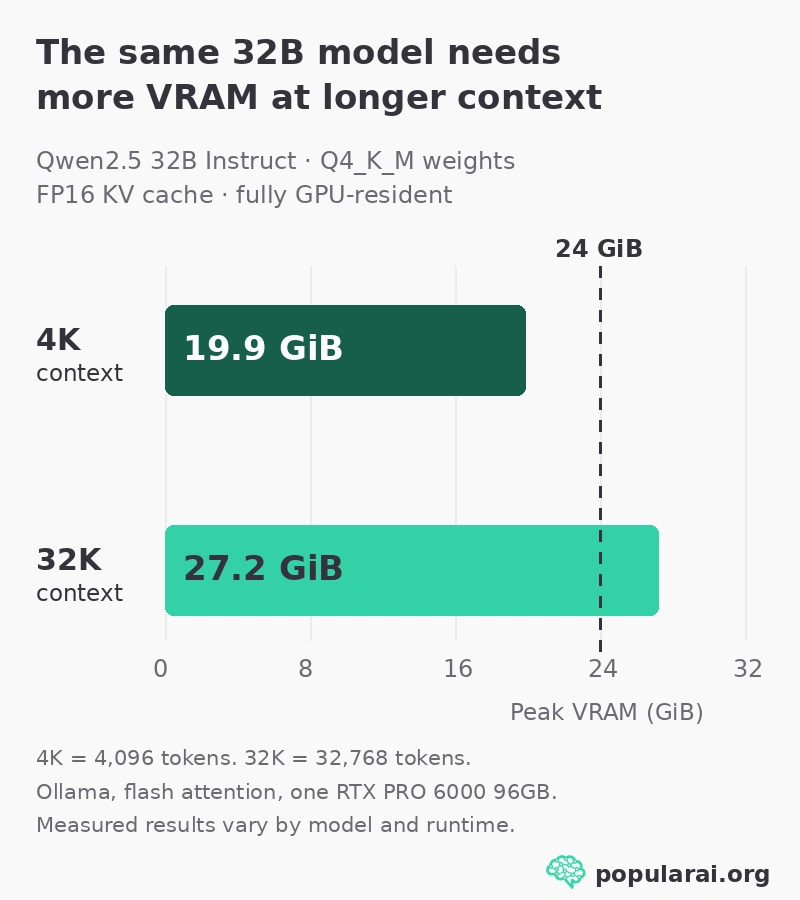
A 24GB RTX 3090 or RTX 4090 can accommodate the short-context example, but it cannot keep the measured 32K configuration entirely inside 24GB.
The pattern also appeared at either end: Qwen2.5 7B Q4 went from 5.1 to 6.8GiB, while Qwen2.5 72B Q4 rose from 46.2 to 54.7GiB. Q8 was significantly heavier: the 32B version needed 33.5GiB even at 4K.
Those figures apply to LeanLM’s stated test setup. Consumption and speed can differ with the GPU, model family, runtime settings, and Ollama version. The measurements provide a reference for sizing a system, rather than a promise about another configuration.
Why does the 32B example grow so much? Its conventional FP16 cache requires about 256KiB per token: two tensors (keys and values), 64 layers, eight KV heads, 128 dimensions, and two bytes per value. Increasing the reserved context by 28,672 tokens therefore adds about 7GiB. Models using sliding-window, grouped-query, or hybrid attention can scale differently.
Ollama also uses VRAM-based default context settings. A large advertised model context doesn’t mean your installed runner can use the entire window on your particular card. Set the context for your work, not for the biggest number printed on a model page.
Local LLM VRAM requirements by memory tier
These are planning ranges for one inference workload, assuming mostly GPU-resident quantized weights. Check the exact file and context before treating any tier as a confirmed fit. For perspective, use the measured 7B, 32B, and 72B examples above as reference points.
8GB: Good for roughly 3B–8B models at Q4 and moderate context. An 8GB card is tight for the measured 7B Q4 model at 32K once other memory users appear. Avoid buying new 8GB hardware specifically for long-term local LLM use.
12GB: A solid low-cost tier for 7B–8B at Q4 or Q8, and some 12B–14B Q4 configurations with modest context. It still won’t comfortably host a dense 32B Q4 model.
16GB: A sensible starting purchase for 7B–14B, with room for larger specialized or aggressively quantized models. Select 16GB deliberately: GPUs with the same product name sometimes have 8GB variants.
24GB: The entry point for useful 27B–32B Q4 inference. Long documents, 32K contexts, multiple sessions, or higher precision expose the limit quickly. Don’t assume a 32B Q4 model will fit at 32K just because the card has 24GB.
32GB: Strong for 30B–32B Q4 models with longer context, but generally insufficient for a dense 70B Q4 fully on the GPU. Higher quantizations and parallel users can still overwhelm it.
48GB: Opens dense 70B-class Q4 at short context, often with very little spare room. LeanLM’s 72B Q4 measured 46.2GiB at 4K and 54.7GiB at 32K, making 48GB an awkward long-context target.
64GB, 72GB, and 96GB+: The realistic territory for 70B-class Q4 with useful context, or higher-precision 70B inference at still larger capacities. A 72B Q8 model in the cited test used 81.6GiB at 32K, so even 80GB would not have sufficed under those conditions.
⚠️ Watch the total weight size with mixture-of-experts models, too. A model might activate only a fraction of its parameters per token, yet all resident expert weights still occupy memory unless the runtime offloads or streams them.
Buy based on the stored quantized weights and runtime behavior, not the advertised active-parameter figure.
Which GPU should you buy for local LLMs?
The buying priorities here are GPU-resident model fit, useful software support, and complete system cost. The candidates include NVIDIA consumer and professional cards, current AMD Radeon and Radeon AI PRO hardware, Intel Arc and Arc Pro, Mac unified-memory systems, and used or multi-GPU setups.
The prices below come from U.S. retailer listings or dated observations checked for the original guide on October 22, 2026. Listings change. Historical Amazon prices should be read as historical prices, with stock and checkout totals checked separately.
▪ Low-cost 12GB: ASRock Intel Arc B580 Challenger
The ASRock Arc B580 Challenger 12GB is worth considering on a low budget if you mainly run 7B–8B models. Intel specifies 12GB and 456GB/s memory bandwidth. The retrieved Newegg listing displayed about $310, although a cached listing can lag the checkout price.

The tradeoff is software friction. CUDA-centered tools are generally easier to run on NVIDIA, while Intel users should verify their chosen llama.cpp backend, LM Studio version, operating system, and driver before buying. Skip this card if your workflow requires a specific CUDA-only application or a dense 30B model.
▪ Mainstream 16GB: PNY GeForce RTX 5060 Ti 16GB
The PNY RTX 5060 Ti 16GB EPIC-X offers a relatively straightforward CUDA path for local chat, coding assistants, and 7B–14B models. NVIDIA lists 16GB and 180W board power for the 16GB variant. Buy the 16GB model, never assume an 8GB 5060 Ti is equivalent.

Price weakens the buying case. U.S. October 20–22 retailer observations placed assorted 16GB cards around $740–$850, far beyond their original mainstream positioning.
The named PNY listing’s live Amazon checkout price could not be established reliably. At those market prices, paying extra for 16GB may make poor sense. Keep an existing capable GPU or compare a 32GB alternative before buying.
▪ Bigger models on one card: ASRock Intel Arc Pro B70 32GB
The ASRock Arc Pro B70 Creator 32GB gives 30B–32B Q4 workloads more room on one GPU. Intel specifies 32GB ECC-capable GDDR6, 608GB/s, and 230W.

An Amazon seller-history record showed approximately $1,300 in August 2026, but current checkout stock and price couldn’t be confirmed. Consider it for the extra GPU-resident model capacity only after verifying that your actual runner supports Intel’s backend well. The memory advantage is useful only if the software you plan to use can make use of the card.
The ASRock Creator version also needs space and power: a roughly 271mm, two-slot card with a 12V-2x6 connector. Verify the actual card revision, PSU cable, and chassis. Skip it if your project depends on CUDA libraries or guaranteed plug-and-play compatibility.
▪ AMD 32GB alternative: ASRock Radeon AI PRO R9700 Creator
For an established ROCm workflow, consider the ASRock Radeon AI PRO R9700 Creator 32GB.

AMD’s ROCm Linux support matrix lists this GPU, but supported operating systems and frameworks still require checking. AMD also publishes Windows HIP SDK compatibility, which doesn’t make every CUDA-centered app compatible.
An alternate manufacturer’s 32GB R9700 Newegg listing showed about $1,600, while Amazon price history for the ASRock version showed about $1,700. Those are separate products and observed offers, not a guaranteed current ASRock price.
The R9700 offers more model capacity for an AMD-supported software stack. Check individual applications before treating it as a substitute for an NVIDIA card. Readers unwilling to deal with ROCm versions, driver support, or Linux compatibility should prioritize a card that their application officially supports.
Why more VRAM doesn’t make every GPU a good buy
▪ The RTX 5090 has 32GB and far more bandwidth than those Intel and AMD workstation alternatives. It remains attractive for users whose workloads need NVIDIA performance, but shortage-era asking prices make it difficult to recommend merely to obtain 32GB.
▪ The 12GB RTX 5070 and 16GB RTX 5070 Ti/5080 cannot solve a 32GB memory requirement, however fast they are. AMD’s RX 9060 XT 16GB was also considered, but its 16GB capacity doesn’t solve the 32GB problem, and it isn’t the general-purpose recommendation here. The larger RTX PRO 5000 and PRO 6000 cards can provide 48GB–96GB, but workstation pricing needs an actual professional workload to justify it.
▪ An existing RTX 3090 with 24GB remains useful. Buying one secondhand is a different question: recent U.S. asking prices are high, and a used card brings memory-temperature, fan, power, and warranty risks.
Compare the real acquisition price with newer alternatives instead of assuming a cheap 24GB bargain still exists. Running two GPUs is possible with supporting software, but the runtime must distribute the model across their separate memory pools. Our dual-GPU local AI guide covers that tradeoff.
▪ Apple unified-memory machines belong in a separate comparison. A Mac with 64GB unified memory is not a 64GB discrete VRAM card: the OS shares that pool, GPU allocation has its own limits, and memory bandwidth and runtime behavior differ.
Our Mac mini local-LLM guide covers the alternatives. If you only occasionally need a 70B model, renting GPU time can cost less than purchasing a workstation, particularly after electricity, cooling, and depreciation.
More on local AI hardware:


Choose your model and context before buying a GPU
Start with the exact model file, choose Q4 or Q8, and set a realistic context.
LM Studio documents an estimate-only model-load option, allowing you to assess a model and context without loading it. In Ollama, run ollama ps after a request and look at PROCESSOR: 100% GPU is the desired sign, while a CPU/GPU split means you’ve accepted some offload. Ollama documents the processor and context display.
Keep the display and other GPU applications out of the budget where practical. If a model spills into system RAM, it may still answer, but generation can slow dramatically.
Sometimes a good Q4 14B model entirely on the GPU beats waiting on a much larger partially offloaded model. Quantize the weights, adjust the context, consider KV-cache quantization if supported, and only then conclude you need another graphics card.
Choose your actual model and context length before spending money on a GPU. For everyday local AI, aim for 16GB when the price is sensible. For dense 30B–32B work with longer documents, buy 32GB if your software supports the GPU. For regular 70B-class inference, plan around 64GB or more, or use a rented GPU instead of buying an expensive card to run one occasional prompt.
For a 16GB CUDA setup, compare the PNY RTX 5060 Ti 16GB EPIC-X against the actual price you’re willing to pay. For 32B Q4 with longer context, the ASRock Arc Pro B70 Creator 32GB is a capacity option if your Intel software checks pass. Buy the memory your workload needs, with software support you can verify.
Explore more from Popular AI:
Start here | Local AI | Builds & gear | Autonomy & policy | Fixes & guides | Popular AI podcast
What's the biggest local LLM you've managed to run entirely on your GPU without CPU offload? Share your VRAM, model, quantization, and context length. I'm curious how far people are pushing their hardware!