


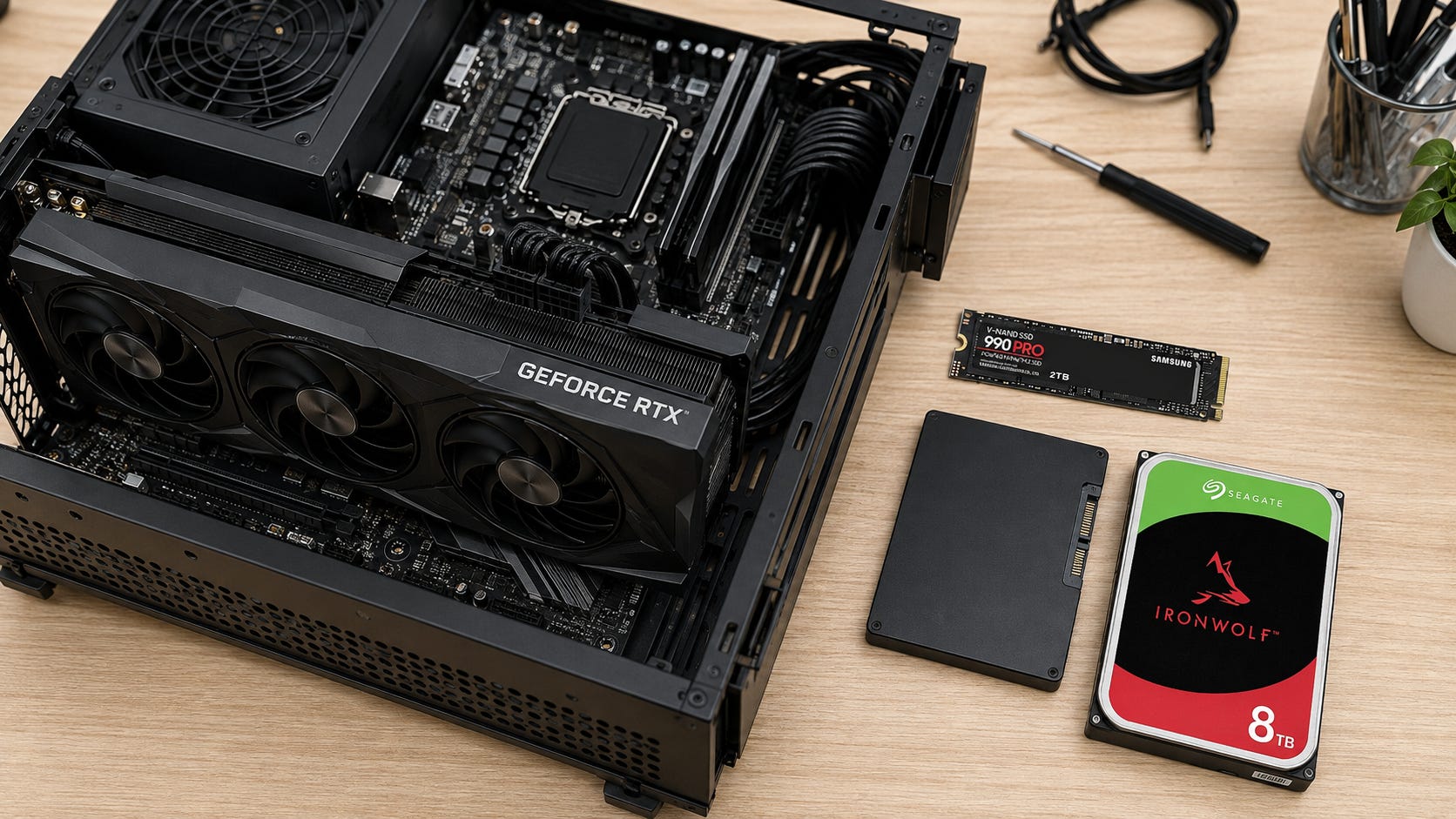
If you are building a local AI PC, 2TB of NVMe storage is the sensible starting point for most people, while 4TB is the better long-term choice for serious local AI use. Spend money on capacity before chasing PCIe 5.0 benchmark numbers. A fast Gen4 NVMe drive is already quick enough that storage usually affects model loading more than steady-state inference. SATA SSDs make strong secondary model drives. HDDs belong in the archive and backup tier, not under models you expect to page from disk while running.
Disclosure: This post includes Amazon affiliate links. If you buy through them, Popular AI may earn a small commission at no extra cost to you.
If you want a concrete Gen4 drive in the capacity this guide recommends for most builds, the Samsung 990 PRO 2TB is one of the NVMe models used below to illustrate the performance tier.
Quick verdict
1TB: Fine for a budget machine running a small, curated model library. It gets cramped quickly once you keep multiple quantizations, image models, datasets, and outputs.
2TB: Best starting point for most local AI users. It gives you room for a useful LLM collection, applications, caches, RAG data, and some image-generation models without turning storage cleanup into a weekly chore.
4TB: Best serious-user tier. Buy this if you experiment with 30B to 70B-class models, keep several model versions, use ComfyUI, build RAG systems, or do fine-tuning and conversions. A drive such as the Samsung 990 PRO 4TB matches the Gen4 capacity-first approach this guide recommends.
8TB or more: Worth considering for model collectors, very large MoE models, video AI, large datasets, multi-user servers, conversion workspaces, and local AI labs.
For the primary drive, buy a reasonably good PCIe 4.0 NVMe SSD unless a Gen5 model costs close enough that the extra speed no longer forces a capacity compromise.
Use SATA SSDs when cheap solid-state capacity matters more than load times. Use HDDs for models you are not currently running, raw datasets, old checkpoints, exported work, and backups.
Storage capacity matters more than the SSD benchmark on the box
Local AI consumes storage in unusually large chunks, and those chunks accumulate much faster than they do on an ordinary productivity PC.
Ollama’s Windows documentation warns that downloaded LLMs can consume tens to hundreds of gigabytes beyond the application itself. That stops sounding extreme once you begin testing larger models or keeping several quantizations of the same model. A local AI setup also tends to accumulate runtimes, caches, embeddings, generated files, model conversions, and downloaded assets that do not show up in the headline model size.
Official Qwen GGUF repositories give a useful sense of scale. The Q4_K_M file for Qwen3-8B is 5.03GB, while Qwen3-30B-A3B Q4_K_M is 18.6GB. Move to the Q4_K_M directory for Qwen3-235B-A22B and the model footprint reaches 142GB. One giant model can therefore consume the same space as dozens of smaller experiments.
Image generation makes the storage problem more obvious. Black Forest Labs’ official FLUX.1 dev repository contains a 23.8GB model file before you start collecting alternative checkpoints, VAEs, LoRAs, ControlNet-style components, upscalers, outputs, and duplicates for different applications. ComfyUI users can fill a drive without ever downloading a 100GB LLM.
That is why a 1TB drive can look enormous on a normal desktop and strangely small six months into a local AI hobby. The usable space is smaller than the marketing capacity after formatting and the operating system, and your AI library competes with every other application and file on the machine.
If you are still deciding what model sizes your hardware can realistically use, Popular AI’s local LLM guide by VRAM tier is the better place to start. Storage capacity should follow the workloads your memory can actually handle. There is little value in reserving terabytes for giant models that your GPU and system memory cannot run in a way you would actually tolerate.


Related:

Does a faster SSD make local AI inference faster?
Usually, not by much once the model is resident in memory.
The important distinction is between loading the weights and executing inference on them. Storage can dominate the first phase while barely mattering during the second.
Current llama.cpp CLI documentation uses a --load-mode system whose automatic mode selects mmap unless the device does not support it. Memory mapping lets the operating system make model-file pages available as needed instead of requiring the application to perform a conventional full-file copy before use.
When enough physical memory is available, disk reads mostly belong to the loading phase. A long-running llama.cpp discussion explains that when a dense model is fully cached, generation does not need to keep rereading the weights. If the model is larger than available RAM, however, persistent disk activity can continue during inference as layers are reread.
That distinction is the reason a 14GB/s SSD does not turn a RAM-limited machine into the equivalent of one with another 128GB of DDR5. Storage and memory solve different bottlenecks.
A faster SSD can still make cold starts noticeably better. It can also accelerate huge model downloads, copies, decompression, conversions, index builds, checkpoint manipulation, and dataset work. If the workload really is faulting model pages from storage during inference, SSD performance becomes much more important because storage has moved into the hot path.
Even then, the better fix for a model that constantly needs data from disk is usually more appropriate memory or a smaller quantization. A faster drive can reduce the pain. It does not make an undersized memory configuration ideal.
Why mmap makes the SSD question confusing
This is where local AI storage advice becomes more complicated than ordinary PC buying advice.
A January 2026 llama.cpp discussion about using disk for MoE weights describes how mmap can let the operating system fetch model pages from their backing file when physical memory is insufficient. That can make a model technically runnable even when the relationship between model size and physical memory is uncomfortable. It does not turn storage into RAM.
Another llama.cpp discussion comparing mmap and direct I/O for large MoE models reported that prefetching a model larger than RAM could cause thrashing, with delays measured in minutes when the model lived on a hard disk. The same discussion described much faster subsequent starts when mmap allowed the model to remain cached in RAM.
A separate 2026 thread about RAM consumption with mmap carries the same practical warning. When the system is short of physical memory, pageouts can negatively affect performance even though the model appears to load.
The useful buying rule is simple: mmap makes fast storage more useful when memory is tight. It does not make insufficient memory desirable.
If your plan for running a giant model begins with the assumption that the NVMe drive will behave like another 256GB of RAM, reconsider the plan. The drive may help you get a model loaded or keep an experiment technically possible, but the experience can still be dominated by memory pressure and repeated storage access.
NVMe SSD: put your active models here
A PCIe NVMe drive is the right primary storage tier for a local AI workstation. It gives active models the lowest practical load times of the three storage classes discussed here, and it handles large copies, conversions, indexing jobs, and model churn with far less friction than SATA or HDD storage.
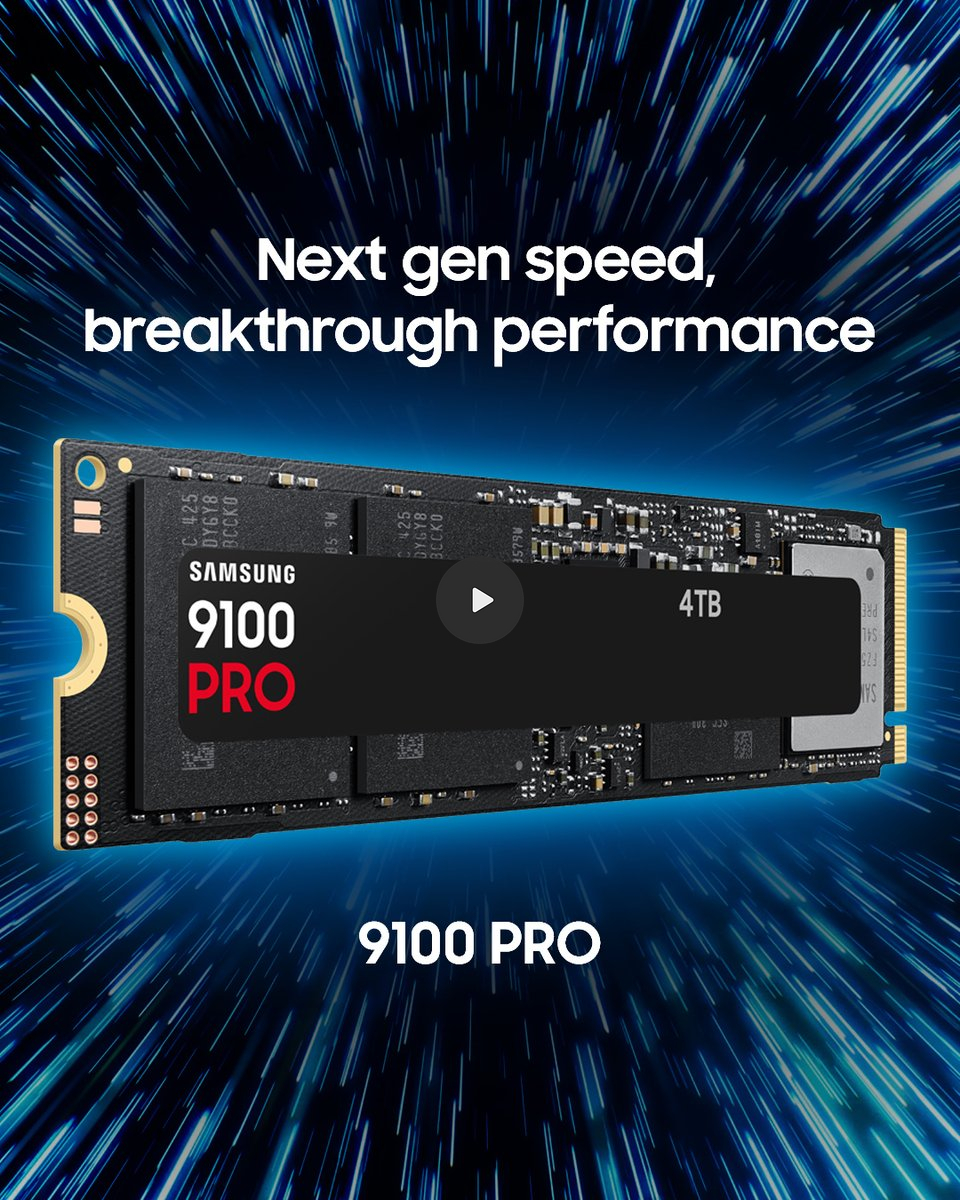
Samsung rates its PCIe 4.0 990 PRO at up to 7,450MB/s sequential reads. The PCIe 5.0 Samsung 9100 PRO 4TB reaches up to 14,800MB/s sequential reads. Those are manufacturer maximums rather than local AI benchmark results, but they show how large the raw interface gap has become.

For active model storage, Gen4 already provides several gigabytes per second of sequential bandwidth. That is enough to make a conventional HDD look prehistoric and a SATA SSD feel distinctly slower on very large cold loads. A good Gen4 drive is also much less likely to force you to choose between capacity and high-end performance.
Gen5 makes more sense when loading and copying enormous models is a regular part of your work, when you convert or quantize large checkpoints, when you process substantial datasets, or when experimentation itself is the workload. Those jobs spend enough time moving data that the storage subsystem can become a meaningful productivity limit.
For ordinary local inference, buying 4TB of good Gen4 storage instead of 2TB of premium Gen5 storage is usually the better allocation of money. The extra capacity continues paying off every time you keep another model, dataset, or conversion output. The Gen5 speed premium pays off only when your workflow can actually use it.
SATA SSD: excellent secondary capacity
SATA SSDs are much slower than modern NVMe drives, but they remain perfectly useful local AI storage, especially when your M.2 slots are already occupied.
The Samsung 870 EVO 4TB is a representative SATA option, and Samsung rates the 870 EVO line for up to 560MB/s reads. That figure illustrates the practical performance ceiling of a modern SATA SSD compared with multi-gigabyte-per-second NVMe drives.

For local AI, that bandwidth is still enough for model libraries you use occasionally, smaller GGUF files, LoRAs, embeddings, source documents, finished datasets, and projects that do not need multi-gigabyte-per-second access. A SATA SSD can also make a good landing zone for downloads before you decide what deserves space on the primary NVMe drive.
SATA becomes especially attractive on machines that have exhausted their M.2 slots. A spare 2.5-inch bay can add several terabytes without consuming another PCIe slot or forcing you to replace an existing NVMe drive. That can be cheaper and simpler than rebuilding the storage layout around a larger primary SSD.
I would still keep frequently used 70B-plus models and mmap-sensitive workloads on NVMe when possible. The larger the model and the more often you cold-load it, the more noticeable the gap becomes.
HDD: excellent archive, poor active-model storage
Hard drives win on cheap bulk capacity. They lose badly on latency and throughput, and that matters once a model or workflow starts touching storage repeatedly.
A Seagate IronWolf 8TB gives a concrete example of the archive tier. Seagate currently lists mainstream IronWolf NAS hard drives at sustained transfer rates of 180MB/s. A llama.cpp user testing mmap with oversized MoE models also reported multi-minute delays when prefetching from an HDD.

That makes HDD storage useful for inactive quantizations, source checkpoints, old model versions, training images, raw media, archives, exported datasets, and backups. These are files where capacity and retention matter more than immediate access.
It is a poor place for an actively paged model.
An HDD becomes even less attractive when one model is split across many files or a workflow repeatedly jumps among lots of assets. Rotational latency that barely matters to cold archival storage becomes irritating very quickly when the workload expects SSD-like access patterns.
The cleanest arrangement is to treat HDD storage as a library shelf. Keep the models and assets you actively use on SSD, then move older or less frequently used material to the hard drive instead of deleting it.
How much faster is NVMe for a huge model?
Take Qwen3-235B-A22B Q4_K_M as a deliberately large example. Its official GGUF directory is 142GB, which is large enough to make storage bandwidth differences visible even in a simplistic paper comparison.
If you divide 142GB by each manufacturer’s maximum sequential transfer rate, the lower bounds work out to roughly 9.6 seconds on a 14.8GB/s Gen5 SSD, 19 seconds on a 7.45GB/s Gen4 SSD, 4.2 minutes on a 560MB/s SATA SSD, and 13.1 minutes on a 180MB/s HDD.
Those figures are not realistic model-loading benchmarks. Filesystem behavior, CPU work, GPU transfers, caching, thermals, model initialization, fragmentation, and the exact access pattern all intervene. Manufacturer peak sequential rates also come from controlled storage tests, not from the same local AI workload running across all four devices.
The comparison still explains the buying decision.
Moving from HDD to SSD can transform the experience. Moving from SATA to NVMe can be very noticeable with enormous files. Moving from good Gen4 NVMe to flagship Gen5 is a much smaller quality-of-life improvement for most local AI users, especially if buying Gen5 means accepting half the capacity.
1TB: enough to start, easy to outgrow
A 1TB NVMe drive makes sense in a tightly budgeted local AI PC.
It works especially well if you run 4B to 14B models, keep only a few larger LLMs, and are willing to delete experiments after testing them. A machine dedicated mainly to Ollama or LM Studio can remain perfectly usable at this tier because a carefully managed library does not need to contain every model you have ever tried.

Popular AI’s sub-$1,000 local AI build uses 1TB NVMe as its budget storage target for exactly this kind of machine. That recommendation makes sense when the goal is to preserve budget for the hardware that determines what models the system can run.
The problem appears when the same PC becomes your ComfyUI workstation, RAG server, dataset store, development machine, and model museum. Then 1TB stops feeling generous. You begin choosing what to delete based on storage pressure rather than what you might still want to test.
Related:

2TB: the best default for most people
This is the capacity I would put in a normal new local AI build.
A 2TB NVMe SSD leaves enough room for a useful collection of smaller models, several 20B to 35B-class quantizations, some large experiments, image-generation assets, normal applications, caches, and project data. It gives you breathing room without pushing storage spending into workstation territory.

It also gives you time to discover what you actually use. That matters because local AI habits vary. Some people keep a few reliable models and rarely change them. Others download every interesting release, compare multiple quantizations, build image workflows, and keep old checkpoints for reproducibility.
A 2TB drive is especially sensible in a machine with another free M.2 slot. You can add a 4TB or 8TB secondary drive later without discarding the original storage. The first drive can remain the operating-system and active-model volume while the second becomes a larger AI library.
If your budget forces a choice between a premium Gen5 1TB drive and a reputable Gen4 2TB drive, take the 2TB Gen4 drive for local AI. The capacity difference will affect more of your day-to-day decisions than the peak sequential benchmark.
4TB: the local AI power-user sweet spot
A 4TB NVMe drive begins to make sense when your local AI machine stops being an experiment and becomes infrastructure.

This is the tier for people who keep several large GGUF models, compare multiple quantizations, use ComfyUI heavily, build document indexes, experiment with LoRAs, convert model formats, run agents, or maintain several local runtimes. It reduces the need to shuffle models between drives every time you want to try something new.
The argument gets stronger with giant models. Popular AI’s analysis of Kimi K3’s local hardware requirements estimated a lower-bound model-weight footprint around 1.49TB in MXFP4 and said a serious conversion workspace would likely need at least 4TB of fast storage. That is an extreme example, but it shows how quickly the phrase “big SSD” changes meaning at the top end of local AI.
For a serious workstation built in 2026, 4TB is the capacity I would choose before paying a large premium for Gen5 performance. It is enough space to let experimentation be messy without making the storage layout itself a constant project.
Related:

8TB and beyond: when your PC becomes a local AI server
Eight terabytes stops looking excessive once the machine serves several jobs or several people.
A local AI server may hold LLMs, embedding models, rerankers, image checkpoints, RAG corpora, family documents, backups, output archives, media, and several versions of the same model. Popular AI’s private family AI NAS build illustrates the point where storage reliability and organization become part of the AI architecture rather than an afterthought.


At this scale, a tiered setup is often smarter than filling every bay with the fastest possible flash. You are unlikely to need NVMe-class performance for every byte you retain.
Keep the active working set on NVMe. Put less frequently used material on SATA SSDs or a NAS. Put backups and true cold archives on high-capacity HDDs. If a project produces large temporary conversion files, reserve enough fast working space that you do not have to perform the conversion directly on the archive tier.
The result is cheaper, easier to expand, and less wasteful than insisting that every model, dataset, and backup live on flagship PCIe 5.0 storage.
Related:

Should you buy PCIe 5.0 for local AI?
Buy Gen5 because your storage workload needs Gen5, not because the box says AI.
The 9100 PRO’s advertised 14.8GB/s sequential read rate is close to twice the 7.45GB/s rating of the 990 PRO. The storage-level difference is real. The local AI question is whether your workload spends enough time waiting for storage to justify making Gen5 a priority.

If your main activity is loading one 20GB model and then chatting with it for three hours, probably not. Once the model is resident in memory, the drive is no longer responsible for the token generation work in the way a GPU, CPU, RAM, or VRAM subsystem is.
If you constantly move 100GB to 500GB checkpoints, quantize huge models, process datasets, rebuild indexes, swap giant models in and out, or experiment with disk-backed MoE behavior, the faster drive becomes easier to justify. Those workflows spend more of the day reading and writing large amounts of data.
For most buyers, Gen4 capacity beats Gen5 bragging rights. Buy enough space to stop thinking about storage every time a new model arrives, then pay for more speed if your actual workflow still proves that storage is the bottleneck.
What determines the purchase
Storage becomes easier to buy once you rank the constraints correctly.
Start with the size of the model library you actually expect to keep. Then add image models, datasets, RAG sources and indexes, conversion space, generated outputs, application caches, and ordinary PC storage. Leave enough headroom that downloads, temporary files, and model conversions do not force you to delete something every time the drive gets busy.
Next, decide which portion needs to be fast.
Your daily models belong on NVMe. Occasional models can live on SATA SSD. Cold models and source archives can live on HDD or NAS storage. Back up anything you cannot simply download again. A model file may be replaceable, but your fine-tunes, private datasets, indexes, prompts, outputs, and project files may not be.
Only after those decisions should you worry about whether your SSD peaks at 7GB/s or 14GB/s.
Popular AI’s broader AI hardware and builds guide uses the same principle across the rest of a local machine: start with the workload, then buy the capacity and hardware that remove the actual bottleneck. Storage should follow that rule instead of becoming a benchmark-shopping exercise.
Related:

How these recommendations were chosen
This guide is based on current manufacturer storage specifications, official model-file sizes, current Ollama storage documentation, and llama.cpp documentation and community technical discussions about mmap, page caching, direct I/O, and RAM pressure as of August 14, 2026.
Keep in mind that storage specifications and AI application performance are different kinds of evidence.
Manufacturer sequential-speed figures show what the storage devices can do under their test conditions. They do not prove an equivalent gain in tokens per second. The llama.cpp evidence supports a more useful practical conclusion: fast storage helps model loading, while persistent disk access during inference is a warning that the memory configuration itself deserves attention.
The model-file examples serve a different purpose. They show why capacity disappears so quickly in local AI, even before you account for duplicated checkpoints, multiple quantizations, caches, image assets, training data, generated outputs, and normal desktop storage.
Who should buy, wait, or skip
Buy 2TB NVMe if you are building your first serious local AI PC and do not yet know how large your model library will become. It is large enough to experiment without making storage the dominant line item in the build.
Buy 4TB NVMe if you already know you run local AI regularly, especially if your workflow includes larger GGUFs, ComfyUI, datasets, RAG, multiple runtimes, or model conversion. The extra space buys convenience every day.
Stay at 1TB when the budget is genuinely tight and your workload is modest. Spending on GPU VRAM or system memory can buy far more useful AI capability than doubling storage you do not yet need.
Add SATA SSD capacity when your motherboard is short on M.2 slots or when older models need reasonably fast storage without occupying your fastest drive.
Add HDD or NAS capacity when the problem is retention rather than execution. Archive storage is where cheap terabytes make sense.
Wait on an expensive PCIe 5.0 upgrade if your current Gen4 drive is already fast and spacious enough. A benchmark number twice as large does not make the entire AI workflow twice as fast.
FAQ
Is 1TB enough for local AI?
Yes, if you keep a relatively small model library. A few 4B to 30B quantized LLMs can fit comfortably alongside a normal desktop setup, especially if you delete models you no longer use. It becomes restrictive once you start keeping many versions, 100GB-plus models, image-generation checkpoints, datasets, or large output archives. If 1TB is the right budget tier, a Samsung 990 PRO 1TB is an example of the Gen4 class discussed in this guide.
Is 2TB enough for Ollama?
For most individual users, yes. Ollama warns that LLM storage can reach tens to hundreds of gigabytes, so 2TB gives a much healthier margin than the small boot SSDs found in many PCs. If you add another drive later, Ollama lets you change the model directory with
OLLAMA_MODELS, which makes a two-drive setup easy to grow into.
Does PCIe 5.0 improve tokens per second?
Not automatically. When a model fits in memory, storage is primarily involved in loading it. If the workload repeatedly faults model pages from disk because RAM is insufficient, SSD performance can affect inference, but that is usually a memory-capacity problem first. PCIe 5.0 is easier to justify for model loading, copies, conversion work, and data-heavy workflows than for steady-state token generation.
Can I run local LLMs from a SATA SSD?
Yes. SATA SSDs are dramatically faster than mechanical disks and work well for local AI. Expect slower cold loads than NVMe with very large models, but do not expect normal token generation to scale directly with SSD sequential-read speed when the model is already resident in memory.
Can I store AI models on an HDD?
Yes, especially for archival storage. Move frequently used models to SSD when practical. HDD becomes much less attractive if
llama.cpphas to page model data repeatedly during inference, or if your workflow constantly jumps across many files instead of reading a cold archive occasionally.
The best SSD setup for local AI in 2026
Buy a 2TB Gen4 NVMe SSD for a normal local AI build. Buy 4TB if local AI is already a serious hobby or part of your work.
Choose 1TB only when the budget is tight and you can keep the model library curated. Move to 8TB or a tiered NVMe, SATA, and HDD setup when your machine becomes a model lab, shared workstation, or server.
Do not pay a large PCIe 5.0 premium merely because AI workloads involve big files. A Gen5 drive such as the Samsung 9100 PRO 2TB represents the faster tier discussed here, but capacity solves a problem you will encounter repeatedly. Extreme sequential speed solves a much more specific one.
For most local AI machines, buy the extra terabytes first. Keep active models on NVMe, use SATA SSDs when you need solid-state expansion, and push cold storage and backups to HDD or NAS. That gives you a storage layout that can grow with your model library without paying flagship-flash prices for data that rarely needs flagship-flash speed.
Explore more from Popular AI:
Start here | Local AI | Builds & gear | Autonomy & policy | Fixes & guides | Popular AI podcast
How much storage is in your local AI machine right now, and what’s eating the most space: LLMs, ComfyUI models, datasets, or something else?