


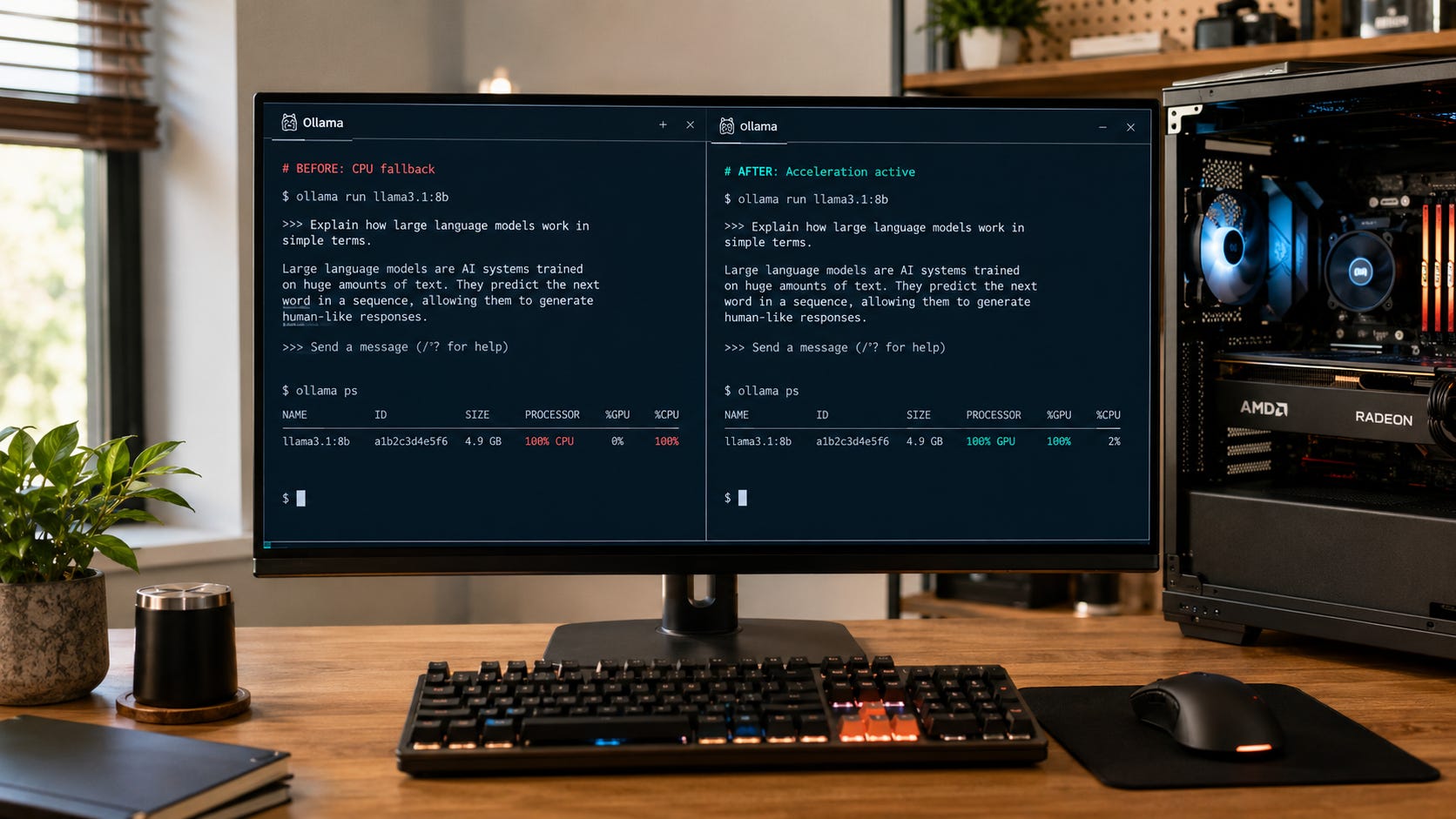
If rocminfo sees your AMD GPU but Ollama reports zero VRAM, takes forever to answer, or runs the model on the CPU, do not assume the Radeon card is unsupported. On Linux, the first thing to check is now ROCm 7 compatibility.
Ollama’s current AMD troubleshooting guidance says its Linux builds bundle ROCm 7 libraries. Those libraries require a compatible ROCm 7 kernel driver. An older ROCm 6.x-era driver can leave GPU discovery hanging for about 30 seconds before Ollama gives up and falls back to CPU.
That is only one possible cause. Permissions on /dev/kfd, missing container device access, Vulkan selection, and Ollama regressions can create remarkably similar symptoms. A recent Strix Halo report shows how misleading the symptoms can get. In that case, an Ollama ROCm container recognized the Radeon 8060S and more than 100 GiB of unified memory while reporting only 2.0 GiB available for inference.
The useful rule is simple: prove the hardware is the problem before spending money on different hardware.
Quick fix: confirm the CPU fallback first
Load a model and run ollama ps. If the PROCESSOR column says 100% CPU, inspect the Ollama server log before changing models, reinstalling ROCm, or shopping for another GPU. Ollama’s FAQ defines 100% GPU, 100% CPU, and mixed CPU/GPU values as the quickest way to see where a loaded model lives. If Ollama is using the GPU but still partly offloading to system memory, the broader Popular AI guide to Ollama CPU offloading covers context size, KV cache growth, model size, and memory pressure separately.
If the Linux log contains:
msg="failure during GPU discovery" ... error="failed to finish discovery before timeout"
msg="bootstrap discovery took" duration=30s ...
Ollama says the likely cause is an AMD driver that is too old for its bundled ROCm 7 libraries. In that case, use AMD’s current ROCm installation guidance to move the system to a compatible ROCm 7 AMDGPU driver, then reboot and restart Ollama. Do not treat installing a newer rocminfo package by itself as proof that the kernel-side driver matches what Ollama needs.
Related:

What Ollama AMD CPU fallback actually means
There are several layers between “Linux sees my Radeon” and “Ollama can run a model on it.”
lspci can see the physical GPU. Vulkan can see it. rocminfo can identify its GFX target. Ollama still has to initialize a compatible compute backend, obtain device access, discover usable memory, and successfully load the model.


That distinction explains one of the most confusing AMD failure modes. A system-level tool can report the GPU correctly while the application that needs to run inference still fails farther along the stack.
In March 2026, an RX 9060 XT owner reported that rocminfo correctly returned the GPU and Vulkan also identified it, while Ollama 0.17.7 reported no usable VRAM and defaulted to CPU inference. That issue is now closed. Ollama’s current Linux support page also explicitly lists the RX 9060 XT. The old report is useful evidence that this failure mode can happen. It is no longer good evidence that an RX 9060 XT is inherently unsupported on Linux.
The same distinction applies to Strix Halo. Ollama currently lists Ryzen AI Max+ 395, Ryzen AI Max 390, and Ryzen AI Max 385 under its Linux ROCm support. That does not guarantee that every Ollama release, container image, driver combination, and memory-reporting path will behave correctly.
Diagnose the cause before changing anything
Run these checks in order. They separate a real hardware limitation from a software-stack problem quickly, and they keep you from making several changes at once and losing track of which one mattered.
Confirm the fallback. Start the model and run
ollama ps.100% CPUmeans the model is entirely in system memory. A CPU/GPU split can instead mean the model, context, KV cache, or other allocations exceed available GPU memory.Read the Ollama log. On a normal systemd Linux install, Ollama documents
journalctl -u ollama --no-pager --follow --pager-end. Look especially for discovery timeouts, permission failures, ROCm or HIP errors, the selected library, and the memory Ollama reports.Check device access. Inspect
/dev/kfdand/dev/dri. Ollama says AMD access on Linux commonly depends onvideoand/orrendergroup membership.Separate native from container behavior. If Ollama works on the host but fails in Docker or Podman, the card and host driver have already cleared an important hurdle. Concentrate on container device access, groups, the image version, and a possible container-specific regression.
Check the current support list. Do this before relying on old forum posts. Ollama’s current Linux ROCm support list includes RX 9060-series RDNA4 hardware and Ryzen AI Max systems. Its Windows ROCm support list is different and currently smaller.
A useful first diagnostic block is:
ollama ps

journalctl -u ollama --no-pager --pager-end

ls -lnd /dev/kfd /dev/dri /dev/dri/*

rocminfo | grep -E 'Name:|Marketing Name'

sudo dmesg | grep -iE 'amdgpu|kfd'
Do not interpret one successful command as clearing the whole stack. rocminfo succeeding while Ollama fails is exactly the situation this guide is designed for. The commands above test different layers, which is why you need the full picture before changing the driver, container, or hardware.
Fix the ROCm 7 driver mismatch
This is the first fix when your logs show the roughly 30-second AMD GPU discovery timeout described above.


Ollama’s documentation is unusually explicit here. The application bundles ROCm 7 Linux libraries, those libraries require a compatible ROCm 7 kernel driver, and an older ROCm 6.x or earlier driver can hang initialization until Ollama falls back to CPU. Ollama directs Linux users to upgrade the AMD driver and reboot after the change.
Use AMD’s ROCm installer for your specific Linux distribution rather than copying a package command from an old forum answer. ROCm support depends on the operating system, kernel, driver, and GPU combination. AMD’s current ROCm compatibility matrix tracks those support combinations, so check the exact environment you are running before changing the driver.
⚠ Warning: changing the AMDGPU kernel driver can affect the desktop, other compute tools, containers, PyTorch environments, and applications that depend on your existing stack. Record the currently installed driver and ROCm setup first. If the machine does production work, make sure you have a rollback path before replacing the driver.
After the upgrade, reboot. Then restart Ollama, load the same model, and run ollama ps again. Reusing the same model matters because it removes one variable from the test.
If the timeout disappears and Ollama now reports the Radeon device with nonzero memory, the expensive hardware diagnosis was wrong. The software stack was the problem.
Fix /dev/kfd, render-group, and container permissions
If the driver looks correct but the log complains about device access, check permissions next.
Ollama says Linux AMD GPU access commonly requires access to /dev/kfd through the appropriate video or render groups. The exact group ownership can vary, which is why the troubleshooting guidance recommends examining the devices directly with ls -lnd /dev/kfd /dev/dri /dev/dri/*.
First identify which user the Ollama service actually runs as. If that user is ollama and your devices use the normal render and video groups, a typical correction is:
systemctl cat ollama | grep -E '^(User|Group)='
id ollama

sudo usermod -aG render,video ollama
sudo systemctl restart ollama
Do not blindly add groups that do not exist on your distribution. Match the service user and the ownership shown on your own /dev/kfd and /dev/dri devices.
Containers add another layer. Ollama’s Docker instructions for AMD GPUs pass both /dev/kfd and /dev/dri into the ROCm container:
docker run -d \
  --device /dev/kfd \
  --device /dev/dri \
  -v ollama:/root/.ollama \
  -p 11434:11434 \
  --name ollama \
  ollama/ollama:rocm
On systems where the container still lacks permission, check the numeric host group IDs and supply additional --group-add arguments where necessary. Ollama’s hardware guidance also notes that SELinux can block container device access and identifies container_use_devices as the relevant control.
Changing SELinux policy broadens what containers can access. Use that fix only when SELinux is actually the blocker instead of turning it on as a generic troubleshooting ritual.
Check whether your AMD GPU is supported now
AMD support in Ollama has been moving quickly enough that old answers can become actively misleading.
As of August 14, 2026, Ollama’s Linux AMD hardware list includes the Radeon RX 9060, RX 9060 XT, RX 9070 family, RX 7000-series cards, several Radeon Pro cards, Ryzen AI Max processors, and supported Instinct accelerators. The same page says Linux ROCm requires the ROCm v7 driver.
Windows is different. Ollama currently lists a smaller set of Radeon RX 7000-series and Radeon Pro GPUs under its Windows ROCm support. If you are troubleshooting a newer AMD GPU on Windows, do not assume its Linux ROCm status carries over.
Ollama also provides Vulkan GPU support on Windows and Linux as an additional path. Vulkan is especially relevant when the exact AMD GPU is outside the ROCm support path or the ROCm backend is the component giving you trouble. Ollama says Vulkan is enabled by default when the backend is installed and provides GGML_VK_VISIBLE_DEVICES for choosing a specific Vulkan GPU.
Do not start by applying HSA_OVERRIDE_GFX_VERSION to a GPU that Ollama already lists as supported. Ollama documents that override as an experimental way to try unsupported AMD targets against a similar supported target. For a listed card, a driver, permissions, container, or regression problem is a better suspect.
Watch for an Ollama regression before blaming Strix Halo
Strix Halo makes this troubleshooting problem particularly expensive because buyers are looking at systems with 64GB or 128GB of unified memory. Seeing only “2GB available” can make a capable machine look defective.
An open Ollama issue filed June 3, 2026 documents exactly that with containerized Strix Halo systems. The reporter’s Ollama 0.30.2 ROCm container recognized a Radeon 8060S and reported about 113.5 GiB total memory, but only 2.0 GiB available. The same machine with an earlier 0.24.0 ROCm container reportedly exposed about 113.8 GiB of 114.0 GiB. As of August 14, 2026, the issue remains open.
That report does not prove every Ollama 0.30+ Strix Halo installation is broken. It proves something more useful for troubleshooting: a wildly wrong memory limit can be version-specific software behavior rather than a physical hardware limit.
If you own a Strix Halo machine, compare native Ollama with your container deployment. Record the exact container tag. If a prior known-working image is available and you can test it safely in isolation, use that comparison as a diagnostic rather than immediately replacing the machine.
Popular AI’s Strix Halo local AI buying guide treats software maturity as part of the hardware decision. A 128GB unified-memory system can make sense as a large-model machine while still demanding more backend troubleshooting than a mature CUDA setup. That distinction matters because a software regression and a hardware limitation lead to very different buying decisions.
Related:

An RX 9060 XT showing zero VRAM does not mean it is unsupported
The RX 9060 XT provides another useful warning about version sensitivity.
The March 2026 Ollama report described above showed an RX 9060 XT correctly detected by ROCm and Vulkan while Ollama 0.17.7 used CPU inference and reported no usable VRAM. The issue is now closed, and Ollama’s current Linux hardware page explicitly includes the RX 9060 XT.
There was also an earlier RX 9060 XT regression report in which Ollama 0.12.3 reportedly used the GPU correctly while 0.12.4 reported zero VRAM and fell back to CPU. That report is closed as well.
Together, those reports are a good reason to record the Ollama version before troubleshooting. “This GPU worked last week” is useful evidence because it points you toward the software change before you start shopping for a replacement card.
The same logic applies in the other direction. An old bug report cannot prove that current Ollama still fails on the same hardware. Check the present support list, your current version, and your current logs before drawing a hardware conclusion from a historical issue.
Confirm the AMD GPU fix
Load the same model you used during diagnosis and run:
ollama psFor a model that fits fully on the accelerator, the clean result is 100% GPU. A mixed value such as 48%/52% CPU/GPU means the model is loaded partly onto the GPU and partly into system memory.
Check the startup log again too. A fixed ROCm discovery path should identify an AMD compute device rather than ending with CPU as the only inference device. If your original failure included the roughly 30-second discovery timeout, that timeout should be gone.
If GPU discovery succeeds but the model still partly offloads to CPU, you have moved into a different problem. Context size, model size, KV cache, parallel requests, and competing VRAM use can all cause CPU offload even when the GPU backend itself is healthy. That is the point where the general Ollama CPU-offloading guide becomes more useful than continuing to troubleshoot ROCm discovery.
Keep the distinction clear. “GPU backend works, but the model does not fully fit” and “Ollama cannot initialize the AMD GPU at all” can both look slow from the outside, but they require different fixes.
If Ollama still falls back to CPU
Turn on OLLAMA_DEBUG=1 and, for deeper AMD diagnostics, AMD_LOG_LEVEL=3. Ollama documents both for AMD GPU discovery. On a systemd installation, persistent server environment variables should be configured through a systemd service override, followed by the appropriate daemon reload and service restart.
Before filing an issue, collect the exact Ollama version, Linux distribution and kernel, GPU model and GFX target, whether you are using ROCm or Vulkan, relevant rocminfo output, /dev/kfd and /dev/dri permissions, AMD or KFD kernel errors, and whether the failure occurs natively or only inside Docker or Podman. For containers, include the exact image tag.
That information is far more useful than “Ollama doesn’t use my AMD GPU.” It lets maintainers and other users distinguish a support gap from a driver mismatch, permissions failure, memory-reporting problem, or release-specific regression.
Do not post raw logs without reading them. Logs can expose usernames, local file paths, environment configuration, hostnames, and other machine details that have nothing to do with the bug.
Prevent the Ollama AMD CPU fallback from returning
Treat the Ollama version, AMD driver, and backend as one working configuration instead of three unrelated pieces of software.
When you get a stable AMD setup, record those versions. If you use containers, keep the exact working image tag rather than relying entirely on a moving tag. After an Ollama or ROCm upgrade, run one small test model and check ollama ps before updating every server or deleting the old environment.
This is especially useful on Strix Halo and newer Radeon hardware, where support is improving quickly but version-specific bugs can still appear. A known-good combination gives you a reference point when something changes.
You also gain a much cleaner rollback test. If the current release breaks GPU discovery but the recorded version works with the same host driver and model, you have narrowed the problem dramatically without changing hardware.
FAQ
Why does rocminfo detect my AMD GPU while Ollama does not?
Because they test different parts of the stack.
rocminfocan prove that ROCm can enumerate the device, while Ollama still has to initialize its bundled compute libraries against the installed kernel driver, obtain device permissions, discover usable memory, and load its inference backend. A failure later in that chain can leaverocminfoworking while Ollama falls back to CPU.
Does Ollama support the RX 9060 XT now?
On Linux, yes. Ollama’s current hardware page lists the RX 9060 XT under supported Radeon RX hardware for its ROCm path. Its Windows ROCm list is different and currently does not list the RX 9000 family. Vulkan provides an additional Windows and Linux GPU path.
Is Strix Halo unsupported by Ollama?
No. Ollama currently lists Ryzen AI Max+ 395 and related Ryzen AI Max processors under Linux ROCm support. However, the open 2026 issue above documents a container-specific Strix Halo memory-reporting regression, so supported hardware can still hit software bugs.
Should I use HSA_OVERRIDE_GFX_VERSION?
Not as your first fix on officially supported hardware. Ollama documents the override as an experimental way to try unsupported AMD targets against a similar supported target. If your GPU is already on the support list, check the driver, permissions, container configuration, and Ollama version first.
Should I replace my Radeon with an Nvidia GPU?
Only after you have shown that the current hardware cannot meet your workload through a supported ROCm or Vulkan path. If you are choosing new hardware from scratch and want the least backend troubleshooting, Nvidia’s CUDA ecosystem can still be easier for many local AI workloads. Popular AI’s RTX 5060 Ti 16GB versus RX 9070 XT local AI comparison explains that buying tradeoff.
Related:

Fix the ROCm stack before replacing your AMD GPU
If Ollama sees zero VRAM or runs an AMD system entirely on CPU, check the log before you check GPU prices.
A roughly 30-second ROCm discovery timeout on Linux points first toward the ROCm 7 driver mismatch that Ollama now documents. If that signature is absent, check /dev/kfd permissions, container device access, the current GPU support list, and whether the problem appeared with a specific Ollama version.
Then retest the same model with ollama ps and read the startup log again. If the GPU backend initializes and the model still spills to CPU, move on to memory and model-fit troubleshooting instead of continuing to chase ROCm discovery.
Only after those checks fail should “wrong hardware” move to the top of the list. An expensive GPU upgrade is a terrible fix for a mismatched kernel driver, a missing device permission, or a release-specific regression.
Explore more from Popular AI:
Start here | Local AI | Builds & gear | Autonomy & policy | Fixes & guides | Popular AI podcast
Have you ever had Ollama detect your AMD GPU but still fall back to CPU? What GPU and ROCm setup were you running?