


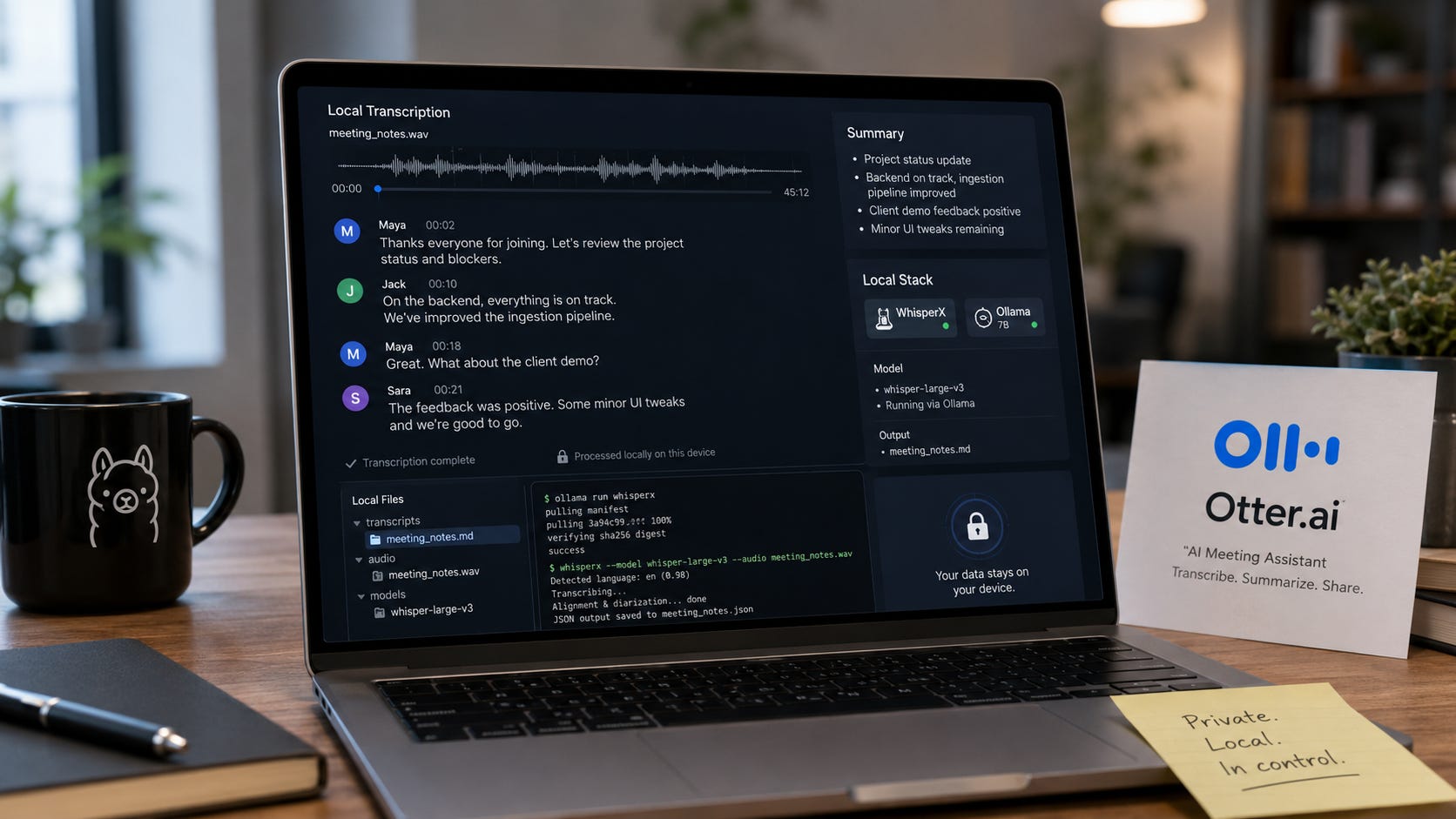
Private local meeting transcription is the right move when meeting audio contains client work, legal strategy, hiring discussions, unpublished plans, financial details, or anything else that should not pass through another company’s servers or tech stack.
Hosted tools such as Otter.ai are convenient because they remove friction: they can join calls, transcribe live, organize notes, and turn conversations into follow-ups. But the tradeoff is control: the recording, transcription, metadata, summaries, sharing workflow, and account access all depend on a cloud service owned by someone else.
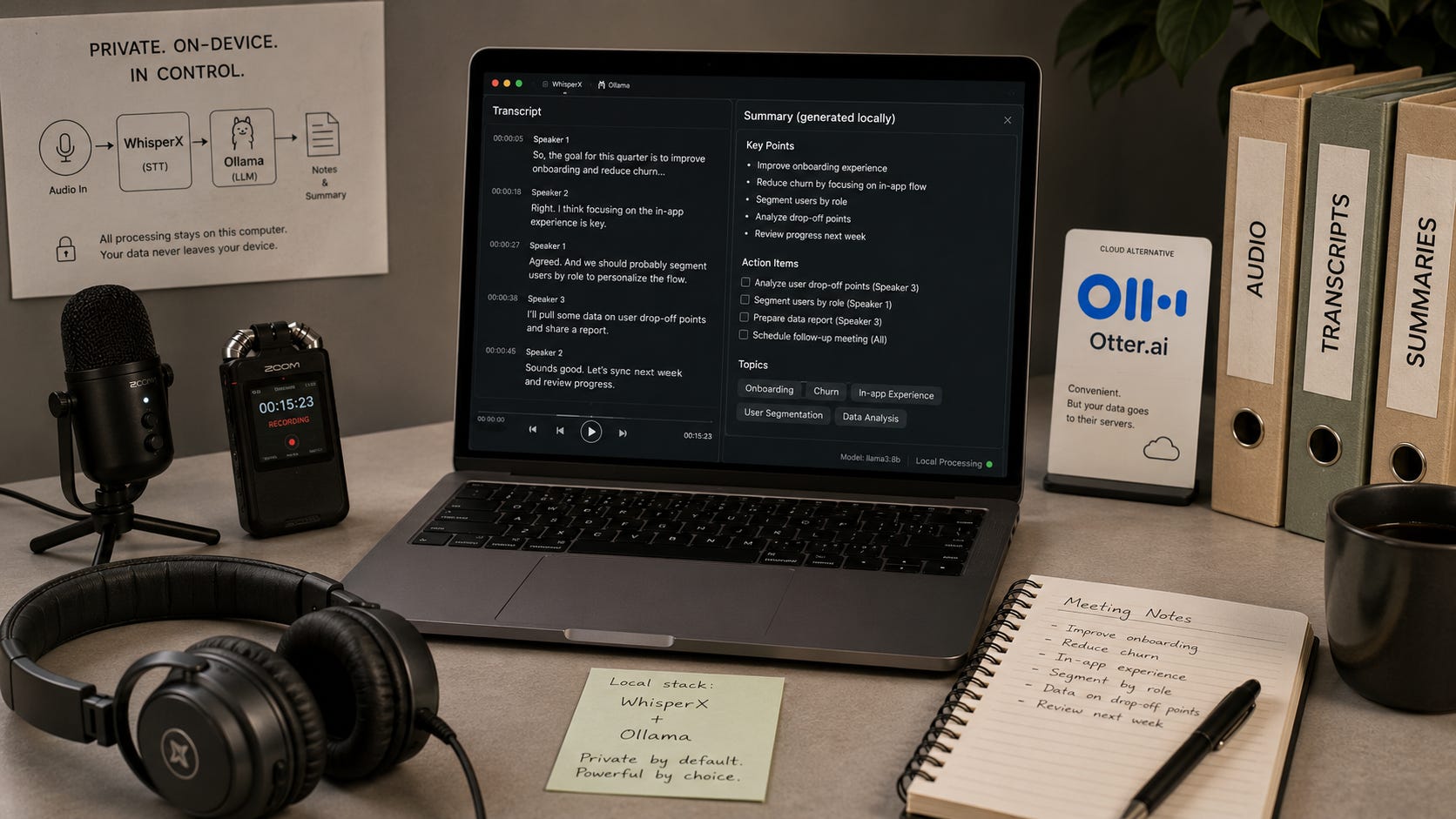
The local path takes more setup, but it is a better fit for sensitive work. Record the meeting with consent, transcribe the audio locally with WhisperX, optionally add speaker labels with pyannote, then summarize the transcript with a local model through Ollama.
More on local transcription solutions:

Key takeaways
Use Otter.ai when convenience matters more than control. It supports Zoom, Microsoft Teams, and Google Meet, offers live transcription, and handles sharing and summaries inside one hosted product.
Use a local WhisperX and Ollama workflow when the audio is sensitive, recurring, or expensive to process in a subscription tool. The setup takes longer, but the transcript and summary can stay in your own preferred file management structure.
The privacy tradeoff is real. The Otter.ai privacy policy says users may provide audio recordings, OtterPilot screenshots, uploaded text, images, and video, and that Otter uses audio recordings and platform information to provide the service.
WhisperX is the best practical local base for long meeting audio because it adds faster batched transcription, word-level timestamps, voice activity detection, and optional diarization. OpenAI Whisper is still useful for simpler local transcription, but WhisperX adds the meeting-friendly pieces that matter for longer calls.
Full speaker diarization is the real catch. The pyannote community diarization model can run locally after setup, but access requires accepting model conditions and creating a Hugging Face token.
Ollama handles the local summarization layer through a local REST API, so the transcript can stay on the machine instead of being pasted into a hosted chatbot.
The practical answer
For most people replacing Otter.ai, the best local workflow is:
Record the meeting audio locally.
Convert it to a clean WAV or MP3 file.
Run WhisperX for transcription.
Add diarization only when speaker labels matter.
Feed the transcript into Ollama for summaries, action items, decisions, and follow-up emails.
Store the audio, transcript, and summary in your own folder structure.
Use Otter.ai if you need a polished notetaker that automatically joins calls, syncs with calendars, shares notes, and works with minimal setup. Use the local workflow if privacy, cost control, and repeatability matter more than polish.
The cleanest rule is simple: if the meeting would be risky to upload, do not build your workflow around uploading it.
Why people want an Otter.ai alternative
Otter.ai is useful because it removes friction. The Otter.ai pricing page lists Zoom, Microsoft Teams, and Google Meet support, live transcription, speaker identification, audio playback, mobile apps, and AI meeting workflows even on the free Basic plan. The Basic plan also includes 300 monthly transcription minutes and three lifetime audio or video file imports.
Paid plans add more minutes, longer meetings, more imports, exports, advanced search, team vocabulary, admin controls, and integrations. As of May 30, 2026, Otter lists Pro at $16.99 per user per month on monthly billing, with 1,200 in-app recording minutes and 10 monthly audio or video file imports. Business is listed at $30 per user per month on monthly billing, with unlimited meetings and in-app recordings, custom AI workflows, and more admin features.
That is a strong product shape for teams that value convenience. It is also why Otter.ai can become hard to leave. Once meetings, summaries, action items, integrations, and exports live inside one hosted account, the workflow starts to depend on that account.
The privacy tradeoff behind cloud transcription
Meeting transcription is unusually sensitive because it captures raw human conversation. A transcript can include names, client facts, legal comments, financial details, medical references, sales strategy, credentials spoken aloud, and private opinions that were never meant to become searchable text.
The Otter.ai privacy policy says users may provide audio recordings, OtterPilot screenshots, uploaded text, images, and videos. It also says Otter may receive platform information from connected services such as Google Calendar, iCal, Google Contacts, and Zoom.
The same policy says Otter uses audio recordings, usage information, and platform information to provide the service. It also says Otter trains its technology on transcriptions to provide more accurate services, which may contain personal information, while requiring explicit permission for manual review of specific audio recordings for model training and product improvement.
Otter also shares personal information with selected third parties, including cloud service providers such as AWS, platform support providers such as Amplitude, data labeling providers, and AI service providers that support product features.
The legal and operational point is not that Otter is uniquely bad. Hosted meeting transcription is a cloud workflow by design. The vendor processes the material, stores the output, controls the account, sets the terms, and can change the service.
The Otter.ai terms of service say users are responsible for providing notices and getting consent for recordings where required by law. The terms also say Otter may monitor information transmitted or received through the service for operational and other purposes, and that it does not guarantee user content or processing results will never be accessible by others.
Account risk matters too. Otter’s terms say it may terminate an account or suspend access at its sole discretion, at any time, for any reason or no reason, with or without notice. The terms also say Otter may modify or discontinue the service, including limiting or discontinuing features, without notice.
That is the control layer. The transcript may be yours in theory, but the workflow that produces it runs through someone else’s system.
What local alternatives can realistically do
A local workflow can handle the core job well. It can transcribe recorded meeting audio, generate word-level timestamps, label speakers with diarization, produce summaries, extract decisions and tasks, and store everything in local folders. It can also run without uploading the actual meeting audio to a transcription vendor.
It will not fully copy Otter’s polished workflow and ease of use.
A local workflow will not automatically join every meeting without extra tooling. It will not know each speaker’s real name by default. It will not sync into every CRM without automation work. It will not be as easy for non-technical coworkers.
That tradeoff is acceptable for many private workflows. Hosted tools win on convenience. Local tools win on control.
Recommended local transcription stack
The recommended stack has three layers: WhisperX for transcription, pyannote for optional speaker diarization, and Ollama for local summarization.
WhisperX is the practical engine for this workflow. Its repository describes fast automatic speech recognition with word-level timestamps and speaker diarization. It uses batched inference, the faster-whisper backend, wav2vec2 alignment, voice activity detection, and optional pyannote-based speaker diarization.
OpenAI’s original Whisper is still useful, especially for simpler local transcription. Whisper is a general-purpose speech recognition model trained for multilingual speech recognition, translation, and language identification. Its code and model weights are released under the MIT License.
WhisperX adds the meeting-friendly pieces that vanilla Whisper lacks. The WhisperX README says OpenAI Whisper’s timestamps are utterance-level rather than word-level and can be inaccurate by several seconds, while WhisperX adds word-level timestamp alignment and batching.
Diarization means “who spoke when.” This is useful for meetings, but it is also the most fragile part of the local workflow. The pyannote community diarization model says it can run locally on your computer, supports offline use, and ingests mono audio sampled at 16 kHz. It also requires accepting model conditions and creating a Hugging Face access token for setup.
Treat speaker labels as draft metadata, not proof. WhisperX itself warns that overlapping speech is not handled particularly well and that diarization is far from perfect.
For summaries, Ollama runs open models locally and exposes a REST API at localhost:11434, which makes it easy to send transcripts into a local summarization script.
For meeting summaries, start with a model that has enough context for long transcripts. Gemma 3 models in Ollama include 4B, 12B, and 27B variants with 128K context windows, and the 4B model is listed at 3.3GB while the 12B model is listed at 8.1GB. Qwen3 is another strong local option, with an 8B model listed at 5.2GB and a 40K context window.
Start with gemma3:4b on modest hardware. Use gemma3:12b or qwen3:8b when you have more memory and want better summaries.
What you need
Minimum practical setup
A Windows, macOS, or Linux machine.
Python and a clean virtual environment.
FFmpeg.
WhisperX.
Ollama.
A local model such as
gemma3:4b,gemma3:12b, orqwen3:8b.Enough disk space for models, audio files, transcripts, and summaries.
A way to record meeting audio with consent.
Whisper’s setup docs say it requires FFmpeg and show install commands for Ubuntu, Arch Linux, macOS with Homebrew, Windows with Chocolatey, and Windows with Scoop. Whisper’s own model table lists approximate VRAM requirements from about 1GB for tiny and base models to about 10GB for the large model, with the turbo model listed at about 6GB.
Recommended setup
NVIDIA GPU with at least 8GB VRAM for a smoother WhisperX experience.
16GB system RAM minimum, 32GB preferred.
SSD storage.
A local folder structure for recordings, transcripts, summaries, and exports.
A local model with enough context for your transcript length.
WhisperX says its faster-whisper backend requires less than 8GB GPU memory for large-v2 with beam_size=5, and its setup docs recommend installing CUDA 12.8 for GPU acceleration while allowing CPU-only use.
More on local AI hardware:

Step 1: Create a clean project folder
Use one folder per transcription setup. This keeps audio, transcripts, summaries, and scripts easy to back up or delete.
mkdir local-meeting-transcription
cd local-meeting-transcription

mkdir audio
mkdir transcripts
mkdir summaries
mkdir scripts
Suggested structure:
local-meeting-transcription/
  audio/
    2026-05-30-client-call.wav
  transcripts/
    2026-05-30-client-call.txt
    2026-05-30-client-call.srt
  summaries/
    2026-05-30-client-call-summary.md
  scripts/
    summarize_transcript.py
Step 2: Install FFmpeg
Whisper and WhisperX need FFmpeg for audio handling.
On Windows with Chocolatey:
choco install ffmpeg
On Windows with Scoop:
scoop install ffmpeg
On macOS with Homebrew:
brew install ffmpeg
On Ubuntu or Debian:
sudo apt update
sudo apt install ffmpeg
OpenAI’s Whisper docs list these FFmpeg install paths directly.
Test it:
ffmpeg -version
If the terminal prints version information, FFmpeg is available.
Step 3: Install WhisperX
Create a Python environment first.
On Windows:
python -m venv .venv
.\.venv\Scripts\activate
python -m pip install --upgrade pip
pip install whisperx
On macOS or Linux:
python3 -m venv .venv
source .venv/bin/activate
python -m pip install --upgrade pip
pip install whisperx
WhisperX lists pip install whisperx as the recommended simple installation path.
Test it:
whisperx --help
If you see the help output, the CLI is available.
Step 4: Record or export your meeting audio
Use the meeting platform’s built-in recording feature only when you have the right to do so and everyone who needs notice has received it. Consent rules vary by jurisdiction, and Otter’s own terms put responsibility for notices and consent on the user.
For a private local workflow, the safest technical pattern is:
Record the meeting locally.
Save the file into
audio/.Rename it with a date and short description.
Keep the raw file until the transcript has been checked.
Delete or archive the raw file according to your own retention policy.
Example filename:
audio/2026-05-30-client-discovery-call.wav
Step 5: Transcribe with WhisperX
For a basic transcript:
whisperx audio/2026-05-30-client-discovery-call.wav --model large-v2 --output_dir transcripts
For lower-memory machines, use a smaller model:
whisperx audio/2026-05-30-client-discovery-call.wav --model small --compute_type int8 --output_dir transcripts
For CPU-only use:
whisperx audio/2026-05-30-client-discovery-call.wav --compute_type int8 --device cpu --output_dir transcripts
WhisperX documents CPU usage with --compute_type int8 --device cpu, and recommends lowering batch size, using a smaller ASR model, or using int8 when GPU memory is limited.
Expected output:
transcripts/2026-05-30-client-discovery-call.txt
transcripts/2026-05-30-client-discovery-call.srt
transcripts/2026-05-30-client-discovery-call.json
The exact filenames depend on the input file and output settings.
Step 6: Add speaker labels when needed
For diarization, you need a Hugging Face token and accepted model conditions. WhisperX documents diarization with a Hugging Face access token and pyannote model agreement.
Run:
whisperx audio/2026-05-30-client-discovery-call.wav --model large-v2 --diarize --hf_token YOUR_HUGGING_FACE_TOKEN --output_dir transcripts
If you know the number of speakers, help the diarizer:
whisperx audio/2026-05-30-client-discovery-call.wav --model large-v2 --diarize --min_speakers 2 --max_speakers 2 --hf_token YOUR_HUGGING_FACE_TOKEN --output_dir transcripts
Use this only when speaker labels are worth the extra setup. For many solo interviews, voice notes, and simple calls, plain transcription is enough.
Step 7: Install Ollama and pull a local model
Install Ollama. The project documents install paths in the Ollama GitHub README, and Ollama also provides a Windows install script and a macOS and Linux install script.
On Windows:
irm https://ollama.com/install.ps1 | iex
On macOS or Linux:
curl -fsSL https://ollama.com/install.sh | sh
Ollama’s GitHub README lists those install commands for Windows, macOS, and Linux.
Pull a summarization model:
ollama pull gemma3:4b
For better summaries on stronger machines:
ollama pull gemma3:12b
Or:
ollama pull qwen3:8b
Test the model:
ollama run gemma3:4b "Summarize this sentence in five words: The meeting covered pricing, delivery risks, and next steps."
Step 8: Summarize the transcript locally
Create this file:
scripts/summarize_transcript.py
Paste:
import json
import sys
from pathlib import Path
from urllib.request import Request, urlopen

OLLAMA_URL = "http://localhost:11434/api/chat"
MODEL = "gemma3:4b"

def ask_ollama(prompt: str) -> str:
    payload = {
        "model": MODEL,
        "messages": [
            {
                "role": "system",
                "content": "You turn meeting transcripts into concise, accurate notes. Do not invent facts. Flag uncertainty."
            },
            {
                "role": "user",
                "content": prompt
            }
        ],
        "stream": False
    }

    request = Request(
        OLLAMA_URL,
        data=json.dumps(payload).encode("utf-8"),
        headers={"Content-Type": "application/json"}
    )

    with urlopen(request) as response:
        data = json.loads(response.read().decode("utf-8"))
        return data["message"]["content"]

def chunk_text(text: str, max_chars: int = 12000) -> list[str]:
    chunks = []
    current = []

    for paragraph in text.splitlines():
        candidate = "\n".join(current + [paragraph])
        if len(candidate) > max_chars and current:
            chunks.append("\n".join(current))
            current = [paragraph]
        else:
            current.append(paragraph)

    if current:
        chunks.append("\n".join(current))

    return chunks

def main() -> None:
    if len(sys.argv) != 3:
        print("Usage: python scripts/summarize_transcript.py transcripts/input.txt summaries/output.md")
        sys.exit(1)

    input_path = Path(sys.argv[1])
    output_path = Path(sys.argv[2])

    transcript = input_path.read_text(encoding="utf-8")
    chunks = chunk_text(transcript)

    chunk_summaries = []

    for index, chunk in enumerate(chunks, start=1):
        prompt = f"""
Summarize this meeting transcript chunk.

Return:
- Main points
- Decisions
- Action items with owner if stated
- Open questions
- Risks or blockers
- Notable quotes only if they matter

Do not invent names, owners, dates, or decisions.

Chunk {index} of {len(chunks)}:
{chunk}
"""
        print(f"Summarizing chunk {index} of {len(chunks)}...")
        chunk_summaries.append(ask_ollama(prompt))

    final_prompt = f"""
Create final meeting notes from these chunk summaries.

Return markdown with:
# Meeting summary
## Executive summary
## Decisions
## Action items
## Open questions
## Risks
## Follow-up email draft
## Items that need human verification

Do not invent facts. If the transcript does not name an owner, write "Owner not stated."

Chunk summaries:
{chr(10).join(chunk_summaries)}
"""
    final_summary = ask_ollama(final_prompt)
    output_path.write_text(final_summary, encoding="utf-8")
    print(f"Saved summary to {output_path}")

if __name__ == "__main__":
    main()
Run it:
python scripts/summarize_transcript.py transcripts/2026-05-30-client-discovery-call.txt summaries/2026-05-30-client-discovery-call-summary.md
Open the Markdown file and check it against the transcript before sending it to anyone.
Step 9: Add a human review pass
Local AI reduces cloud exposure. It still needs judgment.
Review for:
Wrong speaker labels.
Action items assigned to the wrong person.
Dates or numbers copied incorrectly.
Decisions that were only suggestions.
Missing objections.
Sensitive comments that should not be forwarded.
Accidental inclusion of private side comments.
Hallucinated follow-up wording.
The best workflow is boring: transcript first, AI summary second, human review before sharing.
Privacy, account risk, and lock-in
A local workflow like this changes the control point.
With Otter.ai, the vendor controls the hosted notetaker, transcription account, storage, sharing features, integrations, plan limits, and terms. Otter’s terms reserve the right to modify or discontinue the service and to suspend or terminate access.
With WhisperX and Ollama, the files stay in your local folder after the initial software and model downloads. The remaining risks are different:
You can still leak data by pasting transcripts into hosted tools.
You can still expose files through bad folder syncing.
A Hugging Face token is required for pyannote diarization setup.
Local transcripts can be stolen if your device is compromised.
Meeting participants may still need notice or consent.
Local models can summarize badly, especially with messy transcripts.
The local path gives you more control, and it also makes you the administrator. That is the trade.
Commercial vs local: which should you use?
Use Otter.ai if your meetings are low sensitivity, you need automatic meeting joining, you need polished sharing, your team will not tolerate a command-line workflow, you want calendar and collaboration features, or the subscription cost is acceptable.
Use WhisperX plus Ollama if meetings contain sensitive client or business information, you want transcripts and summaries stored in your own folders, you process enough audio that subscriptions are annoying, you need repeatable local archives, or you do not want every meeting to become vendor-processed data.
A hybrid workflow can also make sense. Use Otter.ai for routine internal calls, use local transcription for sensitive meetings, and keep the local workflow as a fallback when a hosted tool changes price, limits, or policies.
Common errors and fixes
Error: ffmpeg not found
What it means: WhisperX cannot find FFmpeg.
How to fix it: Install FFmpeg, then restart the terminal. Test with:
ffmpeg -version
Error: CUDA out of memory
What it means: The model or batch size is too large for your GPU.
How to fix it: Use a smaller model, lower batch size, or switch to int8.
whisperx audio/meeting.wav --model small --compute_type int8 --batch_size 4 --output_dir transcripts
WhisperX recommends reducing batch size, using a smaller ASR model, or using int8 for lower GPU memory use.
Error: diarization fails or asks for authentication
What it means: The pyannote model needs accepted conditions and an access token.
How to fix it: Accept the model conditions, create a Hugging Face token, and pass it with --hf_token. pyannote’s model card states that users must accept conditions and create an access token.
Error: Ollama summary is too vague
What it means: The local model is too small, the transcript is too long, or the prompt is too loose.
How to fix it: Use gemma3:12b or qwen3:8b, chunk the transcript, and force the model to separate decisions, action items, risks, and unknowns.
Error: speaker labels are wrong
What it means: Diarization is imperfect, especially with overlapping speakers, poor audio, or similar voices.
How to fix it: Provide --min_speakers and --max_speakers when you know the number of speakers. Then manually correct important sections.
FAQ
Is local meeting transcription really private?
Local meeting transcription is private in the practical sense when the audio, transcript, and summary stay on your machine and you do not sync them to cloud storage or paste them into hosted AI tools. Your local device, backups, sync settings, and collaborators still matter.
Can WhisperX transcribe live meetings?
This guide focuses on recorded audio. Live local transcription is possible with more tooling, but recorded audio is easier to verify, easier to archive, and less likely to fail during an important call.
Is WhisperX better than Whisper?
For long meeting audio, WhisperX is usually the better workflow tool because it adds batched inference, word-level timestamps, voice activity detection, and optional diarization. OpenAI Whisper is simpler and still useful for basic transcription.
Do I need a GPU?
No, but a GPU helps. WhisperX documents CPU mode with
--compute_type int8 --device cpu. Expect slower processing on CPU.
More on this subject:

Can I run the whole workflow without any account?
You can transcribe without an account if you skip pyannote diarization. If you want pyannote speaker diarization, you need a Hugging Face account, token, and model access approval during setup.
What is the best local model for meeting summaries?
Start with
gemma3:4bif your machine is modest. Usegemma3:12borqwen3:8bif you have enough memory and want better summaries. Gemma 3 models on Ollama list 128K context windows for the 4B, 12B, and 27B versions.
Final recommendation
Replace Otter.ai with a local workflow when the meeting is sensitive enough that uploading it feels wrong. WhisperX handles the transcription, pyannote can add speaker labels when needed, and Ollama can summarize the transcript without sending it to a hosted chatbot.
Do not pretend this is as smooth as Otter.ai. The local path takes setup work, and diarization still needs review.
For client calls, private strategy sessions, internal investigations, interviews, legal-adjacent work, and any meeting where the transcript should stay under your control, private local meeting transcription is the better default.
Explore more from Popular AI:
Start here | Local AI | Fixes & guides | Builds & gear | Popular AI podcast
Would you rather use a polished cloud transcription tool for convenience, or run a local AI transcription workflow if it meant keeping sensitive meeting audio and summaries fully under your control?