


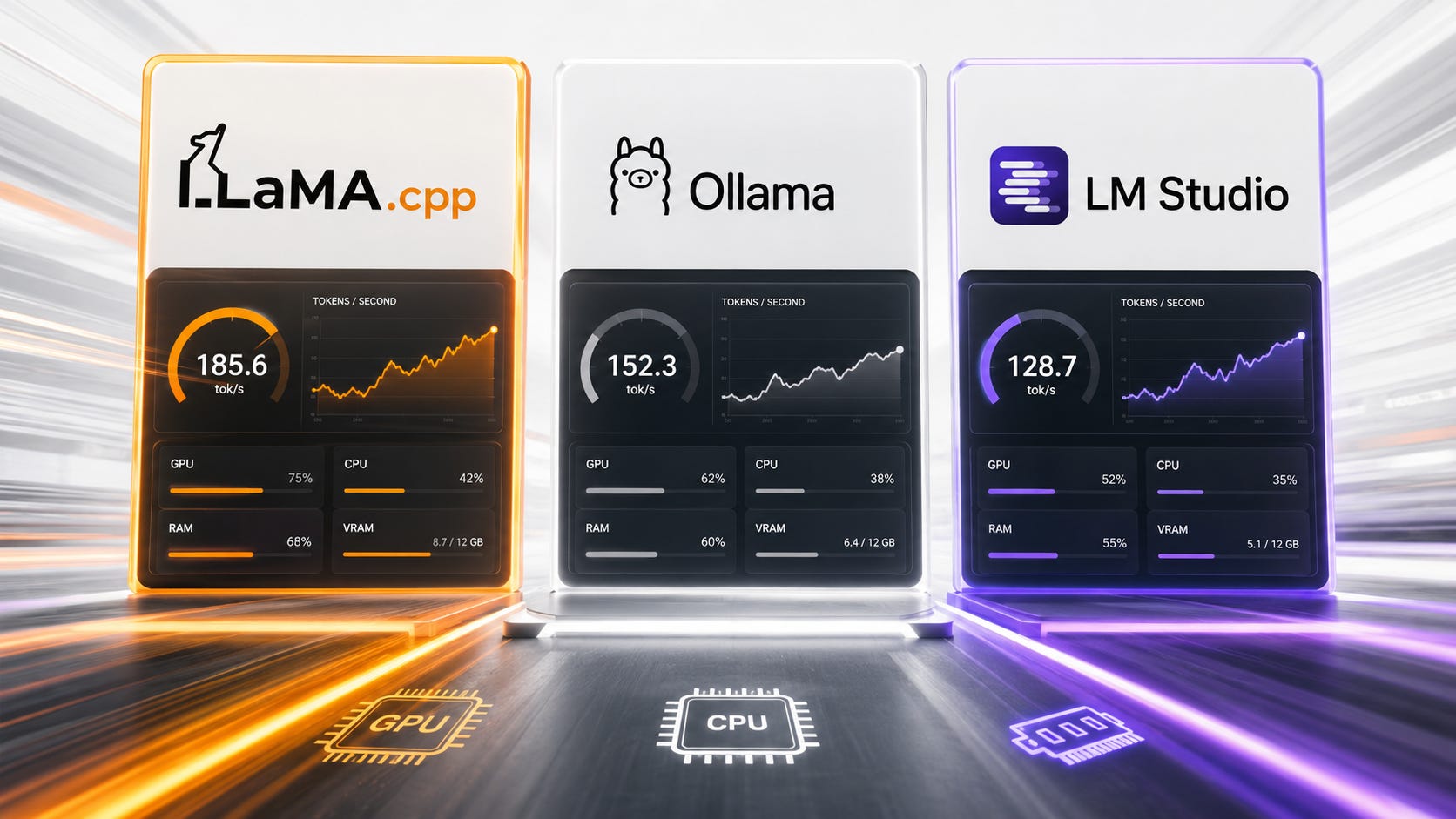
If you care about llama.cpp vs Ollama vs LM Studio speed, the first answer is simple. The real answer gets messy once you start changing models, quants, context length, GPU offload and runtime settings.
llama.cpp is usually the fastest raw runner when the same GGUF model, quant, context length, backend and offload settings are used. Ollama is usually the easiest way to run a local model behind an API. LM Studio is usually the best desktop app for downloading, testing, chatting and serving models without living in terminal flags.
The important part is that these tools do not sit at the same layer. llama.cpp is the engine. Ollama and LM Studio are higher-level products that can sit on top of similar local inference technology. That means speed differences often come from defaults, model packaging, context size, GPU offload, runtime version and whether the model is staying fully in fast memory.
More on llama.cpp and Ollama:

Key takeaways
Fastest raw option: llama.cpp, especially for users who know how to tune GPU layers, batch size, context, KV cache, Flash Attention, and backend builds.
Best API convenience: Ollama, because it gives you a simple local server, model pulls, Modelfiles, official Python and JavaScript libraries, and OpenAI-compatible endpoints.
Best desktop experience: LM Studio, because it combines model search, downloads, chat, presets, local server mode, OpenAI-compatible endpoints, and offline document chat in one GUI.
Best for Apple Silicon experimentation: LM Studio deserves a close look because it supports both llama.cpp GGUF models and Apple MLX models on Apple Silicon. Ollama and llama.cpp remain strong options too.
Best for repeatable benchmarking: llama.cpp, because
llama-benchdirectly measures prompt processing and token generation across different settings.
Most common mistake: comparing different quants, context sizes, templates, GPU offload settings, or model load states, then blaming the app.
Quick verdict
Use llama.cpp if speed is the priority. It is the cleanest way to run GGUF models with direct control over the runtime. The llama.cpp GitHub repository describes the project as local and cloud LLM inference in C and C++ with performance-focused support for backends such as Metal, CUDA, HIP, Vulkan, SYCL, CPU plus GPU hybrid inference and low-bit quantization.
Use Ollama if workflow speed matters more than benchmark speed. The Ollama API documentation shows a local API at http://localhost:11434/api, while the project also gives you model management, ollama run, model import, Modelfiles, and official Python and JavaScript libraries. That makes it the easiest default for local coding tools, chat frontends and quick experiments.
Use LM Studio if you want the fastest path from “I found a model” to “I tested it.” The LM Studio docs describe a desktop app for macOS, Windows and Linux that supports llama.cpp on all three platforms, MLX on Apple Silicon, model search and downloads through Hugging Face, local chat and OpenAI-compatible serving.
The practical answer is straightforward. llama.cpp wins for raw speed and control. Ollama wins for simple local API workflows. LM Studio wins for GUI model management and local testing.
Why people are interested in this comparison
People do not care about this because they enjoy runtime architecture. They care because local LLMs feel inconsistent.
One setup gets 40 tokens per second. Another gets 12. One app loads the same model on the GPU. Another quietly falls back to CPU or uses a different context length. One GUI feels faster, then a command-line run beats it after a better backend build. Community threads such as this LocalLLaMA discussion about running llama.cpp instead of LM Studio or Ollama show the same pattern: users compare llama.cpp, Ollama and LM Studio because they see real differences in tokens per second, memory use, GPU offload, setup friction and API behavior.
The word “fastest” also hides two separate questions.
First, which runner generates tokens fastest on one machine?
Second, which tool gets useful local AI into your workflow fastest?
Those are different decisions. llama.cpp often wins the first. Ollama or LM Studio often wins the second.
How to compare speed fairly
Most bad speed comparisons between llama.cpp, Ollama and LM Studio make at least one common mistake. They use a different model file, a different quant, a different context length, a different prompt template, a different GPU offload setting, a different backend, a different runtime version, a different batch size, a different KV cache setting or a cold model load in one app and an already-loaded model in another.
The fair test is boring:
Use the same GGUF file.
Use the same quant.
Use the same prompt.
Use the same context size.
Confirm GPU offload.
Separate prompt processing speed from token generation speed.
Run multiple passes after the model is already loaded.
llama.cpp is strongest here because llama-bench is built for exactly this kind of measurement. The llama-bench documentation describes tests for prompt processing, text generation and combined prompt-plus-generation, with options for repeated runs, output formats, batch sizes, thread counts and GPU offload experiments.
Speed ranking: which is fastest?
1. llama.cpp: fastest raw runner for most tuned GGUF use
llama.cpp is the speed-first pick because it gives you the least abstraction and the most control. You can run a local GGUF directly with llama-cli, serve it with llama-server, choose a backend, tune context and batch settings, then benchmark changes without guessing what a desktop app or daemon decided for you. The llama.cpp README shows direct local model execution, Hugging Face model loading and launching an OpenAI-compatible API server from the command line.
That does not make llama.cpp magically faster in every possible configuration. It means that when users care enough to tune, llama.cpp exposes the knobs that affect speed. It also tends to get new backend work and model support quickly because other tools frequently depend on or track the same lower-level ecosystem. The same llama.cpp project page lists active work around server updates, multimodal support, GGUF support through Hugging Face and new model support.
llama.cpp wins when you want raw single-user speed, direct GGUF control, reproducible benchmarking, CPU-only experiments, CUDA, Metal, Vulkan, HIP, SYCL, hybrid CPU/GPU tuning, lightweight server deployment and exact runtime flags.
It is weaker for beginner model discovery, friendly chat history, a built-in model library experience, presets, document chat, polished desktop workflows and users who do not want to read runtime flags.
Verdict: Use llama.cpp when you want maximum speed, exact control or a clean benchmark baseline.
2. Ollama: best speed-to-convenience ratio for local API workflows
Ollama is not the lowest-level speed tool. It is the tool that makes local models feel usable fast. The Ollama GitHub repository shows the simple ollama run workflow, local model usage, supported backends and official libraries. The command ollama run gemma3 starts a chat, the REST API can run locally, and the project provides official Python and JavaScript libraries.
Ollama also makes model packaging easier through Modelfiles. The Ollama Modelfile reference shows how to build from existing models, Safetensors directories or GGUF files, including FROM ./ollama-model.gguf for GGUF and PARAMETER settings such as num_ctx, temperature, repeat penalty and seed.
For speed, Ollama’s defaults matter a lot. Its context length documentation says the default context depends on VRAM, from 4k below 24 GiB VRAM to 32k on 24 to 48 GiB and 256k at 48 GiB or more. The same page warns that increasing context length raises memory requirements and tells users to verify model offloading with ollama ps.
That is a major reason Ollama can feel fast in one setup and painfully slow in another. A larger context window can eat enough memory to push a model out of a clean GPU fit. Once that happens, the bottleneck may be context, KV cache, offload or VRAM spill rather than Ollama itself. Popular AI has a full guide to why Ollama and llama.cpp crawl when models spill into RAM, which is one of the most common local LLM speed traps.
Ollama wins for simple install and run commands, local API workflows, coding agents, editor integrations, model packaging with Modelfiles, pulling and running common models quickly, keeping models loaded through keep_alive and OpenAI-compatible local endpoints.
It is weaker for raw benchmark tuning, GUI-first model comparison, exact visibility into every lower-level runtime choice, some custom GGUF workflows and users who want the newest llama.cpp behavior the moment it lands.
Ollama also has a practical model-load advantage for app workflows. The Ollama FAQ says models are kept in memory for 5 minutes by default, and the keep_alive parameter can keep a model loaded longer, keep it loaded indefinitely with a negative value or unload it immediately with 0.
Verdict: Use Ollama when your real goal is a dependable local model service for apps, agents, chat frontends and scripts.
3. LM Studio: best local LLM desktop app, with strong server features
LM Studio is the best choice for people who want to compare local models without turning every test into a terminal session. The LM Studio app docs say it supports macOS, Windows and Linux, runs GGUF models through llama.cpp, supports MLX on Apple Silicon, downloads models through the app, manages prompts and configurations, and can serve models through OpenAI-like local endpoints.
The server story has improved a lot. The LM Studio OpenAI compatibility docs list endpoints for /v1/models, /v1/responses, /v1/chat/completions, /v1/embeddings and /v1/completions. They also show the standard OpenAI client pattern with the base URL changed to http://localhost:1234/v1.
LM Studio also has its own native REST API for local inference and model management. The LM Studio REST API docs include endpoints to list models, load models, unload models, download models and check download status. The docs also compare endpoint support for streaming, stateful chat, MCPs, tools, model load events, prompt processing events and per-request context length.
For headless use, LM Studio now has llmster, a daemon-style option. The LM Studio headless documentation says LM Studio can run as a background service without the GUI, either through llmster or the desktop app in headless mode.
LM Studio wins for GUI model discovery, one-app local chat, offline document chat, model downloads and cleanup, easy settings and presets, an OpenAI-compatible local server, a native REST API for model management and Apple Silicon users who want MLX as an option.
It is weaker for lowest-level speed tuning, fully open-source control, minimal server footprint compared with llama.cpp, users who want everything in config files and shell scripts, and workloads where a GUI app adds no value.
LM Studio is free for home and work use as of July 8, 2025, according to the LM Studio free-for-work announcement. The current homepage also describes the app as free for home and work use.
Verdict: Use LM Studio if you want the best local LLM app experience and a capable local server without giving up your afternoon to command-line tuning.
OpenAI-compatible API comparison
All three options can serve local models behind API-like workflows, but they are not equally polished for every use.
llama.cpp: llama-server provides a fast local REST API and OpenAI-compatible endpoints. The llama.cpp REST API overview lists OpenAI-compatible API support, streaming responses, GPU acceleration, router mode for multiple models, experimental multimodal support, function calling and deployment through Docker, native binaries or cloud platforms.
Ollama: The Ollama API introduction describes an API that runs by default at http://localhost:11434/api, while its OpenAI compatibility docs cover /v1/responses, streaming, tools, reasoning summaries and supported fields. The docs also note that stateful previous_response_id and conversation are not supported for the Responses API path.
LM Studio: LM Studio exposes OpenAI-compatible endpoints on localhost:1234/v1. The LM Studio OpenAI compatibility documentation covers /v1/responses, /v1/chat/completions, /v1/embeddings, /v1/completions and /v1/models. Its native v1 REST API adds model loading, unloading, downloads and richer local model management.
API verdict: Ollama is the simplest default. LM Studio is stronger if you also want GUI control and model management. llama.cpp is the cleanest speed-first server when you are comfortable owning the flags.
Model management comparison
llama.cpp model management: You manage files yourself. That is annoying for beginners and excellent for control. You choose the GGUF, put it where you want, run it directly and benchmark it directly. The project’s normal local model path uses GGUF, and this raw llama.cpp README snapshot points to the model conversion and local model workflow that make llama.cpp attractive to users who want file-level control.
Ollama model management: Ollama gives you a packaging layer. Models live in Ollama’s model store by default, and the Ollama FAQ lists the default model locations on macOS, Linux and Windows. You can change the location with OLLAMA_MODELS.
LM Studio model management: LM Studio is the easiest for browsing, downloading, testing and deleting models. The LM Studio docs say the app can search and download through Hugging Face, manage local models, prompts and configurations, and attach documents for offline local chat.
Model management verdict: LM Studio is best for humans. Ollama is best for repeatable app workflows. llama.cpp is best for users who want file-level control.
Privacy and control
All three tools can run models locally, but the privacy story depends on which features you use.
llama.cpp is the cleanest from a control standpoint because it is a local open-source runtime under the MIT license, according to the llama.cpp repository. You still need to check the license of the model weights you run.
Ollama says local prompts and responses stay on your machine when you run locally. The Ollama privacy policy says Ollama does not collect, store, transmit or access local prompts, responses, model interactions or other locally processed content. It separately says cloud-hosted models process prompts and responses transiently to provide the service.
LM Studio says messages, chat histories and documents are not transmitted from your system by default, and that the app can run entirely offline. The LM Studio privacy policy says LM Studio receives data when users search for or download AI models, when the app checks for updates or when users email the company.
There is one important caveat. Local software privacy is different from zero network activity. Model downloads, update checks, cloud features, Hub features, remote links, telemetry policies and support requests can change what data leaves the machine. For sensitive work, disable cloud features you do not need, keep models local, avoid remote tunnels unless necessary and test with network access off before trusting the setup.
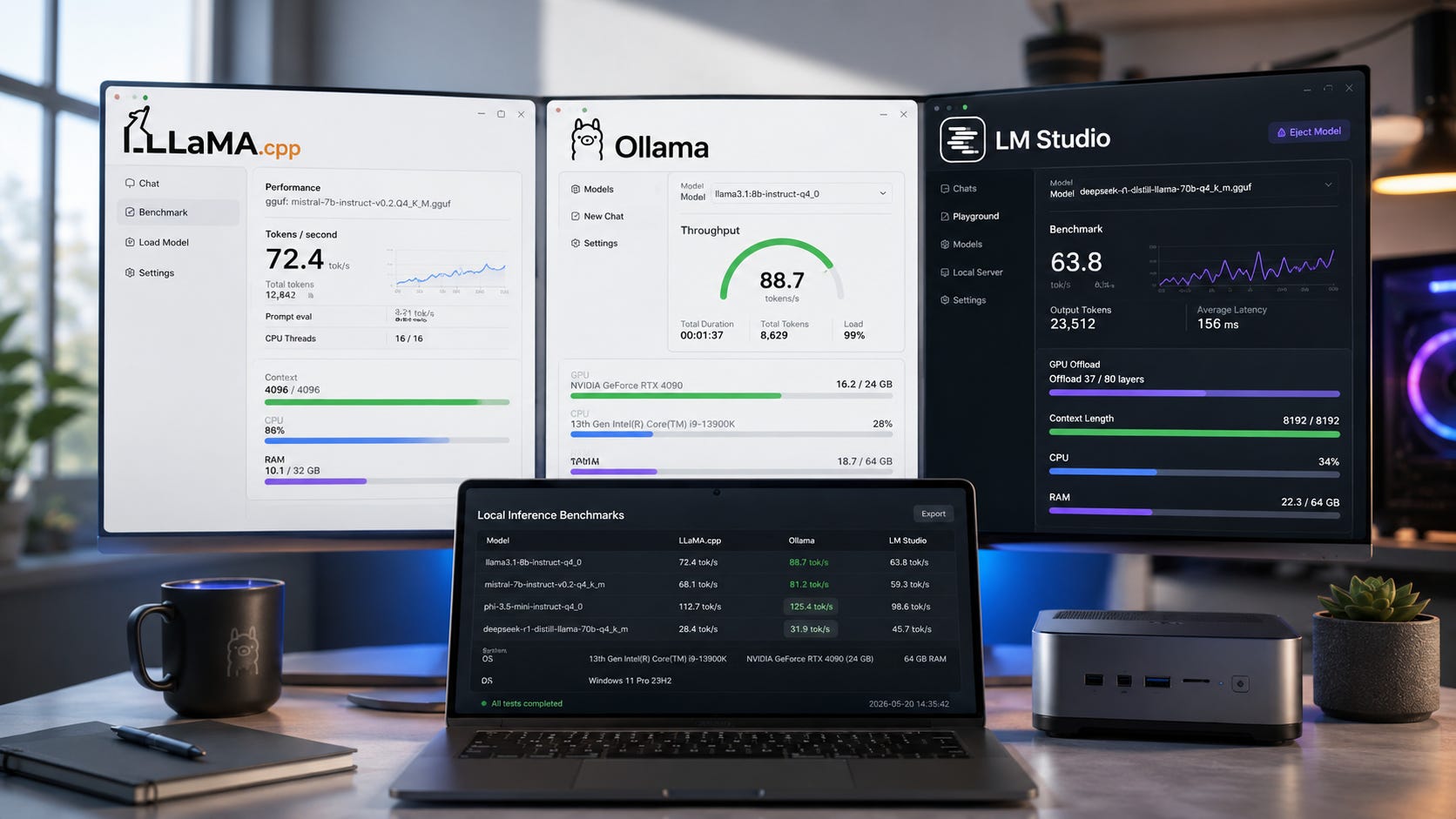
Speed traps that make the wrong tool look slow
Context length
Context length is one of the easiest ways to ruin a fair comparison. The Ollama context length docs say larger context length increases memory requirements, and tasks such as web search, agents and coding tools may need at least 64,000 tokens. That can be useful, but it is also expensive in memory.
Cold starts
A model that is already loaded will feel much faster than one that has to load from disk first. The Ollama FAQ says models are kept loaded for 5 minutes by default and lets API users control that with keep_alive. LM Studio has Idle TTL and Auto-Evict settings for loaded models, and its docs say models loaded through lms load do not have a TTL unless one is set.
GPU offload
A model running fully on GPU feels completely different from one split between GPU and CPU. The llama.cpp repository describes CPU plus GPU hybrid inference for models larger than total VRAM capacity, while the Ollama context length docs tell users to check the PROCESSOR split with ollama ps.
Backend differences
LM Studio can use llama.cpp runtimes and, on Apple Silicon, MLX. The Ollama repository names llama.cpp as a supported backend. The same model can behave differently depending on runtime version, backend, driver path and hardware support.
Prompt processing versus token generation
A local model can be slow before the first token because prompt processing is the bottleneck, then fast after generation begins. It can also do the reverse. The llama-bench docs separate prompt processing from text generation, which is exactly the distinction users need when diagnosing speed.
Best choice by use case
Fastest for one local user
Use llama.cpp.
This is the answer for people who want the highest token speed from a local GGUF model and are willing to tune. It is also the best baseline for deciding whether Ollama or LM Studio is losing speed because of defaults.
Best for local coding agents
Use Ollama first, then test llama.cpp if performance becomes the bottleneck.
Ollama’s local API, model management, Python and JavaScript libraries, and integrations make it the convenient first choice for tools that expect a persistent local model service. The Ollama GitHub page is the best starting point for the project’s local run workflow and supported model ecosystem.
Best for trying many models
Use LM Studio.
The GUI matters when you are comparing models, templates, quants and chat behavior. LM Studio is also strong when you want a local chat app and a local server from the same tool. The LM Studio docs cover the app’s model search, download, local chat and serving features.
Best for a home server
Use Ollama for simplicity or llama.cpp for control.
Ollama is easier to operate as a local service. llama.cpp is better when you want to build the server yourself and tune the runtime. If your home server is part of a broader Open WebUI or private document setup, Popular AI’s private family AI NAS build is a useful next read.
More on local AI servers:

Best for Mac users
Use LM Studio if you want a desktop app. Use Ollama if you want a simple local API. Use llama.cpp if you want maximum control.
LM Studio’s extra Apple Silicon angle is MLX support, and the LM Studio docs make that support part of the platform story. For Mac users, the real buying question is memory and bandwidth, because unified memory can change what feels practical on a local AI machine.
More on local AI for Mac users:

Best for a budget local AI PC
Use Ollama to start, then add llama.cpp when you want more speed and measurement.
On a used RTX 3090 setup, the 24GB VRAM tier gives you far more room before you hit memory pain. Popular AI’s budget local AI PC guide covers why a used RTX 3090 remains a strong first local AI box in 2026.
More on local AI on a budget:

Best for laptops
Use LM Studio if you want the friendliest GUI and easier model testing. Use Ollama if your laptop is going to act like a local API endpoint. Popular AI’s best laptops for local LLMs guide covers Ollama and LM Studio laptop choices by VRAM and unified memory.
More on self-hosted AI on a laptop:

When none of these is the right tool
llama.cpp, Ollama and LM Studio are excellent local AI tools, but they are not always the right answer for high-concurrency serving.
If you need production-style multi-user throughput, batching and GPU saturation, look at vLLM or similar serving stacks instead. vLLM describes itself as a high-throughput and memory-efficient inference and serving engine, and its docs include an OpenAI-compatible server path.
That does not make vLLM the better desktop local AI choice. It means the workload changed. One person chatting with a local model is a different problem from serving dozens of requests.
Practical recommendation
Choose based on the job, not brand loyalty.
Pick llama.cpp when raw speed is the main goal, when you want to benchmark properly, when CLI flags do not scare you, when exact GGUF control matters and when you are tuning CPU, CUDA, Metal, Vulkan, HIP or hybrid offload.
Pick Ollama when you want a local model server quickly, when you are building with Python, JavaScript, Open WebUI, coding tools or local agents, when you want simple model pulls and Modelfiles, and when you prefer a stable local API over direct runtime tuning.
Pick LM Studio when you want the best desktop local LLM experience, when you test lots of models, when you want model search, downloads, chat, presets and server mode in one app, when you are on Apple Silicon and want access to both llama.cpp and MLX paths, and when you want local document chat without building the whole stack yourself.
FAQ
Is llama.cpp faster than Ollama?
Usually, yes, when the same model file, quant, context size, backend and offload settings are used and llama.cpp is tuned well. Ollama is built for convenience and model management, while llama.cpp exposes more direct runtime control and benchmarking tools through
llama-bench.
Is LM Studio faster than Ollama?
Sometimes. It depends on hardware, backend, model file, runtime version, context size, GPU offload and settings. LM Studio can use llama.cpp and MLX, while Ollama uses a model-management and server layer around its supported backends. The only honest answer is to test the same model and quant under the same conditions.
Does Ollama use llama.cpp?
The Ollama GitHub README lists llama.cpp as a supported backend. That does not mean every Ollama run behaves exactly like a manually tuned llama.cpp command, because Ollama adds its own model packaging, server behavior, defaults and management layer.
Can LM Studio run as a server?
Yes. LM Studio can run a local server from the Developer tab or with
lms server start, and its Open Responses announcement shows local models working through LM Studio’s OpenAI-compatible API path. LM Studio also has native REST endpoints for model management.
Which one is best for privacy?
For pure local control, llama.cpp is the cleanest because it is a local runtime and you manage the files yourself. Ollama and LM Studio can also be private for local use, according to the Ollama privacy policy and LM Studio privacy policy, but users should distinguish local execution from model downloads, update checks, Hub features, remote links, cloud-hosted models and support requests.
Which one should beginners use?
Most beginners should start with LM Studio if they want a desktop app or Ollama if they want a simple local API. Move to llama.cpp when speed, benchmarking or exact control becomes more important than convenience.
Final recommendation
For 2026, the best default stack is to use LM Studio for discovering, downloading and testing models, Ollama for app integrations, local APIs and daily agent workflows, and llama.cpp for speed testing, tuning and serious control.
If the article has to answer one phrase, llama.cpp vs Ollama vs LM Studio speed, the winner is llama.cpp. If the question is which tool most people should use first, the answer is Ollama for server workflows and LM Studio for GUI workflows.
The right move is not to pick one religion. Use the stack that gives you the most useful local capability with the least dependency and the fewest hidden bottlenecks.
Explore more from Popular AI:
Start here | Local AI | Fixes & guides | Builds & gear | Popular AI podcast
Which local LLM tool are you using most right now: llama.cpp, Ollama, or LM Studio?